

Text / Media
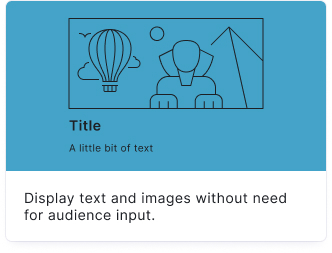
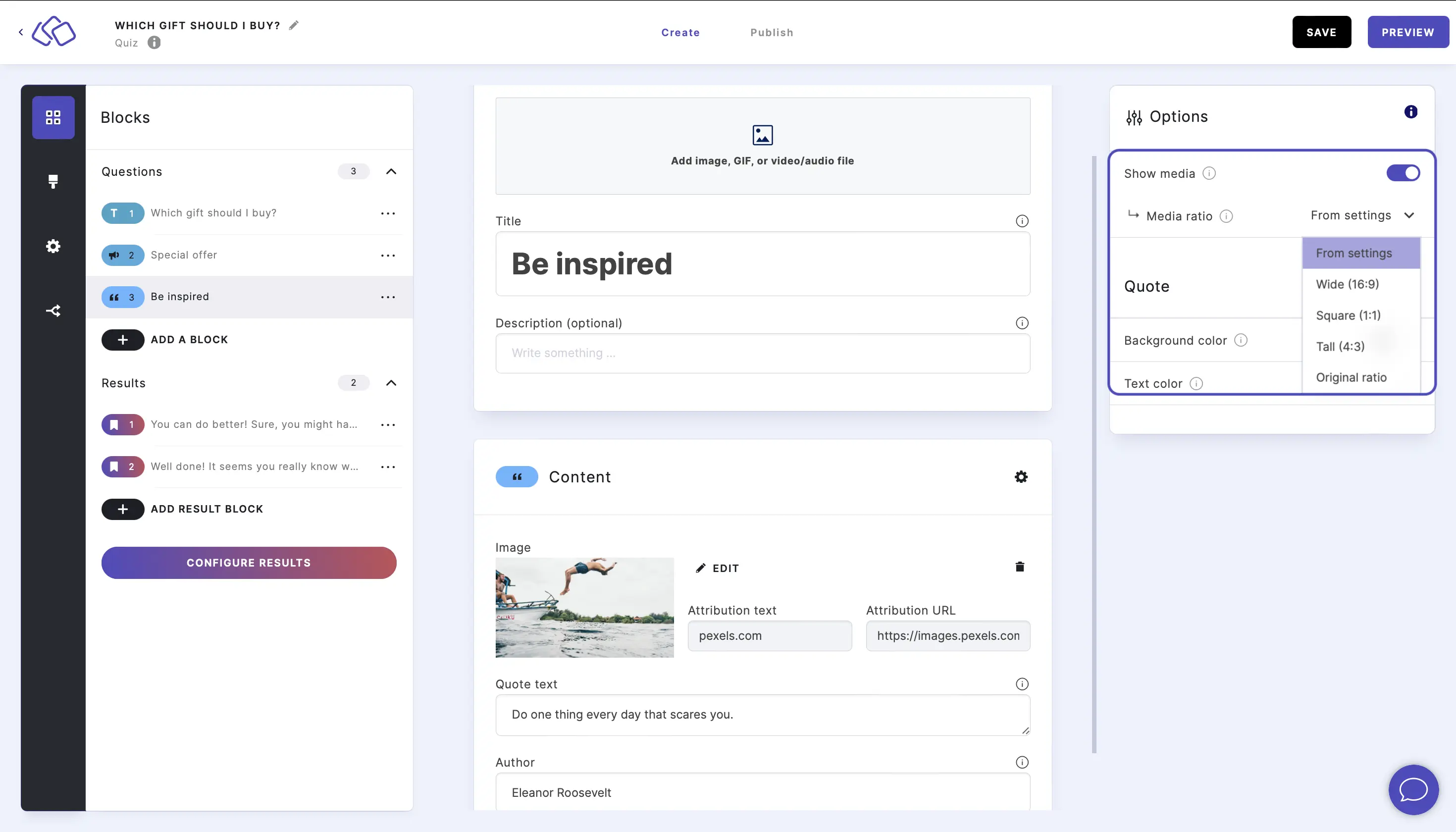
Display text and media – an image, GIF, or video/audio file – without asking a question. In a story, each Text / Media block becomes one page; elsewhere, use it to inform or entertain your audience between questions.
Setup
- Click on ADD A BLOCK and select Text / Media.
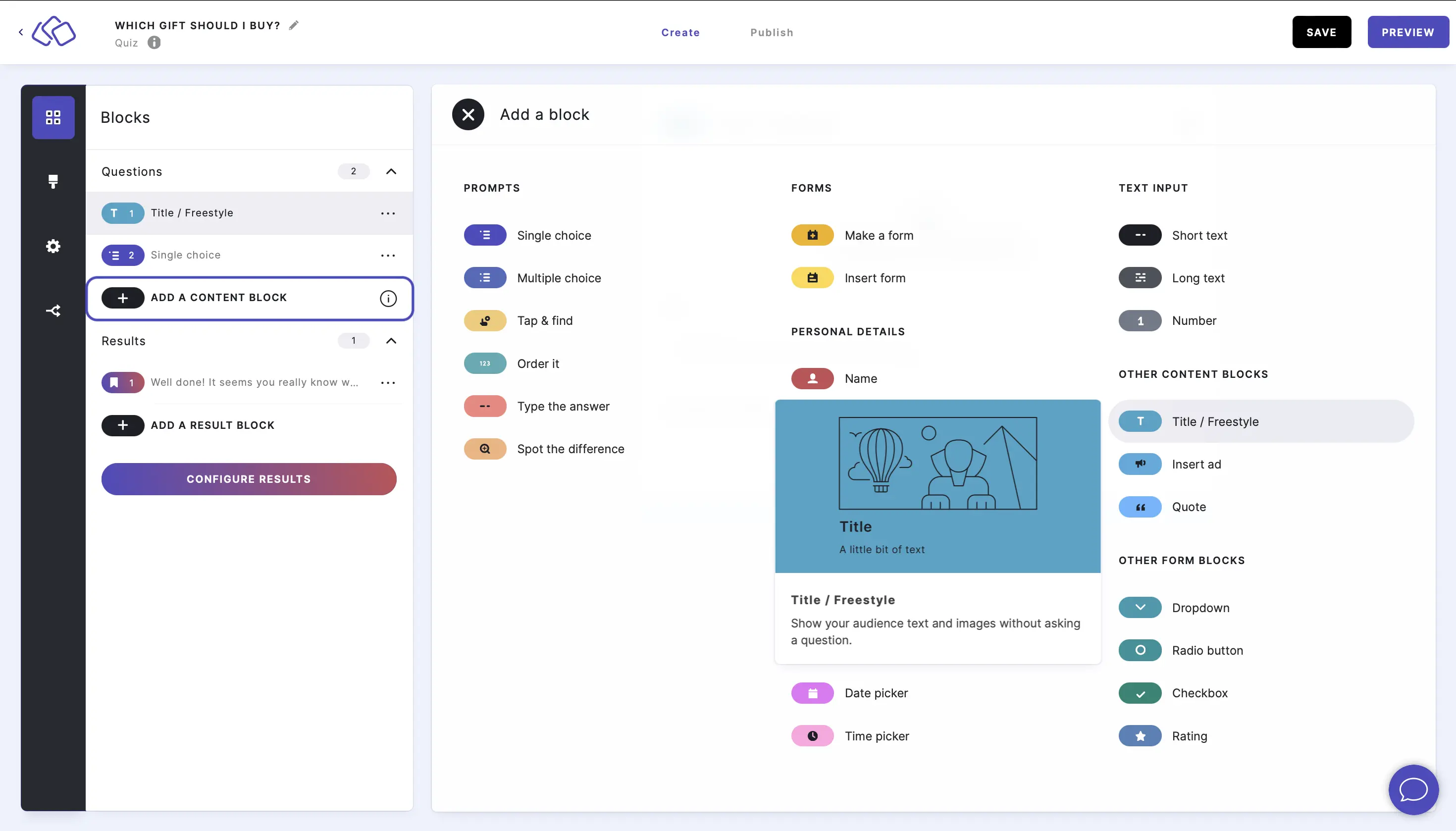
- Enter a headline in the Title field and optional text in the Description field.
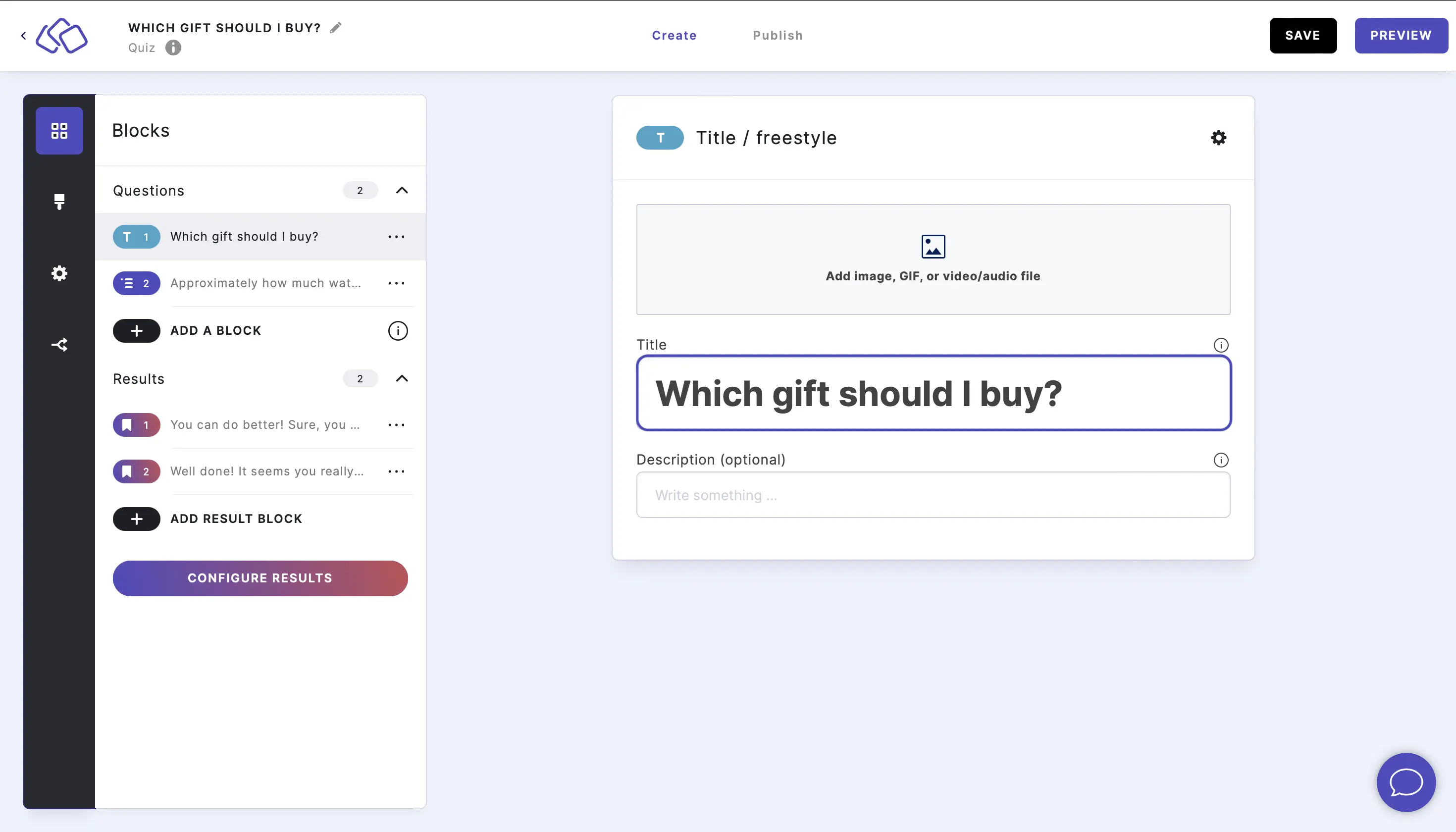
- Add an image, GIF, or video/audio file by clicking on Add image, GIF, or video/audio file.
Options
Click on the Options icon on the right of Content to configure the following settings.
| Option | Description | Default |
|---|---|---|
| Show media | Toggle to show or hide the media area. | ON |
| Media ratio | Choose the aspect ratio: Wide (16:9), Square (1:1), Tall (3:4), or use the default from settings. | From settings |
Good to know: Use Text / Media blocks for individual story pages like list items, product features, step-by-step instructions, or any content that benefits from a visual paired with text.