

Tier List
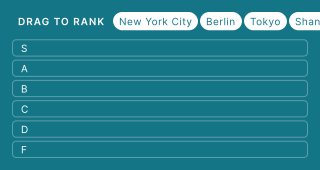
Let your audience rank items into customizable tiers (S, A, B, C, D, F) by dragging and dropping. Perfect for ranking products, preferences, or priorities.
Setup
- Click on ADD A BLOCK and select Tier List.
- Enter a title and description, and add an image by clicking on Add image, GIF, or video/audio file (all optional).
- Under Tiers, define the ranking categories for your tier list. By default, six tiers are provided: S, A, B, C, D, and F, each with a distinct color.
- Edit each tier's label by clicking on the text field next to the color.
- Reorder tiers by dragging the handle on the left.
- Delete a tier by clicking the trash icon on the right.
- Add more tiers by clicking ADD TIER.
- Under Items, add the options your audience will sort into the tiers. Click on ADD OPTION to create new items. Each item can have a title and an image.
- To delete or copy an item, click on the three dots on the item tile.
Options
Click on the options icon on the right to configure the following settings.
Media
| Option | Description | Default |
|---|---|---|
| Show media | Toggle to show or hide the block's main image. | ON |
| Media ratio | Choose the aspect ratio: From settings, Wide 16:9, Square 1:1, Tall 3:4, or Original ratio. | From settings |
Required
| Option | Description | Default |
|---|---|---|
| Required | When enabled, your audience must answer this block before proceeding. When disabled, a "Skip" button appears. | ON |
Answers
| Option | Description | Default |
|---|---|---|
| Show media | Toggle to show or hide images on each tier list item. | ON |
| Media orientation | Choose the aspect ratio for item images: Wide 16:9, Square 1:1, Tall 3:4, or Original ratio. | Wide (16:9) |
| Show title | Toggle to show or hide the title text on each tier list item. | ON |
Show media on items
Go to the options icon on the right of Answer Content.
Enable Show media to allow images on each tier list item. Select a Media orientation from the dropdown menu (default: Wide 16:9).
Show item titles
Go to the options icon on the right of Answer Content.
Enable or disable Show title to control whether item titles are displayed alongside images.
Related articles: