

Upvote
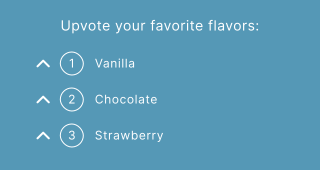
A poll combined with a list (listicle). Your audience can upvote their favorite entries and watch the list reorder automatically by popularity. Great for community-driven rankings and "Top 10" lists.
Setup
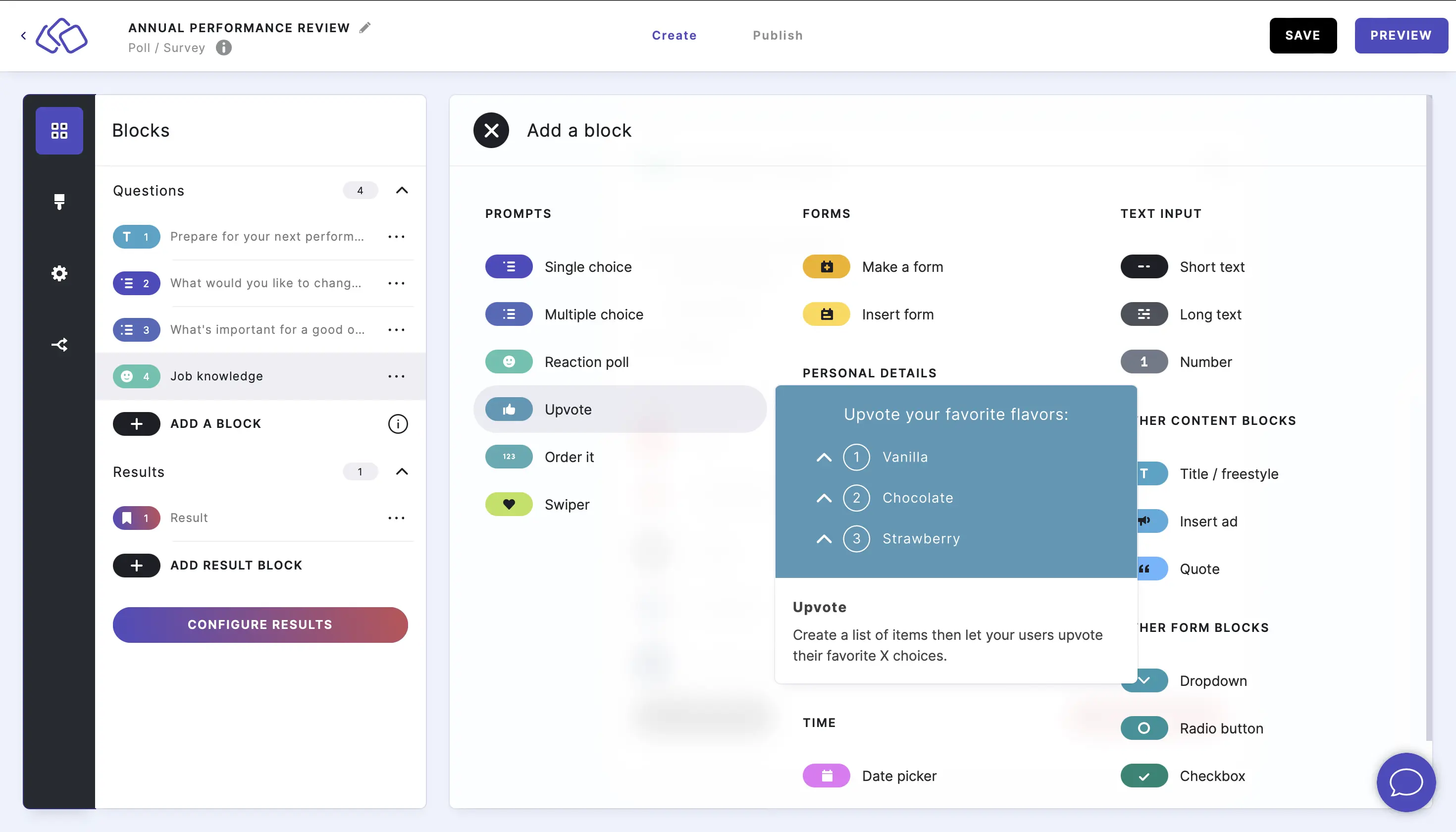
- Click on ADD A BLOCK and select Upvote.
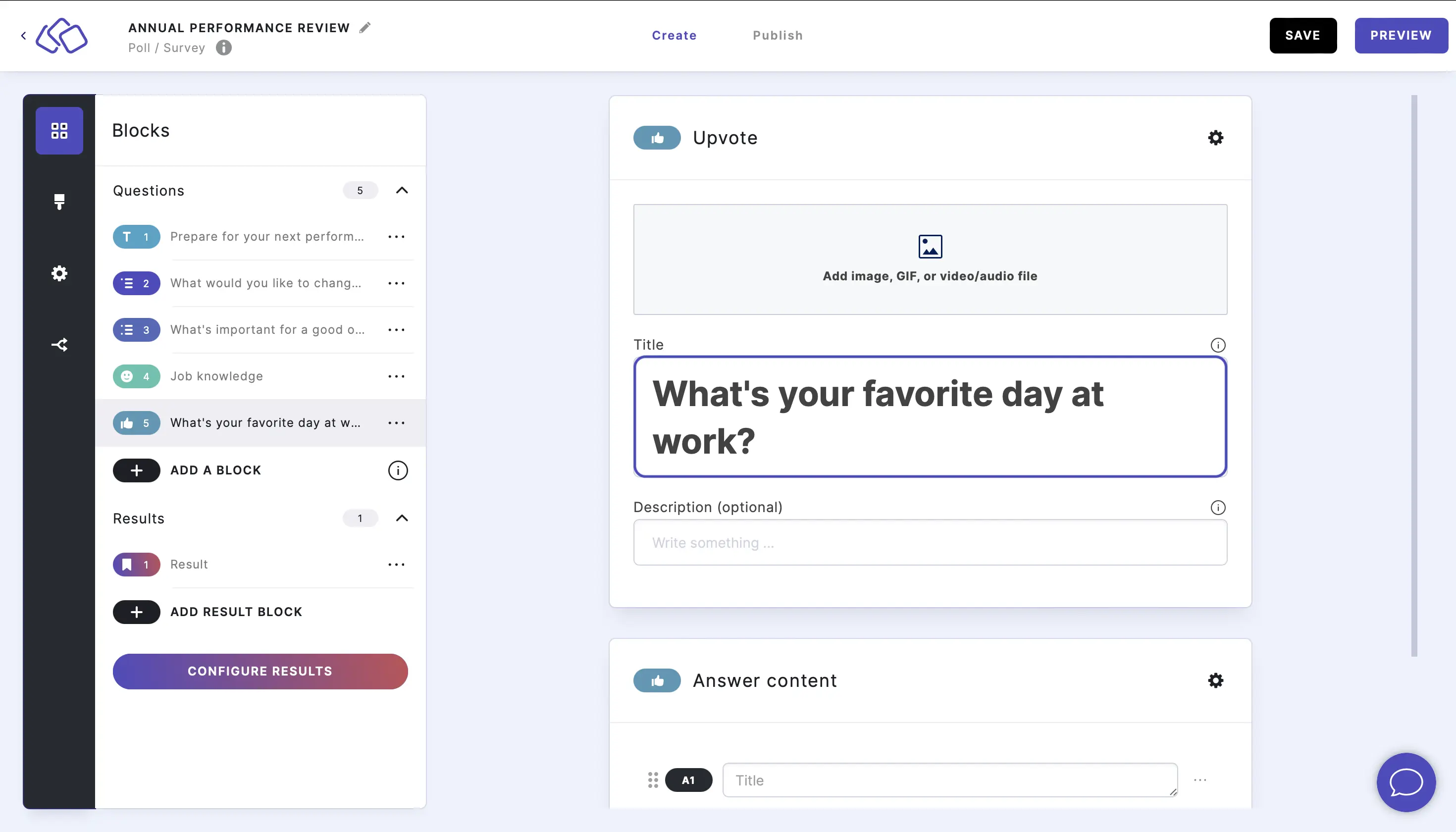
- Type a question or text into the Title field.
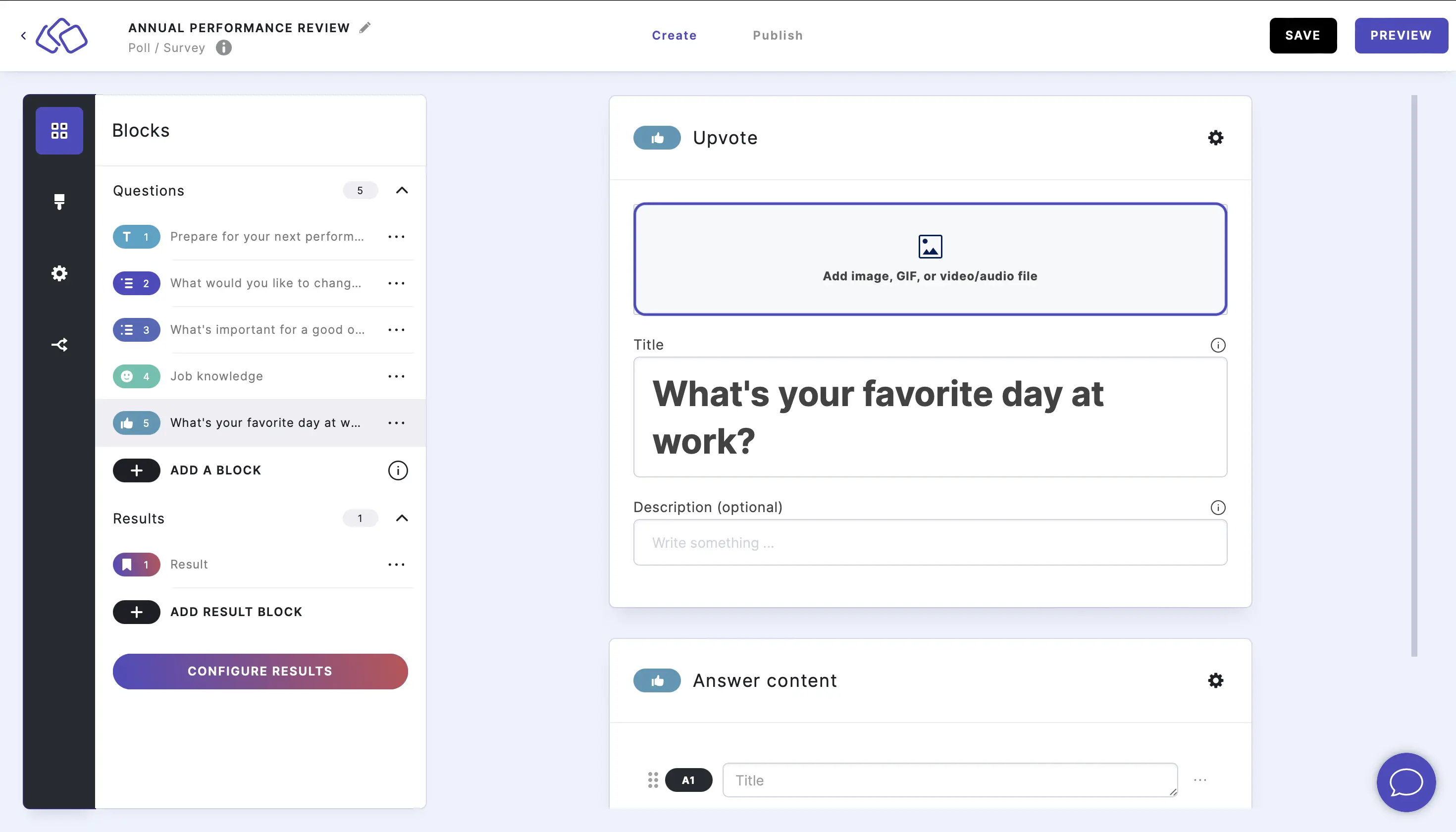
- Add an image by clicking on Add image, GIF, or video/audio file.
- Insert the answers.
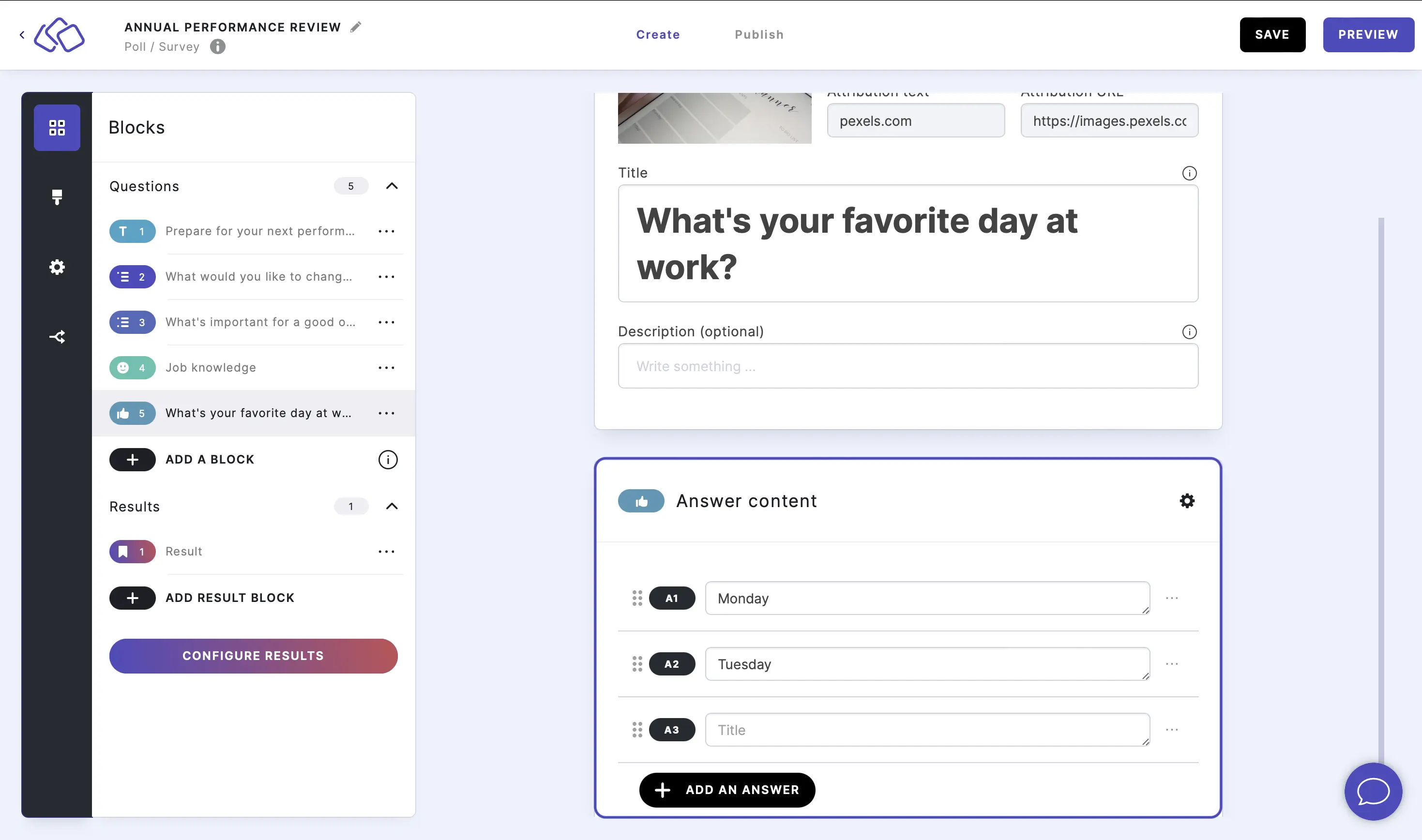
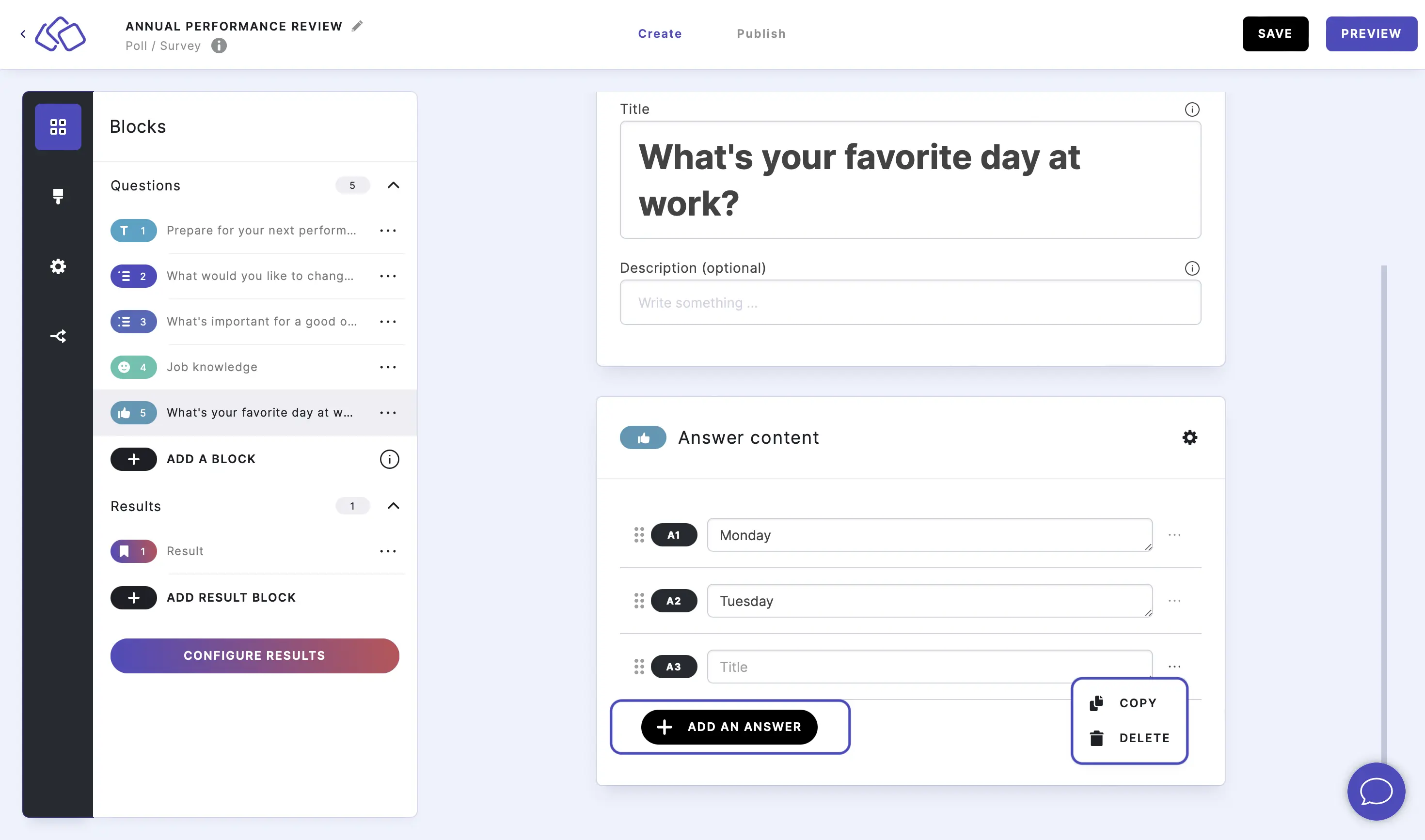
- Add more answers by clicking on ADD AN ANSWER, delete answers by clicking on the three dots next to the answer and selecting DELETE.
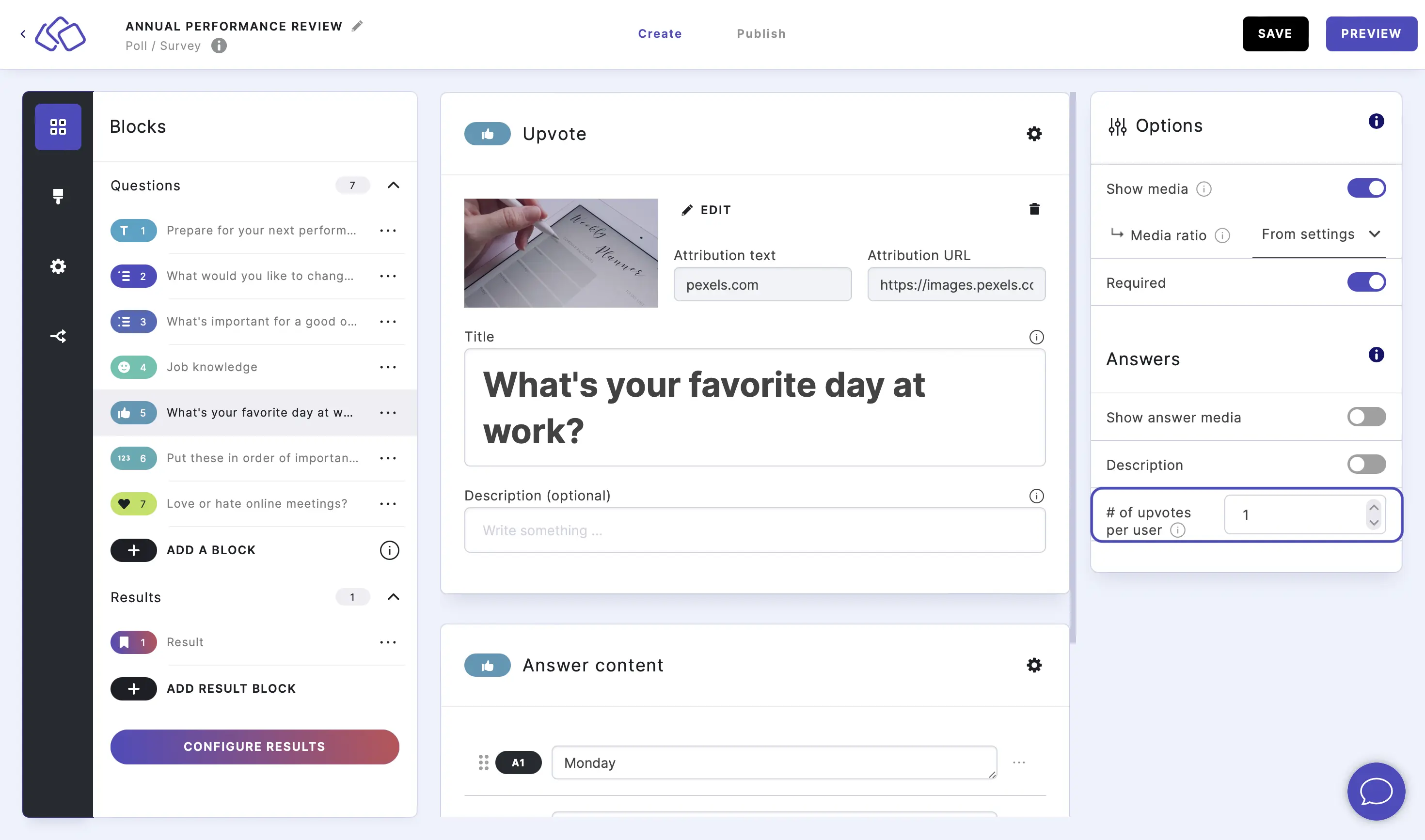
- Set how many times your audience can vote by going to the options icon on the right of Answer Content and typing or using the up and down arrows to change the number.
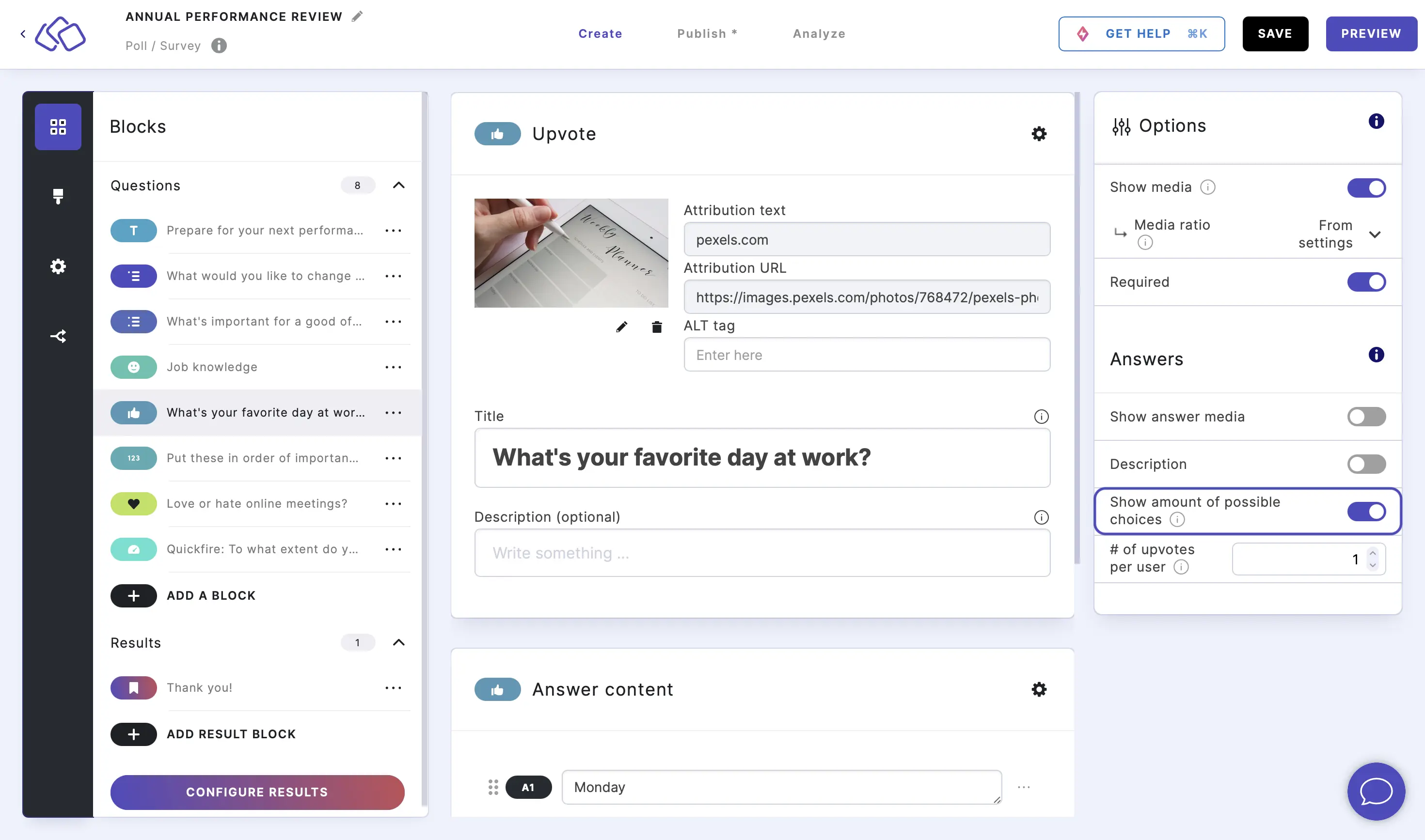
- To show your audience how many remaining options they can still select, go to the options icon on the right of Answer content and enable Show amount of possible choices.
Options
Click on the options icon on the right to configure the following settings.
Media
| Option | Description | Default |
|---|---|---|
| Show media | Toggle to show or hide the block's main image. | ON |
| Media ratio | Choose the aspect ratio: From settings, Wide 16:9, Square 1:1, Tall 3:4, or Original ratio. | From settings |
Required
| Option | Description | Default |
|---|---|---|
| Required | When enabled, your audience must answer this block before proceeding. When disabled, a "Skip" button appears. | ON |
Answers
| Option | Description | Default |
|---|---|---|
| Show answer media | Toggle to show or hide images on each answer choice. | OFF |
| Description | Show a description field below each answer. | OFF |
| Show amount of possible choices | Show your audience how many remaining upvotes they have left. | ON |
| # of upvotes per user | The number of upvotes each user can distribute across the answer choices. | 1 |
| Real-time voting view | When enabled, your audience sees the list reorder live as votes come in, showing community-wide voting results in real time. | ON |
Real-time voting view
Enable Real-time voting view to let your audience see the list reorder live as votes come in. This creates an engaging, dynamic experience where your audience can watch the rankings shift in real time based on community votes.
Go to the options icon on the right of Answer Content and enable Real-time voting view.
Show amount of possible choices
Enable Show amount of possible choices to display a counter showing your audience how many remaining upvotes they have left.
Set the number of upvotes per user
Use # of upvotes per user to control how many upvotes each participant can distribute. Set this to 1 to force your audience to pick a single favorite, or increase it to allow them to upvote multiple entries.
Related articles: