

Interactive Graphic
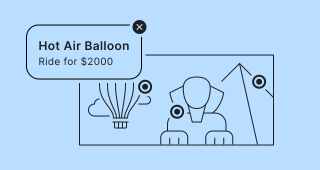
Add hotspots to an image your audience can interact with. A hotspot can open an info pop-up with more details, drill down to another image, or open an external link. Perfect for product tours, illustrated maps, infographics, or any visual that benefits from layered information.
Setup
- Click on ADD A BLOCK and select Interactive Graphic.
- Add a heading in the Title field and optional supporting text in the Description field.
- Click on Add image, GIF, or video/audio file to upload your main image.
- Click anywhere on the image to place a hotspot. Hotspots are numbered automatically (#1, #2, …) in the order you add them, and can be dragged to reposition. Click the Edit details button on a hotspot to jump to its configuration field below.
- Choose the hotspot shape – hover over a hotspot on the image to switch between:
- Dot – a single point.
- Circle or Rectangle – an area you drag out to cover a region of the image. Resize it with its handles, or set an exact size from the toolbar.
Dots and areas take their color from the block options (see below). - For each hotspot, fill in the field that appears below the image:
- Label – short text shown next to the hotspot on hover.
- Title – bold heading shown at the top of the info pop-up.
- Description – optional body text shown in the info pop-up.
- Media – optional image, GIF, video, or audio shown in the info pop-up.
- Call-to-action button (optional) – add Button text and a URL to show a button inside the info pop-up. It opens in a new tab.
- Set what happens on click or tap with the Action on hotspot click/tap dropdown:
- Show info pop-up – opens a pop-up with the Title, Description, Media, and optional CTA button you set.
- Switch to a different image – drills down to another image. Upload additional images first; each gets an editable heading (default Image #x).
- Open external URL – sends your audience to any URL.
mailto:links work too.
- Use the toolbar above each hotspot field to access:
- Coordinates – enter an exact X and Y position for pixel-perfect placement.
- Size – for Circle and Rectangle hotspots, enter an exact Width and Height.
- Highlight on Map – scrolls up to the image and highlights the hotspot's location.
- Delete – removes the hotspot.
- Collapse – collapses the hotspot field.
The hotspot's field header shows its number – plus a link icon if the hotspot links out to a drill-down image or external URL – along with its label.
Drill-down rules
- Hotspots on a drill-down image can't lead to yet another image – only one drill-down layer is allowed.
- Circular navigation between images is prevented automatically.
- A drill-down image can only be deleted when no hotspots still reference it.
- A hotspot can't be completely empty – at minimum, add a Title.
Audience view
- The image is shown full-width with a toolbar to zoom and pan. On mobile, your audience can pinch and drag; on desktop, the +/- buttons or ⌘+scroll work the same way.
- Dot hotspots appear as pulsing points; Circle and Rectangle areas are shown as shaded regions and don't pulse. On desktop, hovering a hotspot shows its label as a tooltip.
- Hotspot numbers aren't shown to your audience by default – a number only appears when several hotspots sit close together and are grouped. Tapping a group zooms in until they separate.
- Tapping a hotspot opens its info pop-up, swaps to its drill-down image, or opens its external URL – depending on what you configured.
- When a drill-down image is open, a back button with a thumbnail of the previous image appears in the toolbar.
Block options
Click on the Options icon on the right of Interactive Graphic to configure the following settings.
| Option | Description | Default |
|---|---|---|
| Hotspot background | Background color of the hotspot dots and areas. | #1A1A64 |
| Hotspot text | Text color of the hotspot number and the hover label. | #FFFFFF |
| Show media in info pop-up | Toggle to show or hide media inside the info pop-up. | ON |
| Media ratio (Info pop-up) | Aspect ratio for media inside the pop-up. Hotspot dots and drill-down images always use their original ratio. | Wide (16:9) |
Table of Contents