

Order it
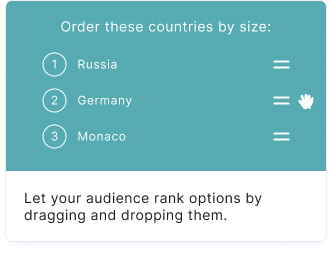
Your audience puts answers in their preferred order or the correct order. Ideal for ranking surveys like "Tell us what the best to worst workplace benefits are for employees."
Setup
- Click on ADD A BLOCK and select Order-it block.
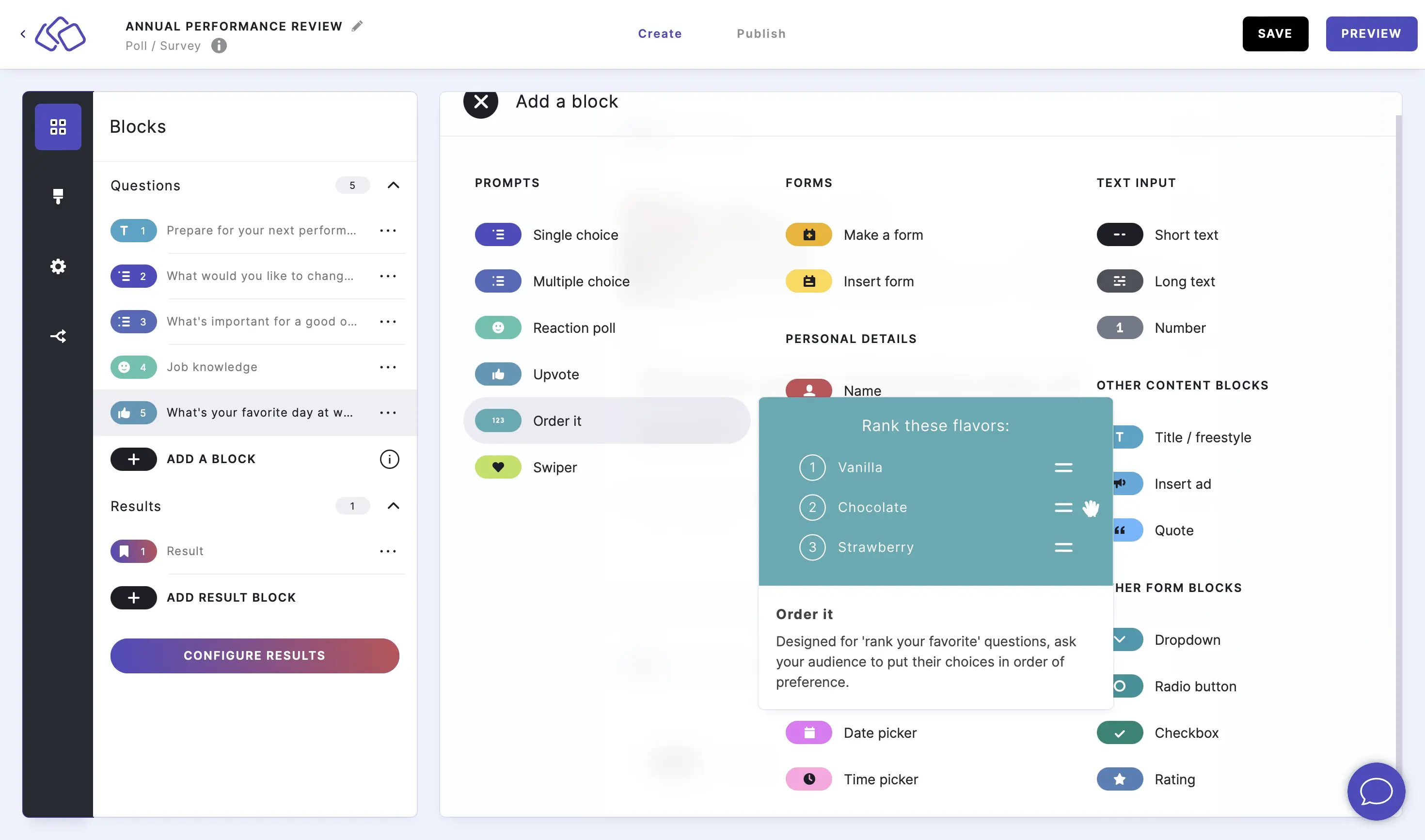
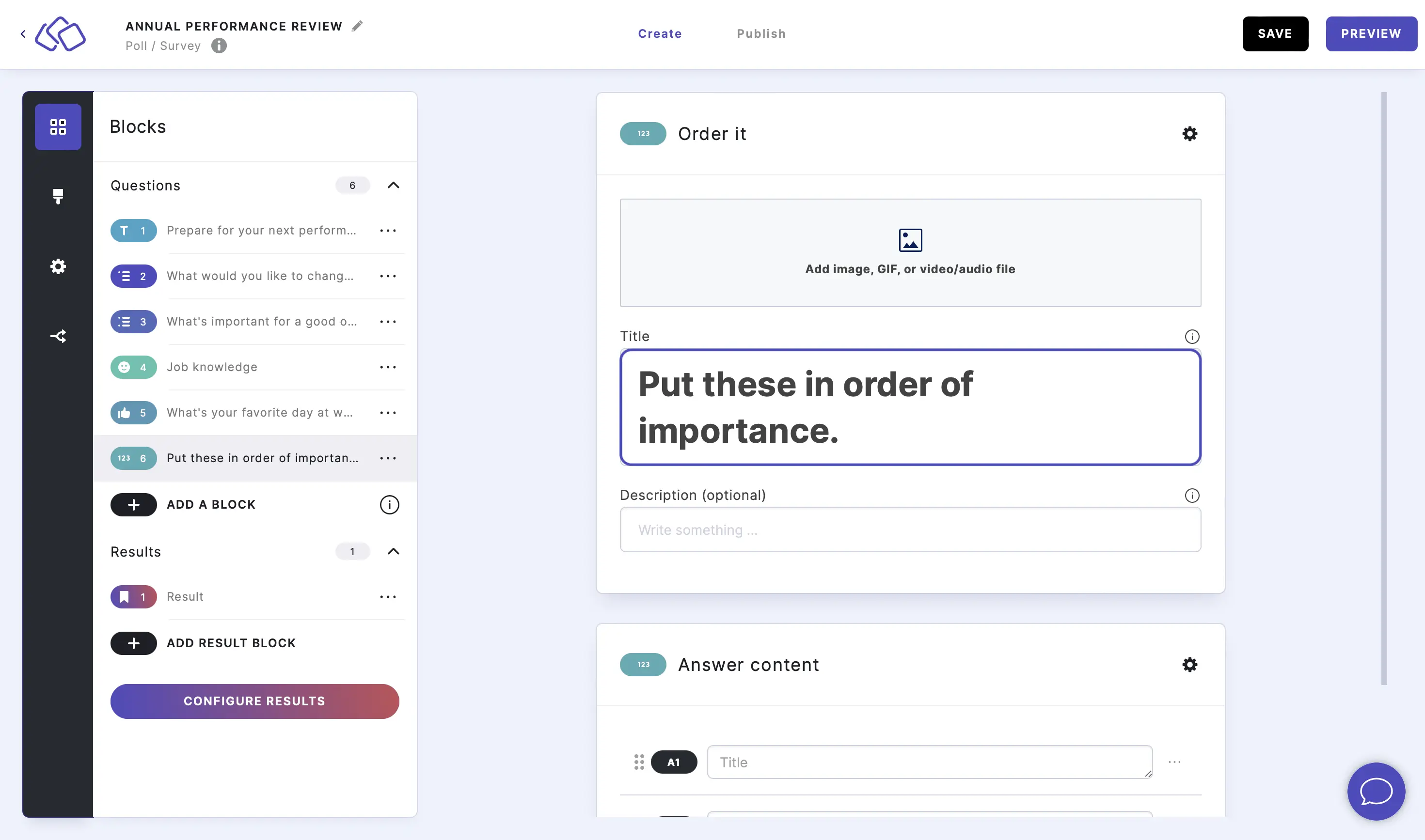
- Insert a question into the Title field.
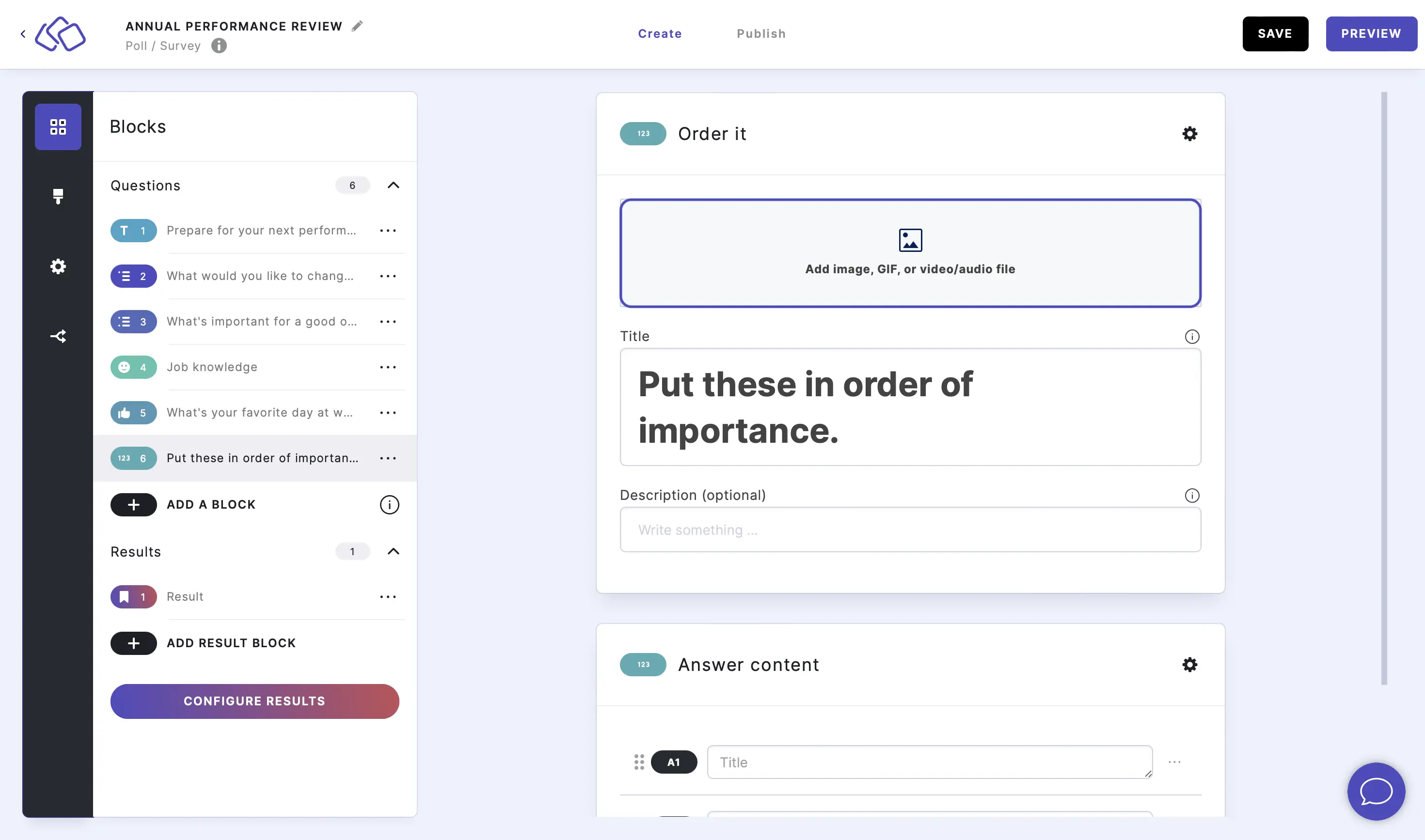
- Add an image by clicking on Add image, GIF, or video/audio file.
- Insert the answers.
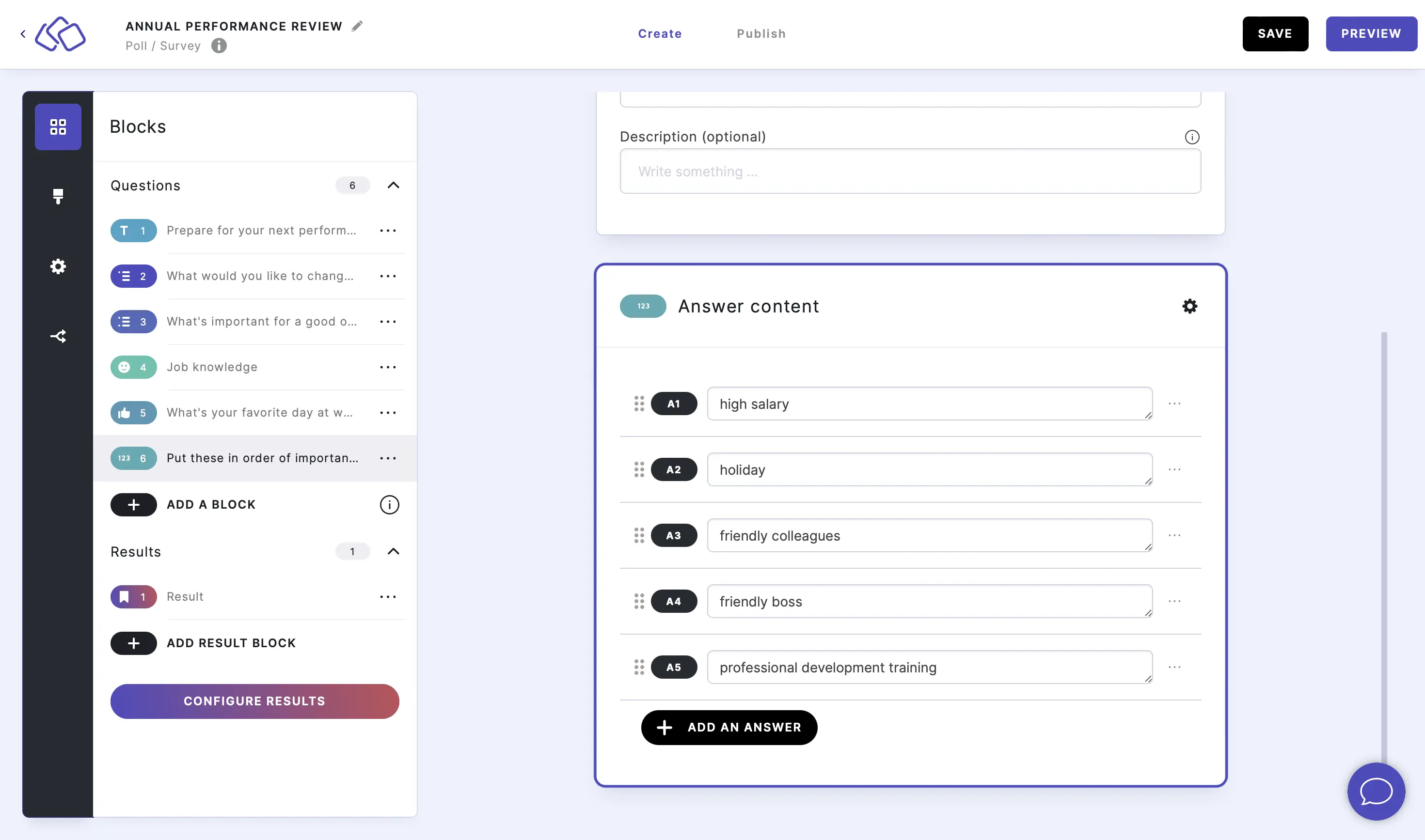
- Add more answers by clicking on ADD AN ANSWER, delete answers by clicking on the three dots next to the answer and selecting DELETE.
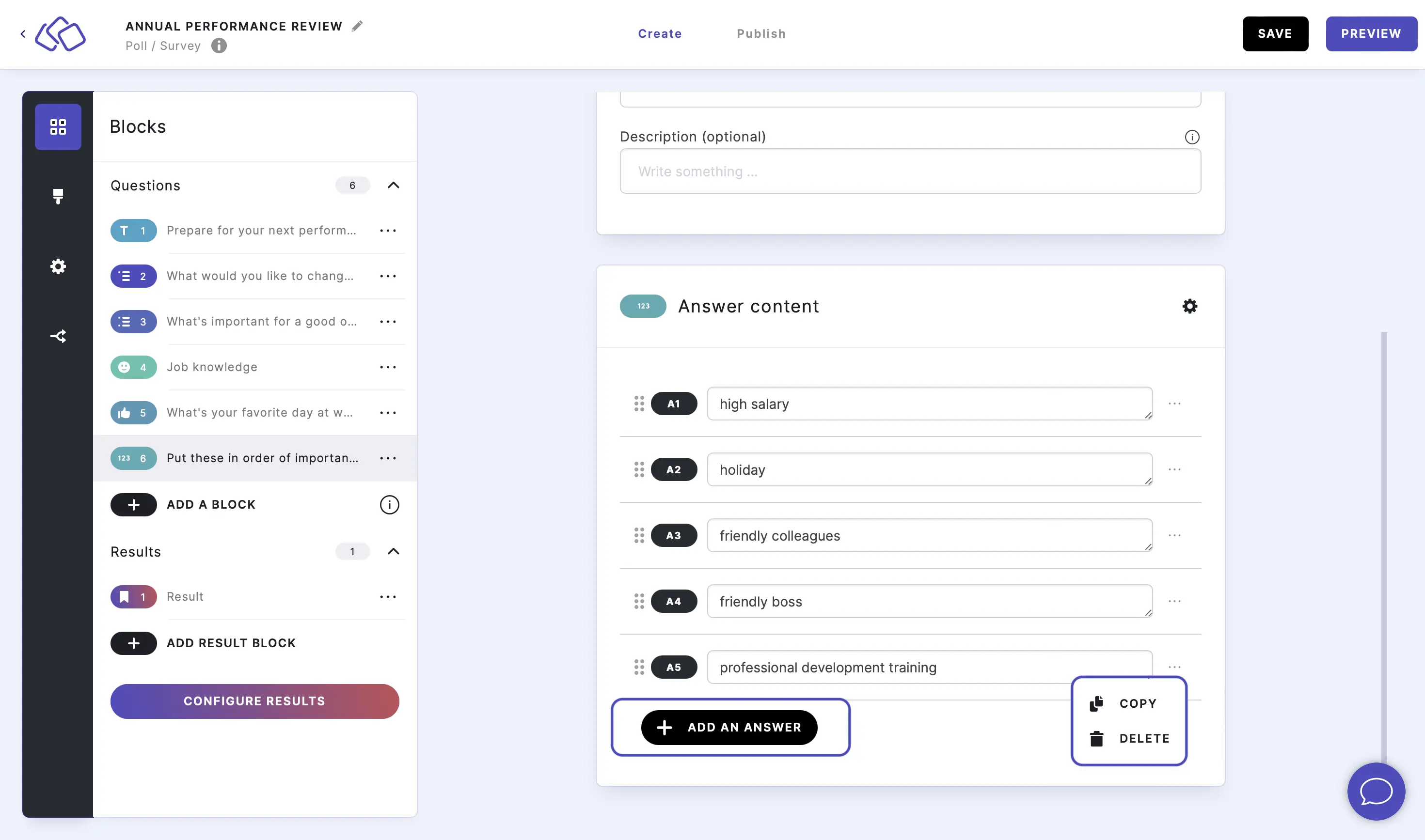
- Enable ranking by going to the options icon on the right of Answer Content and enabling Rank order. Select a format and order.
Options
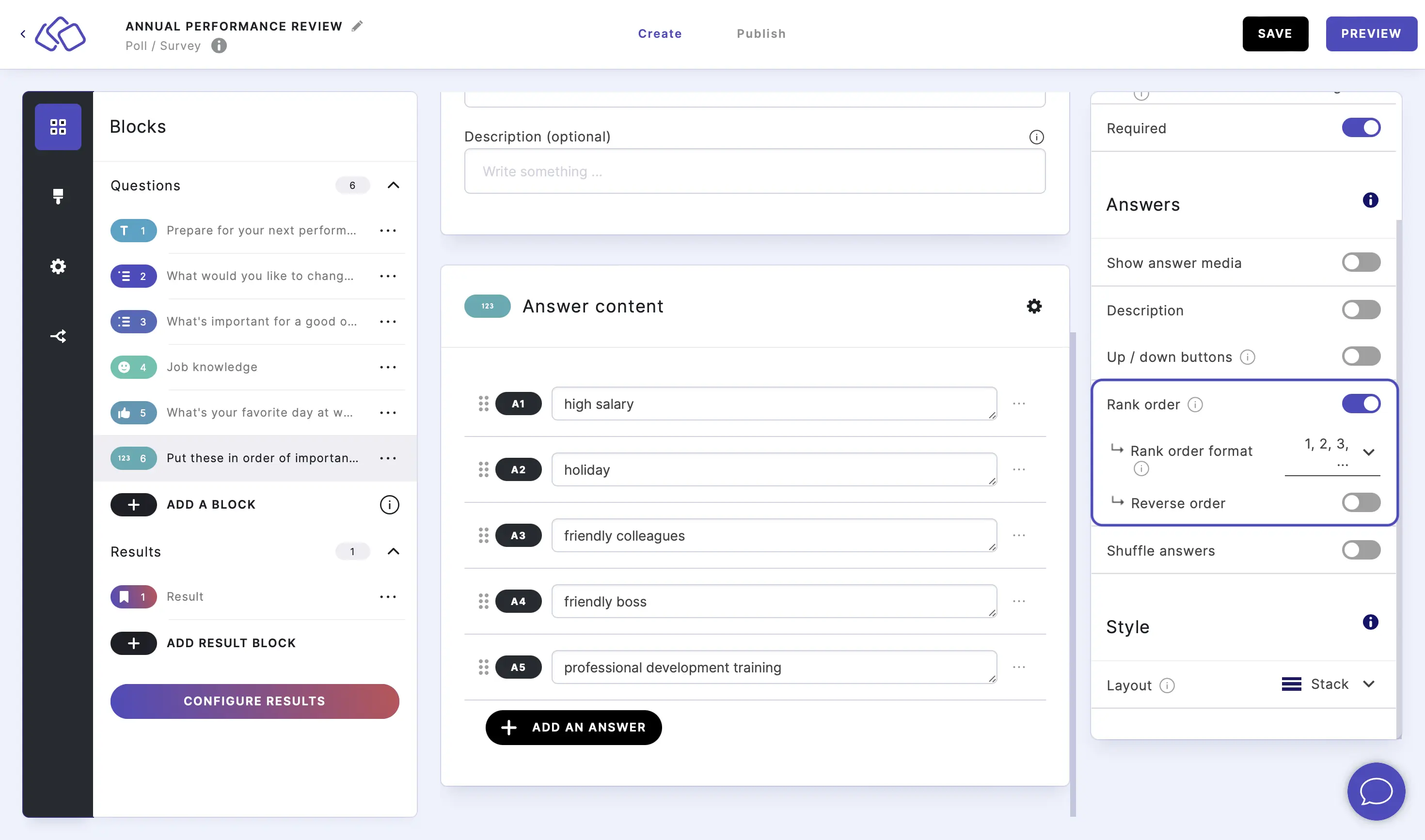
Click on the options icon on the right to configure the following settings.
Media
| Option | Description | Default |
|---|---|---|
| Show media | Toggle to show or hide the block's main image. | ON |
| Media ratio | Choose the aspect ratio: From settings, Wide 16:9, Square 1:1, Tall 3:4, or Original ratio. | From settings |
Required
| Option | Description | Default |
|---|---|---|
| Required | When enabled, your audience must answer this block before proceeding. When disabled, a "Skip" button appears. | ON |
Answers
| Option | Description | Default |
|---|---|---|
| Show answer media | Toggle to show or hide images on each answer choice. | OFF |
| Description | Show a description field below each answer. | OFF |
| Up / down buttons | When enabled, arrow buttons appear next to each answer so your audience can reorder by clicking up/down instead of drag-and-drop only. | ON |
| Rank order | When enabled, numbered ranks are displayed next to each answer. Choose a format (numbers, letters, or Roman numerals) and order (ascending or descending). | OFF |
| Shuffle answers | Randomize the order of answers each time the block loads. | OFF |
Up / down buttons
Go to the options icon on the right of Answer Content and enable Up / down buttons to give your audience arrow buttons for reordering instead of drag-and-drop only. This makes the block more accessible and easier to use, especially on mobile devices.
Enable rank order
Go to the options icon on the right of Answer Content and enable Rank order. Select a format and order. This adds numbered ranks next to each answer so your audience can see the position of each item as they reorder the list.
Shuffle answers
Enable Shuffle answers to randomize the answer order each time the block loads. This ensures every participant starts with a different arrangement.
Style
| Option | Description | Default |
|---|---|---|
| Layout | Choose how answers are displayed: Stack (vertical list) or Row (horizontal grid). | Stack |
Related articles: