

Rate it
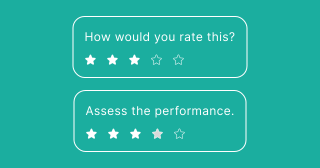
Gather quick feedback on multiple items using stars or score ratings. Your audience rates each item individually, and you can optionally reorder items by rating after submission.
Setup
- Click on ADD A BLOCK and select Rate it.
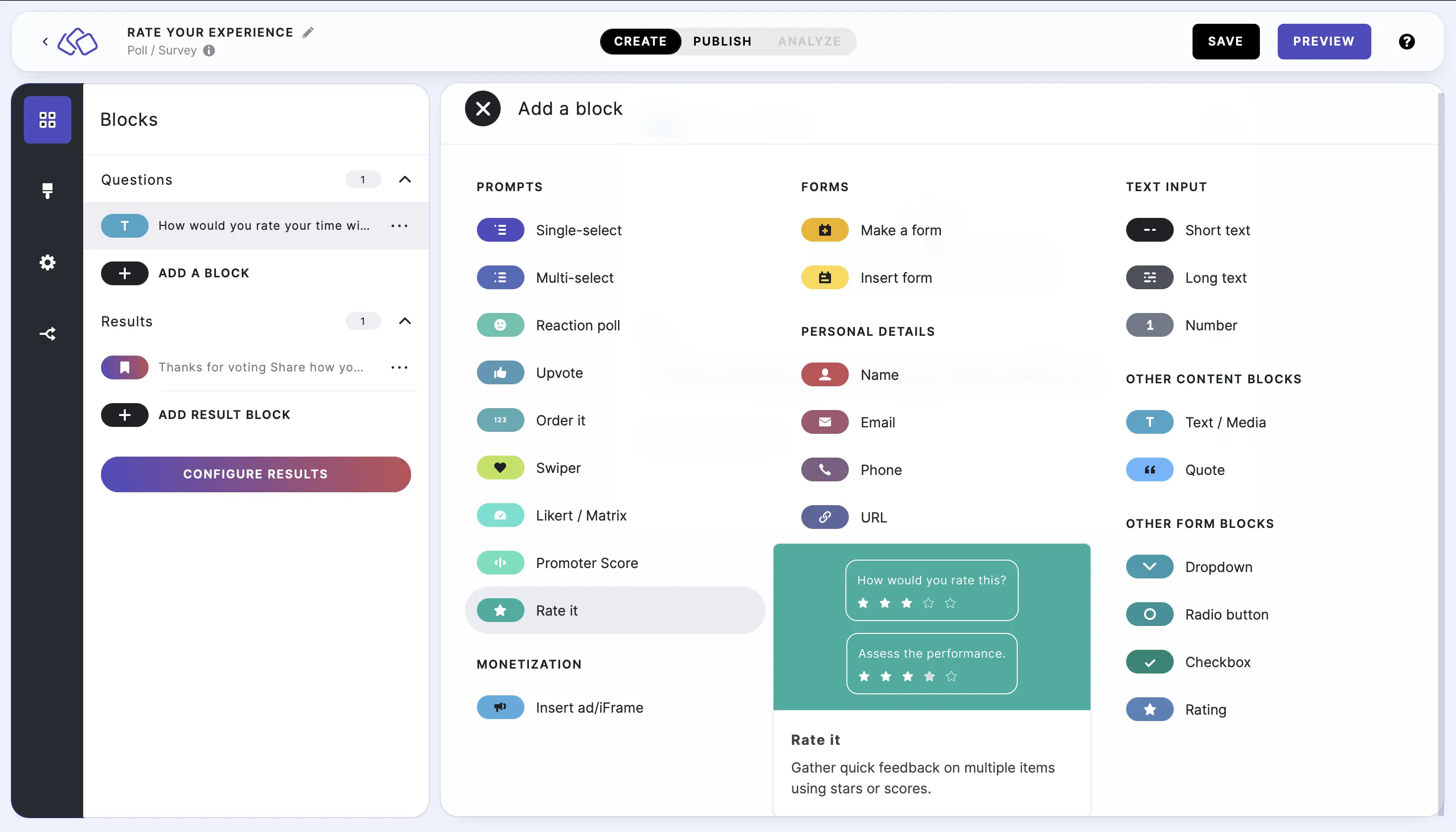
- Type a question or text into the Title field.
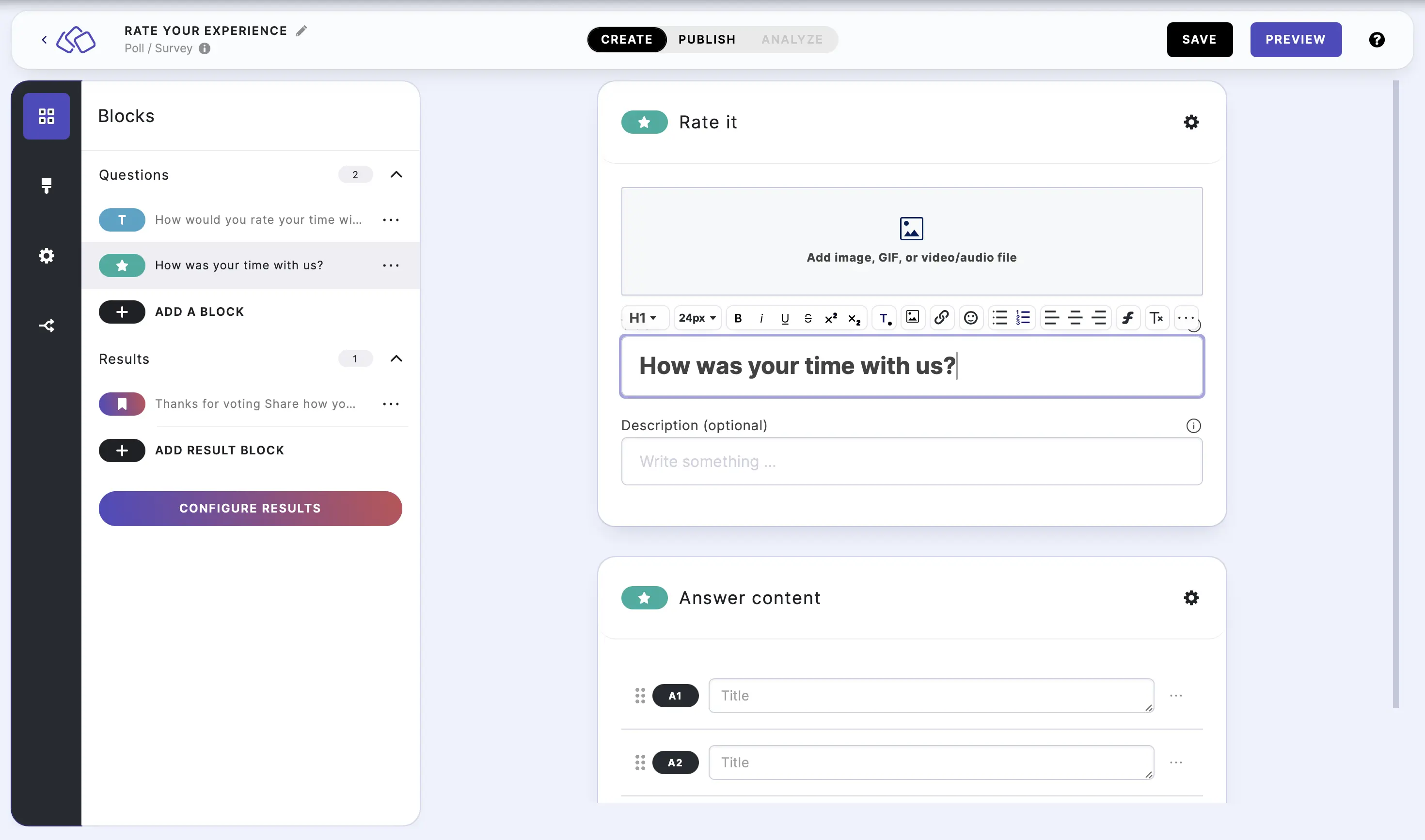
- Add an image by clicking on Add image, GIF, or video/audio file.
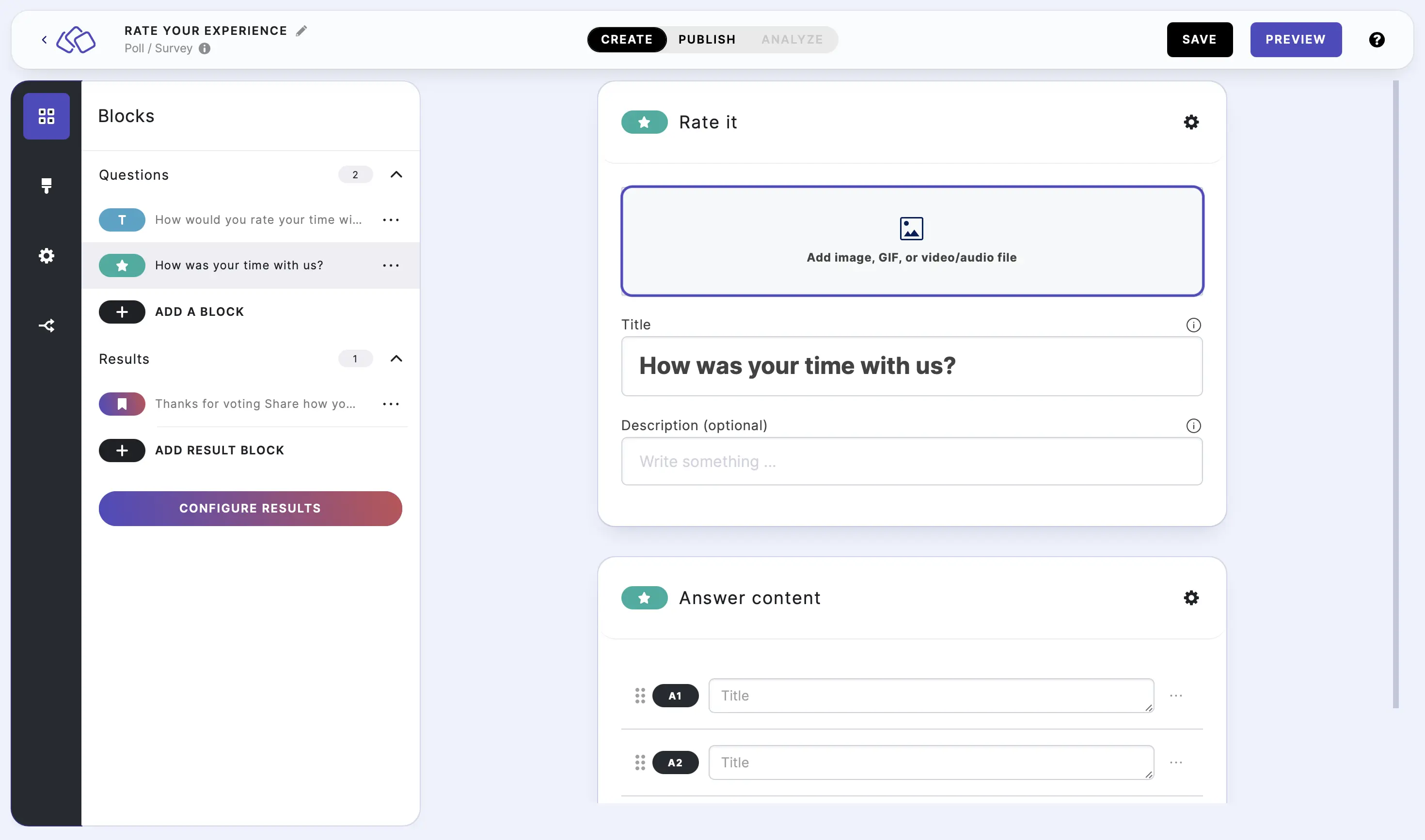
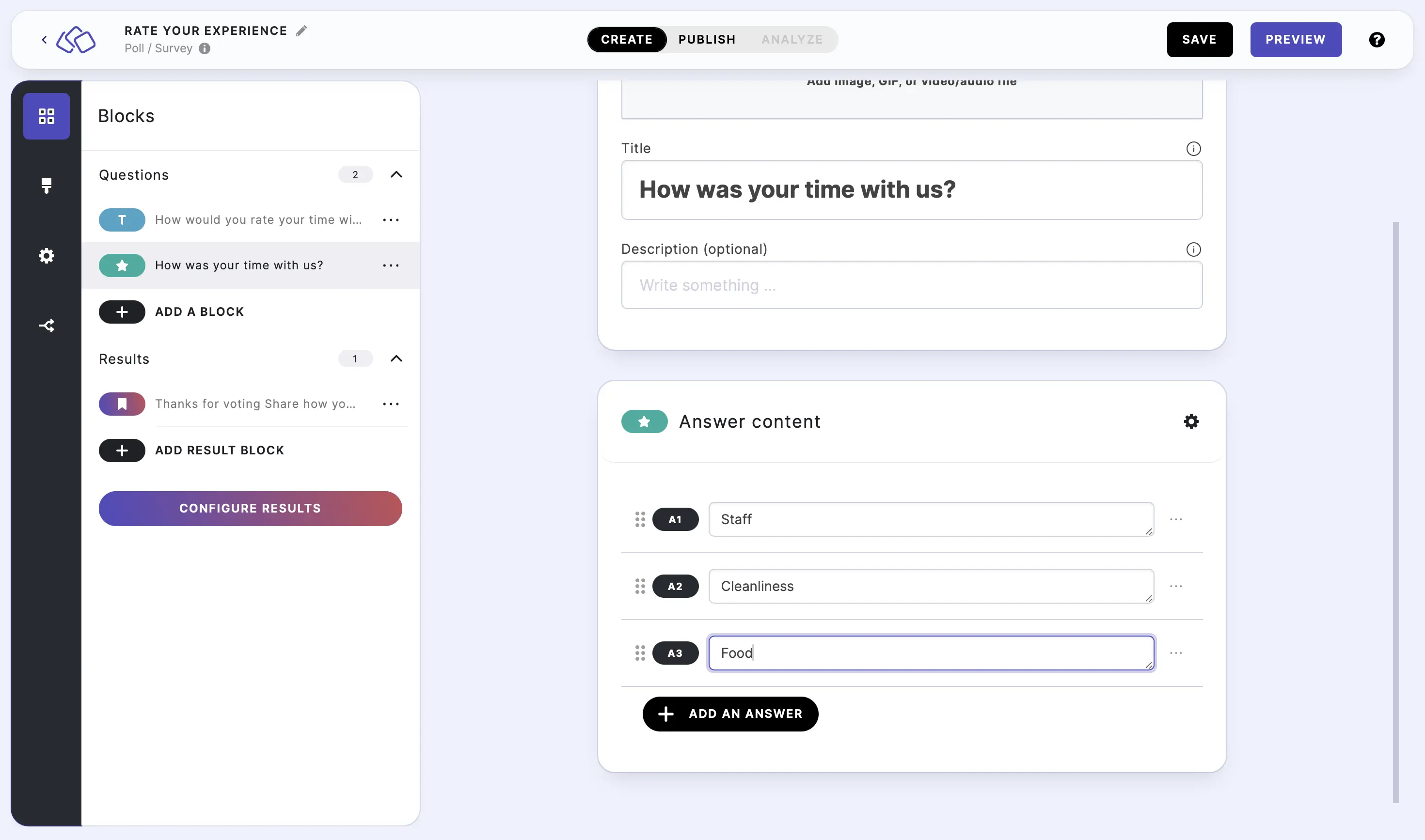
- Under Answer content, enter the names, products, or services to be rated.
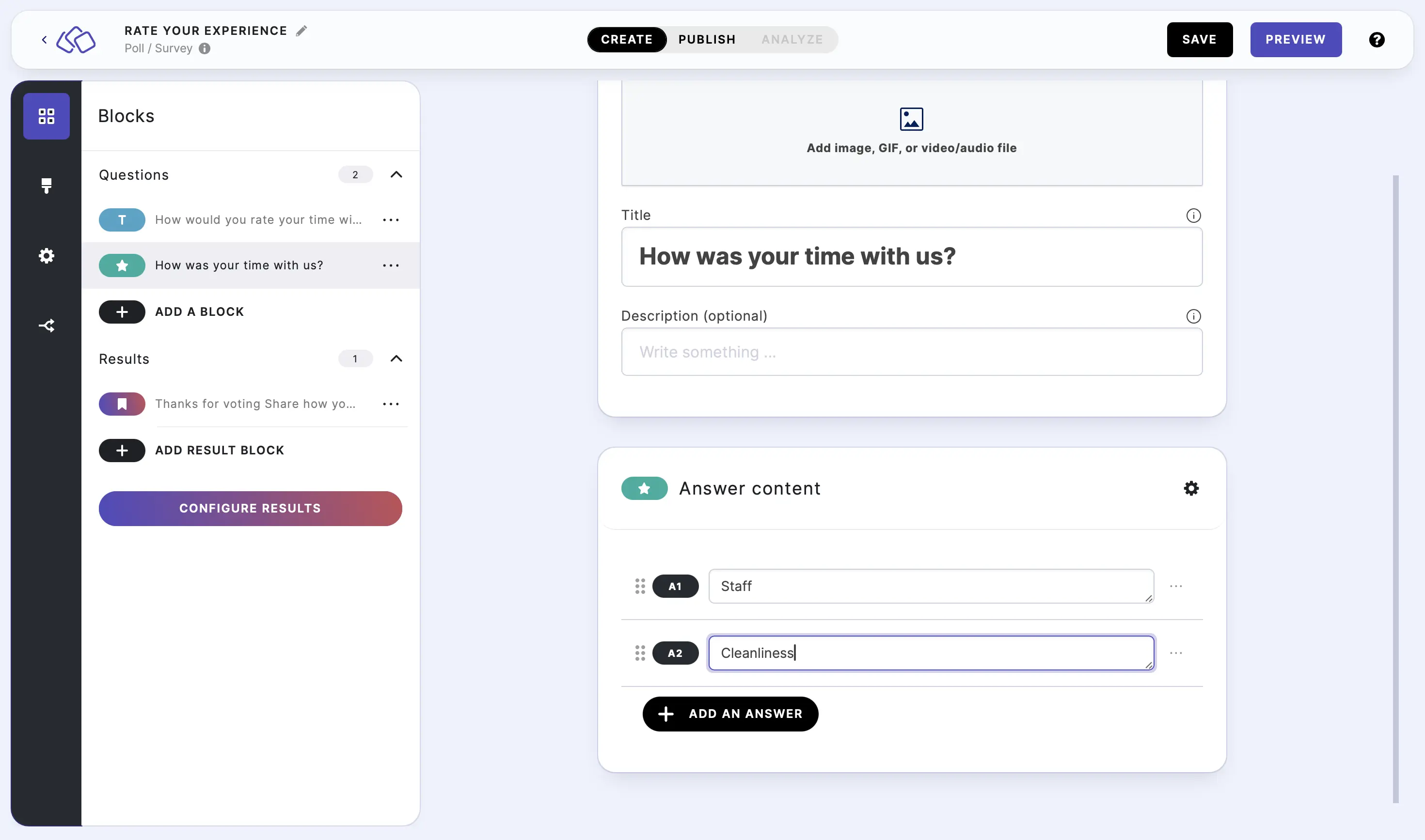
- Click on ADD AN ANSWER and enter text for as many options as you like.
Options
Click on the options icon on the right to configure the following settings.
Media
| Option | Description | Default |
|---|---|---|
| Show media | Toggle to show or hide the block's main image. | ON |
| Media ratio | Choose the aspect ratio: From settings, Wide 16:9, Square 1:1, Tall 3:4, or Original ratio. | From settings |
Required
| Option | Description | Default |
|---|---|---|
| Required | When enabled, your audience must answer this block before proceeding. When disabled, a "Skip" button appears. | ON |
Answers
| Option | Description | Default |
|---|---|---|
| Rating scale | Choose the rating method: Stars (star icons) or Grades (numeric score). | Stars |
| Amount of stars | The number of stars available for rating. Only visible when Rating scale is set to Stars. | 5 |
| Best grade | The highest grade value. Only visible when Rating scale is set to Grades. | 1 |
| Worst grade | The lowest grade value. Only visible when Rating scale is set to Grades. | 6 |
| Show answer media | Toggle to show or hide images on each answer choice. | ON |
| Media ratio | Choose the aspect ratio for answer images: From settings, Wide 16:9, Square 1:1, Tall 3:4, or Original ratio. | Wide (16:9) |
| Description | Show a description field below each answer. | OFF |
| Shuffle answers | Randomize the order of answers each time the block loads. | OFF |
| Sort after rating | When enabled, choices are automatically reordered from highest to lowest rating after your audience submits their ratings. | OFF |
Add images to choices
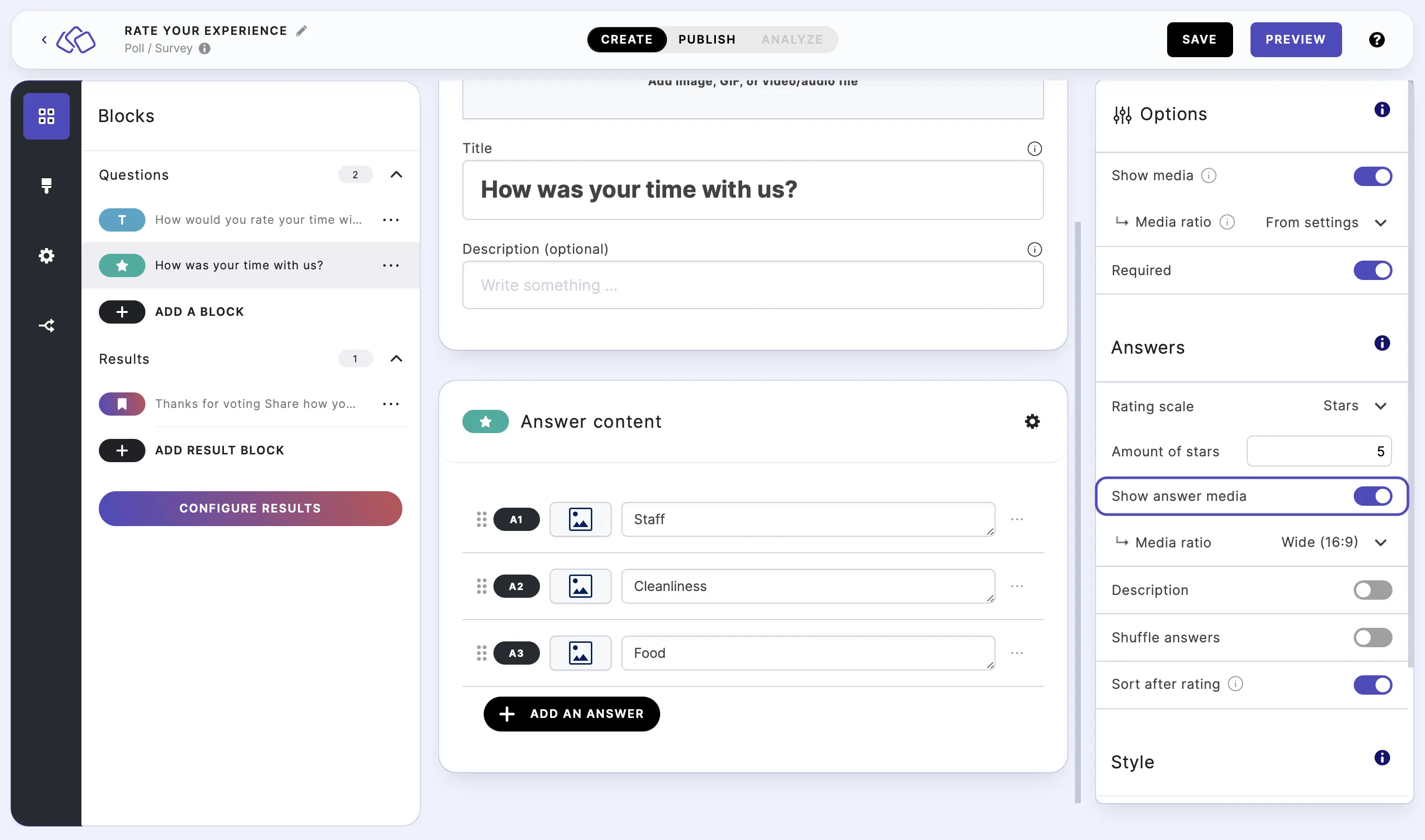
Go to the options icon on the right of Answer content.
Enable Show answer media.
Click on the media icon next to each answer choice under Answer content to upload media for a choice.
Use stars rating scale
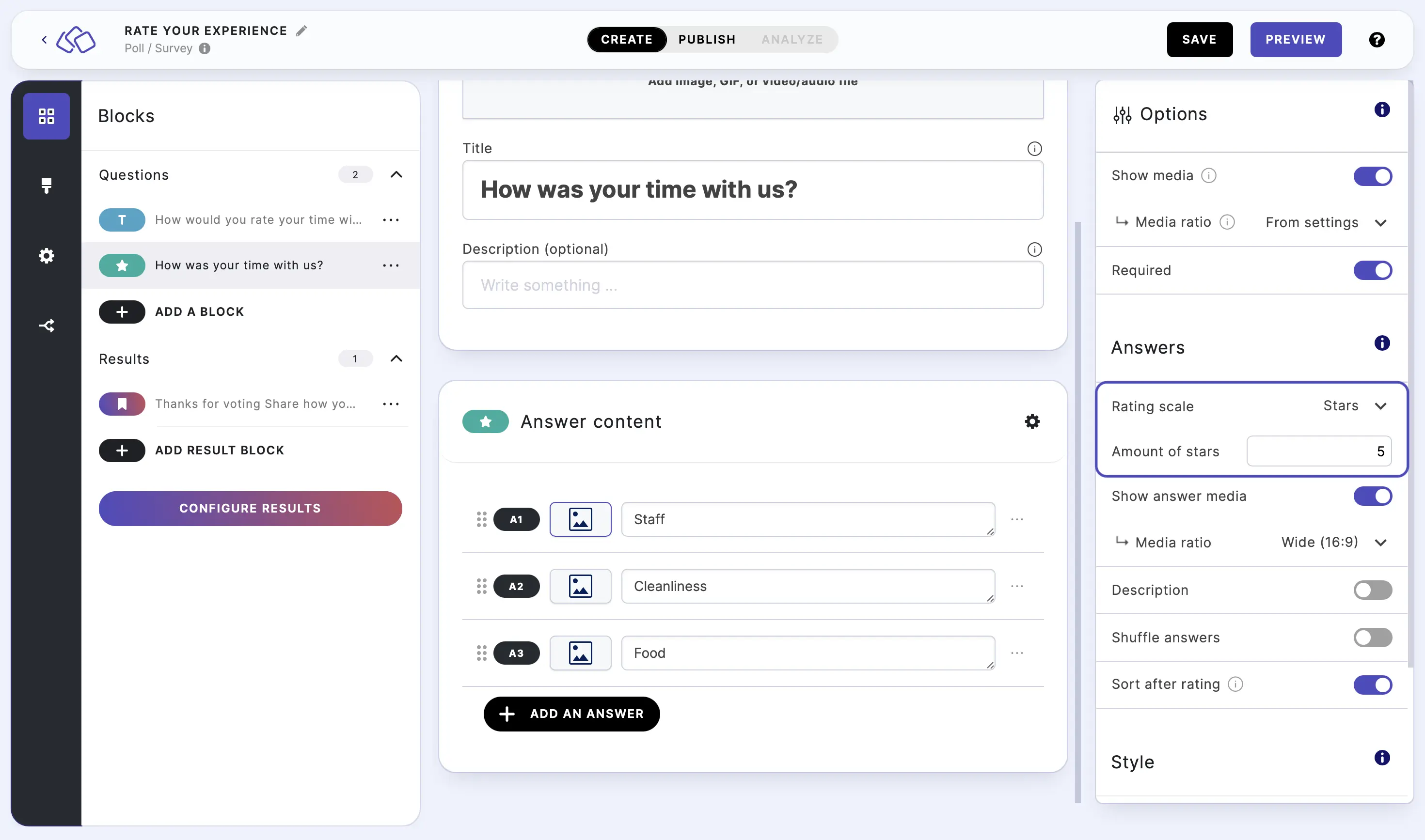
Go to the options icon on the right of Answer Content.
Click on the arrow next to Rating scale and ensure Stars is selected.
Enter the number of stars next to Amount of stars.
Use score rating scale (Grades)
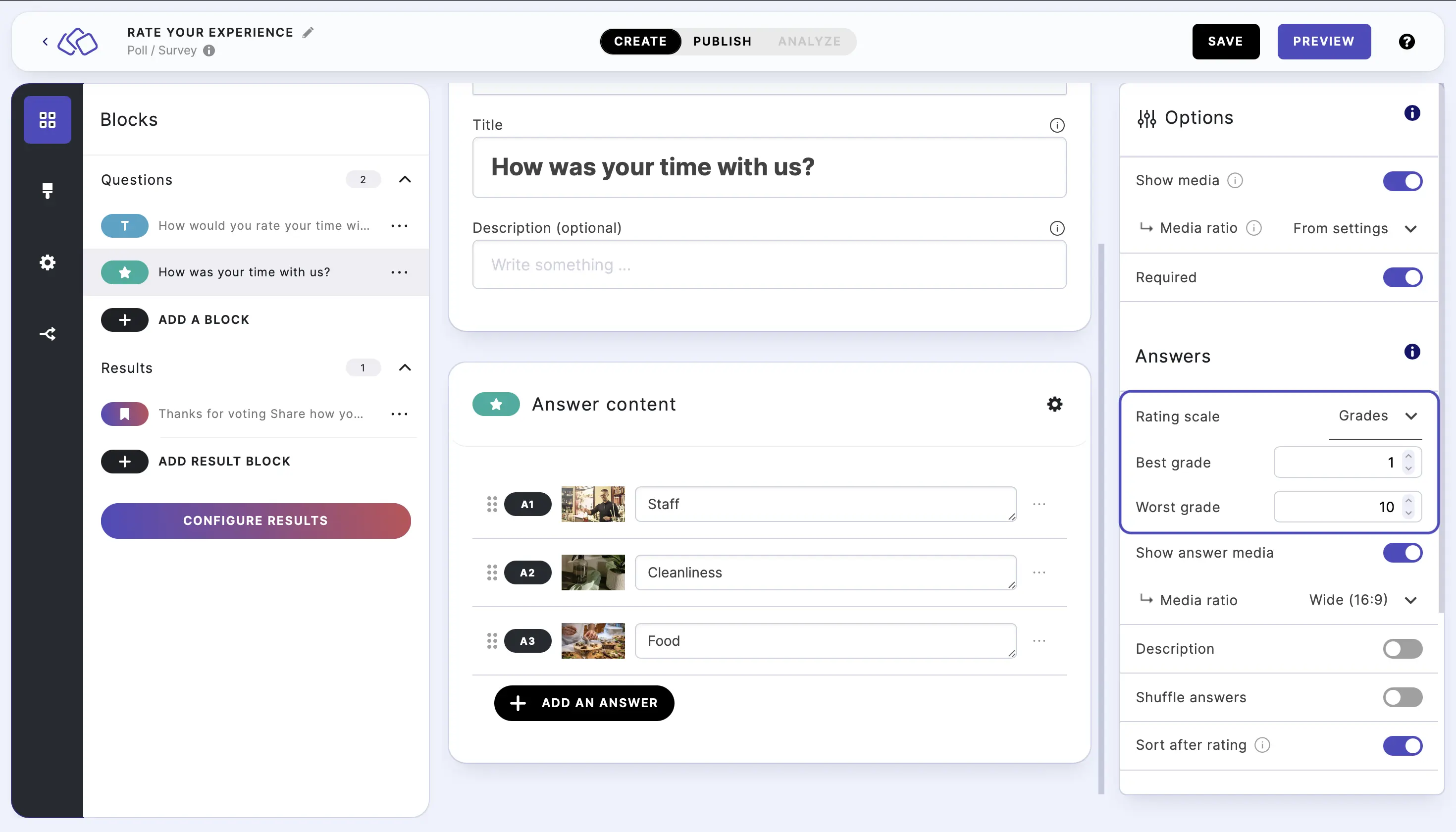
Go to the options icon on the right of Answer Content.
Click on the arrow next to Rating scale and select Grades.
Use the up and down arrows or enter a number for Best grade and Worst grade.
Sort after rating
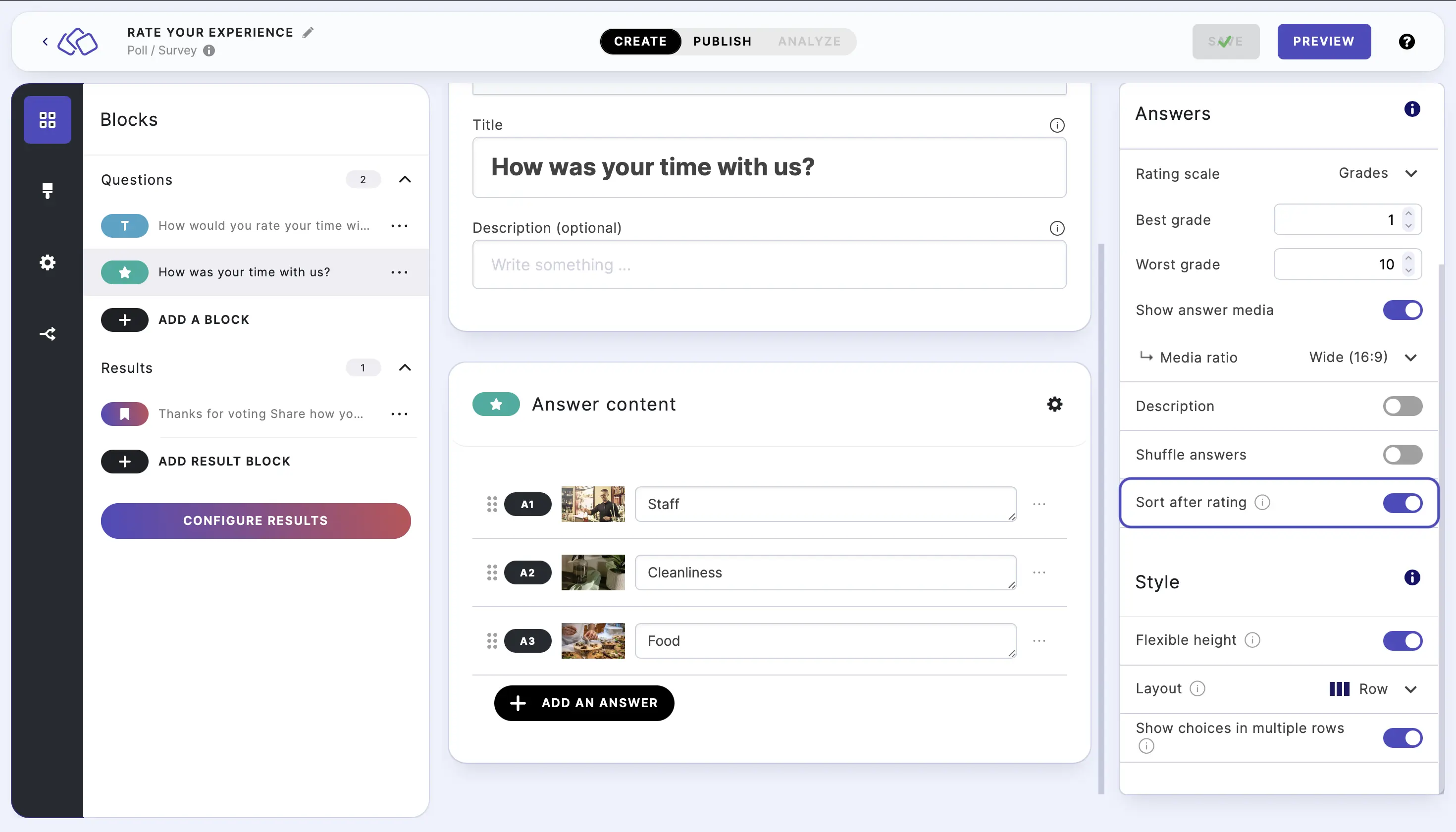
Go to the options icon on the right of Answer Content.
Enable Sort after rating to automatically reorder choices from highest to lowest after rating is submitted.
Style
| Option | Description | Default |
|---|---|---|
| Flexible height | Allow answer boxes to have different heights based on their content. | ON |
| Layout | Choose how answers are displayed: Row (horizontal grid) or Stack (vertical list). | Row |
| Show choices in multiple rows | When enabled, answer choices wrap into multiple rows instead of scrolling horizontally. This is useful when you have many items to rate. | ON |
Related articles: