

This or That
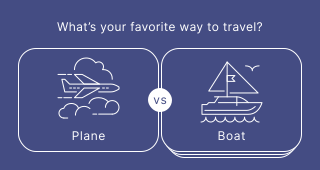
Your audience chooses between two options at a time in a tournament-style voting format until one option wins. Ideal for "Would you rather" style content, product comparisons, and fun engagement pieces.
Setup
- Click on ADD A BLOCK and select This or That.
- Enter a title and description, and add an image by clicking on Add image, GIF, or video/audio file (all optional).
- Under Choices, add the options your audience will vote between. Each option has an image upload area and a title field. Click on ADD OPTION to add more choices. Your audience will vote on pairs until one option wins.
- To delete or copy an option, click on the three dots on the option tile.
Options
Click on the options icon on the right to configure the following settings.
Media
| Option | Description | Default |
|---|---|---|
| Show media | Toggle to show or hide the block's main image. | ON |
Required
| Option | Description | Default |
|---|---|---|
| Required | When enabled, your audience must answer this block before proceeding. When disabled, a "Skip" button appears. | ON |
Answers
| Option | Description | Default |
|---|---|---|
| Show progress bar | When enabled, a visual indicator shows how far through the voting rounds your audience has progressed. | OFF |
| Show title | Toggle to show or hide the title text on each option. | ON |
| Show media | Toggle to show or hide images on each option. | ON |
| Media orientation | Choose the aspect ratio for option images: Square 1:1, Wide 16:9, Tall 3:4, or Original ratio. | Square (1:1) |
| Separator | Choose the label displayed between the two options during each voting round. | VS |
Show progress bar
Go to the options icon on the right of Answer Content.
Enable Show progress bar to display a visual indicator of how far through the voting rounds your audience has progressed.
Customize the separator
Go to the options icon on the right of Answer Content.
Click on the arrow next to Separator and choose from the available options (default: "VS").
Show titles and media
Go to the options icon on the right of Answer Content.
Enable or disable Show title and Show media to control how options are displayed. Select a Media orientation (default: Square 1:1).
Related articles: