

Likert / Matrix
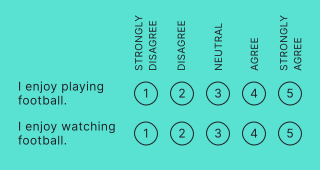
Create a series of closed-ended statements or questions with scaled response options. Ideal for structured feedback, employee satisfaction surveys, and research questionnaires.
Setup
- Click on ADD A BLOCK and select Likert / Matrix.
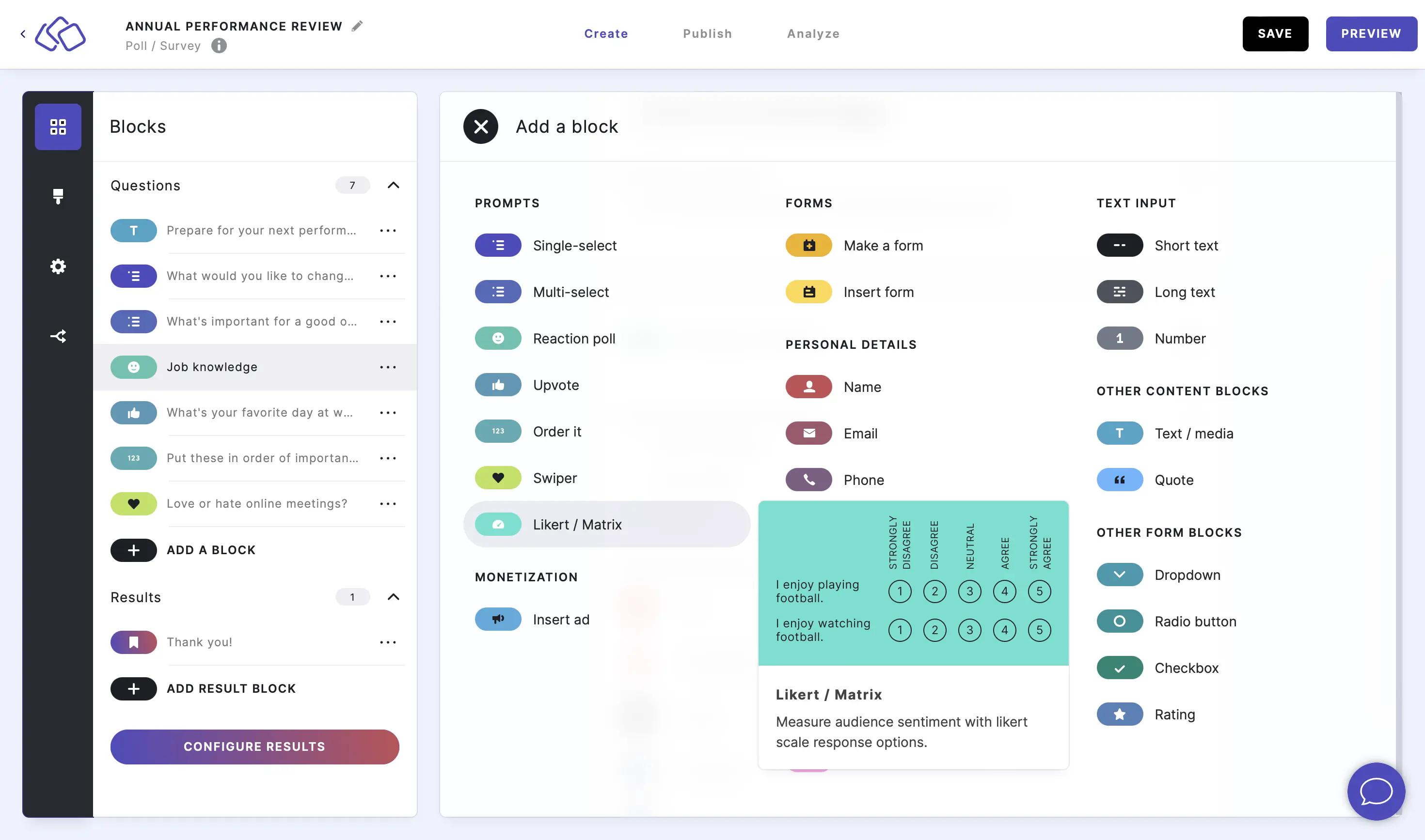
- Type a question or text into the Title field.
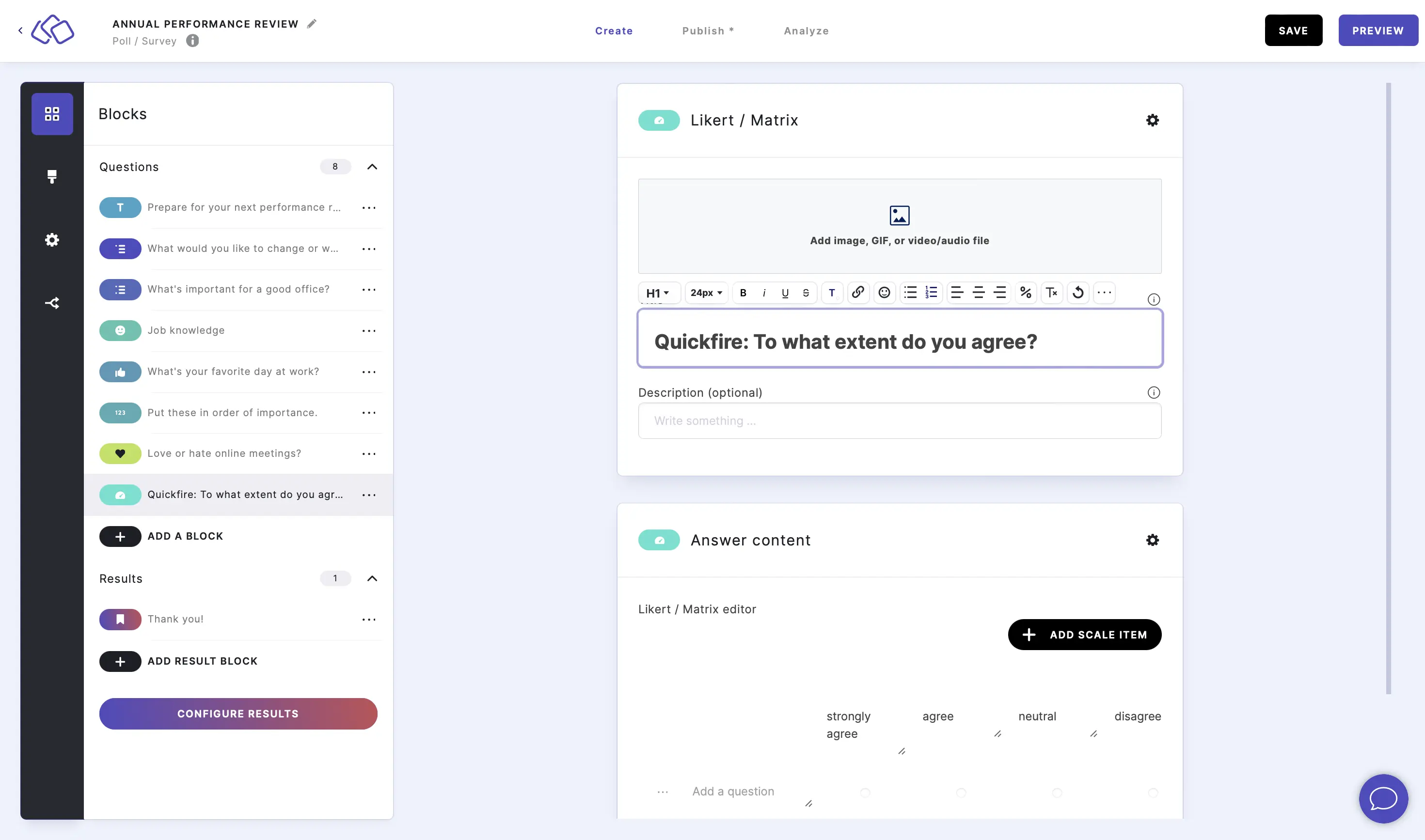
- Add an image by clicking on Add image, GIF, or video/audio file.
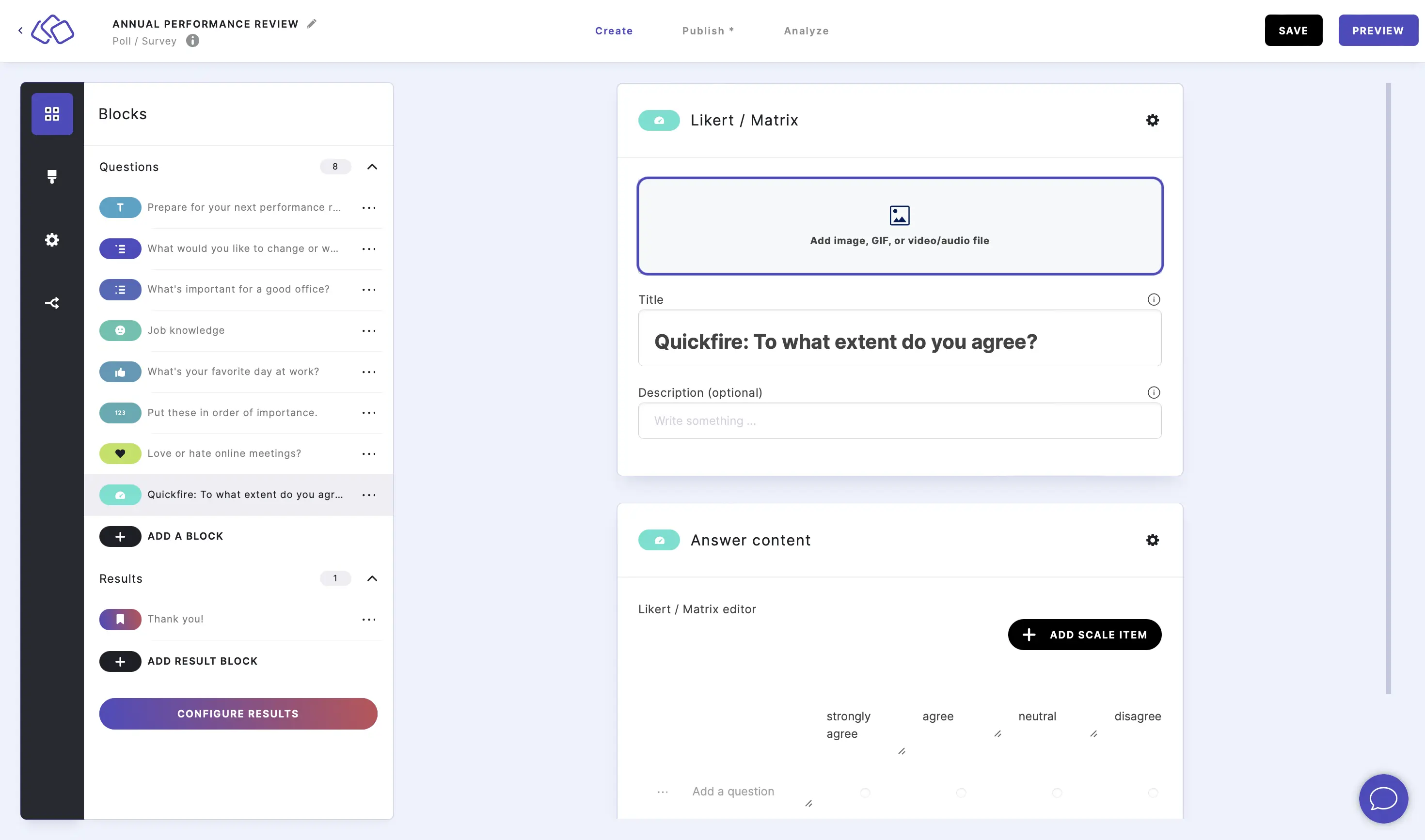
- Enter a statement or question into the Add a question field.
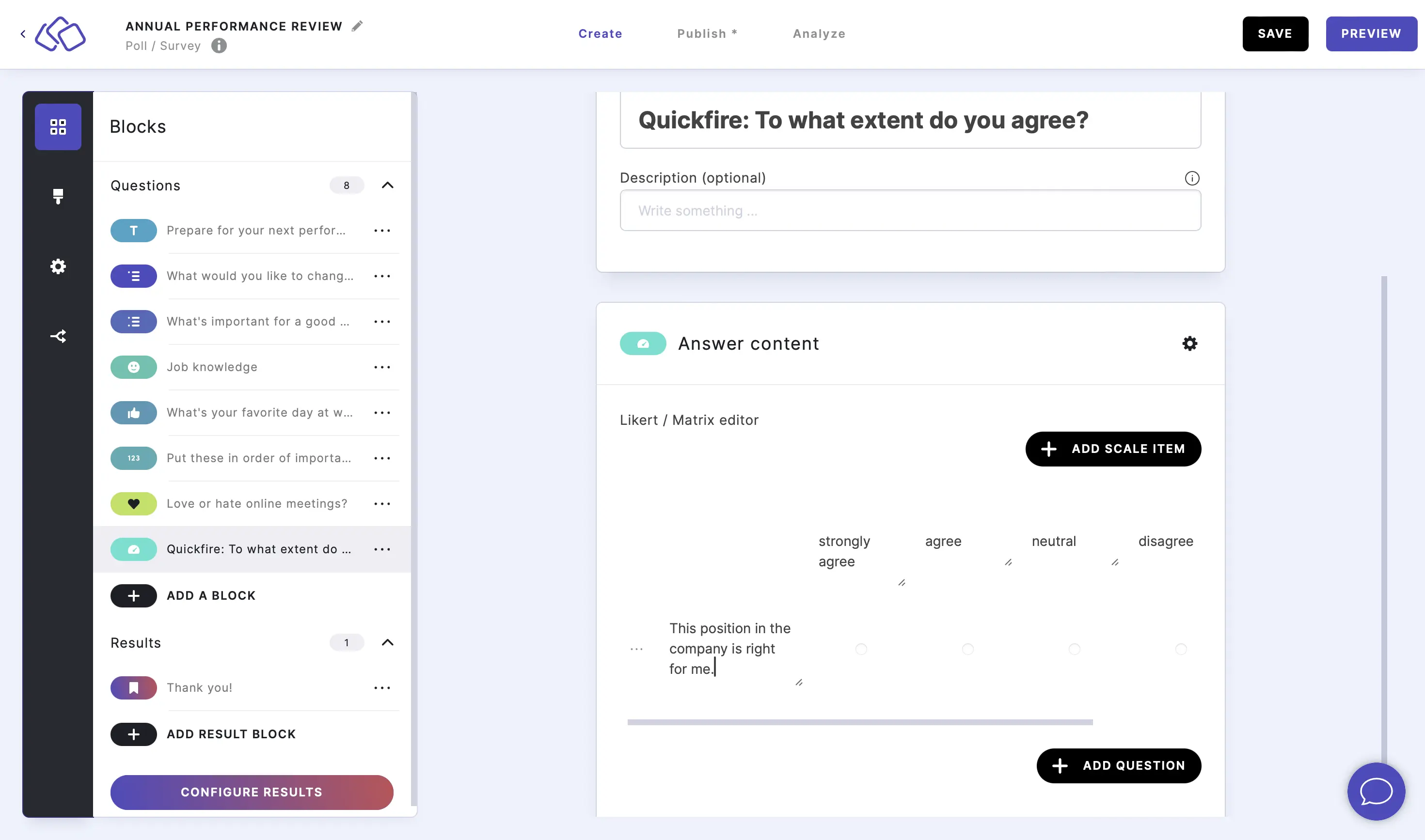
- Click on ADD QUESTION and enter statements or questions for as many questions as you like.
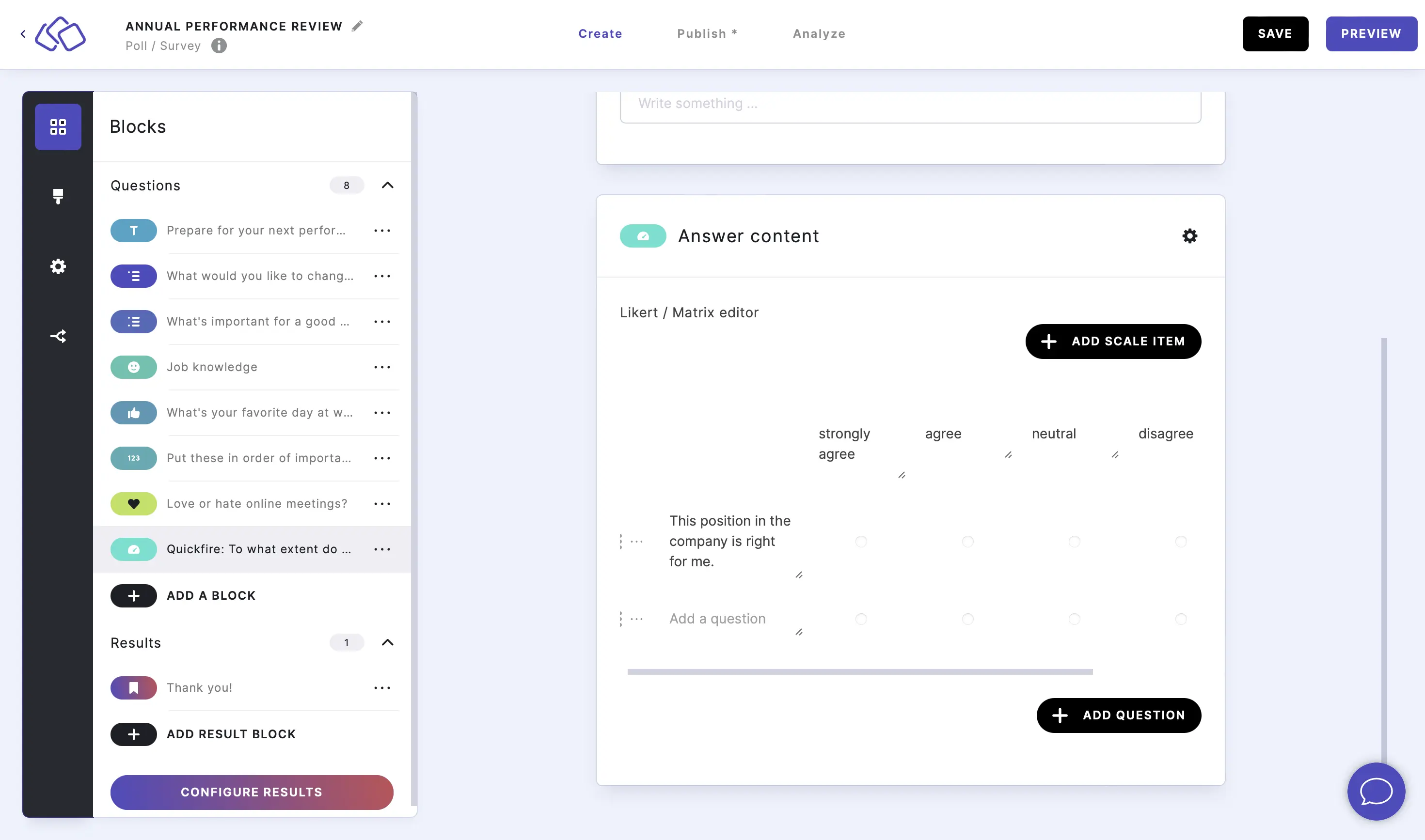
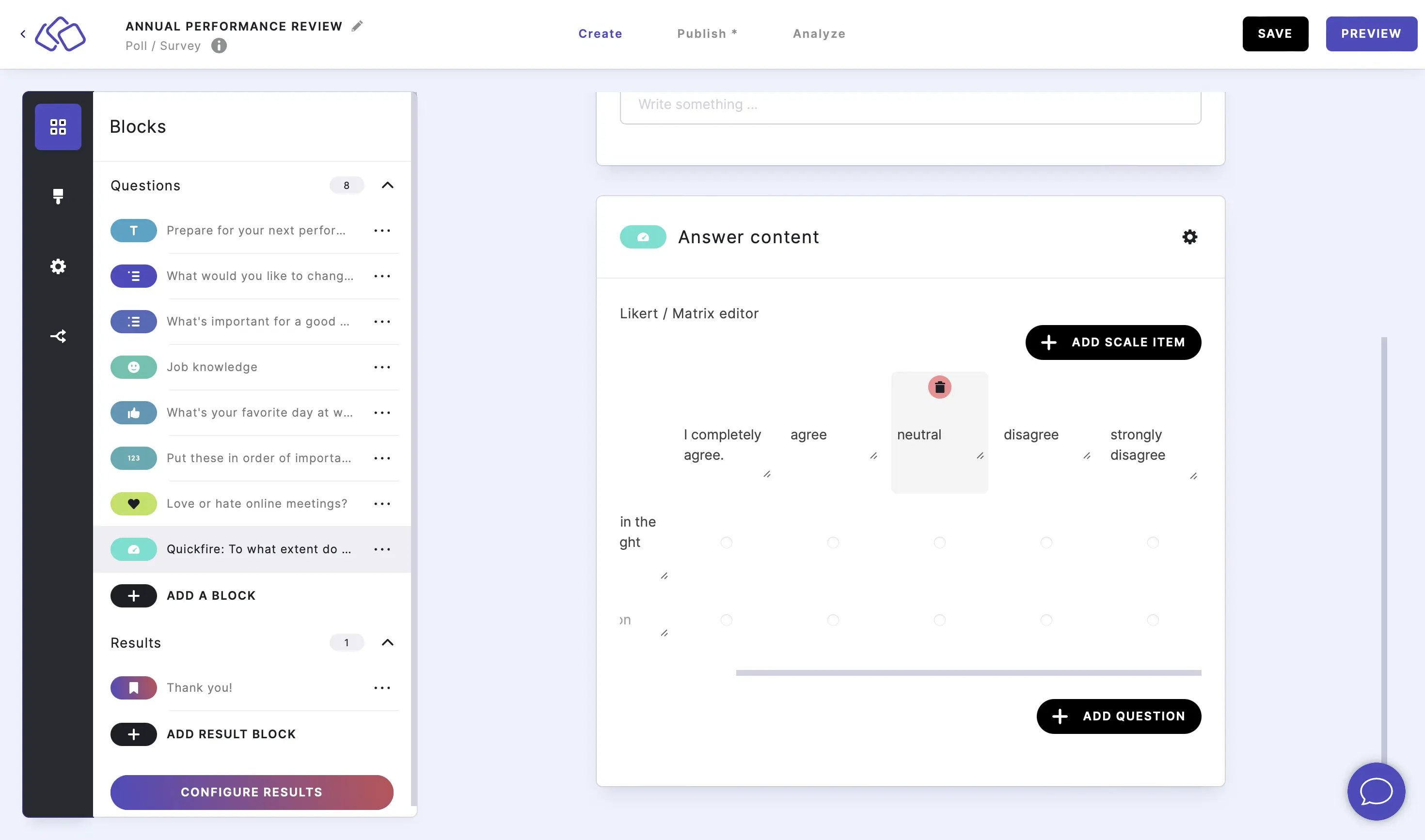
- The default scale labels range from strongly agree to strongly disagree. Click directly on the text to edit these scale labels.
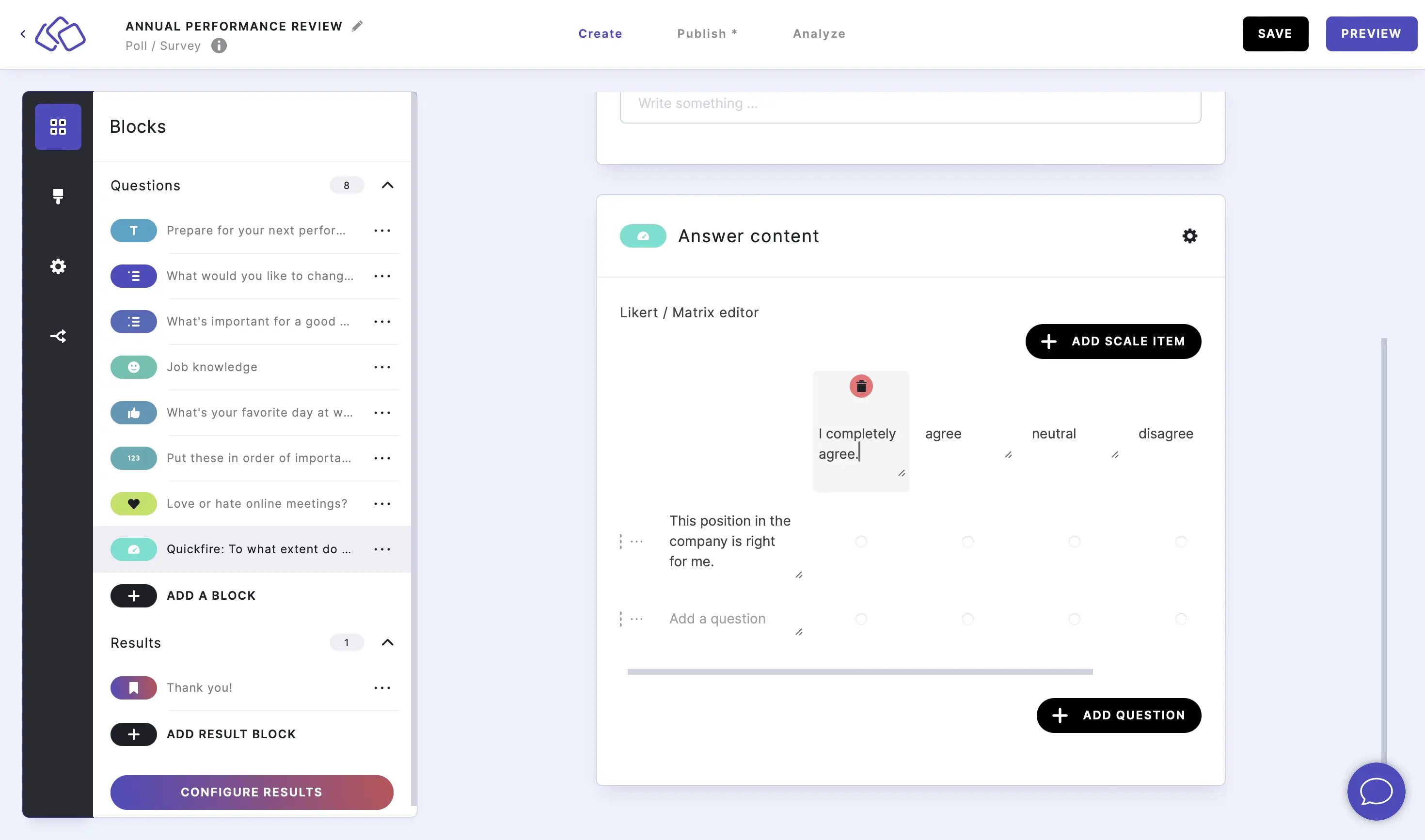
- Click on ADD SCALE to add another item / label to the scale, and enter text into the Title field that appears on the right.
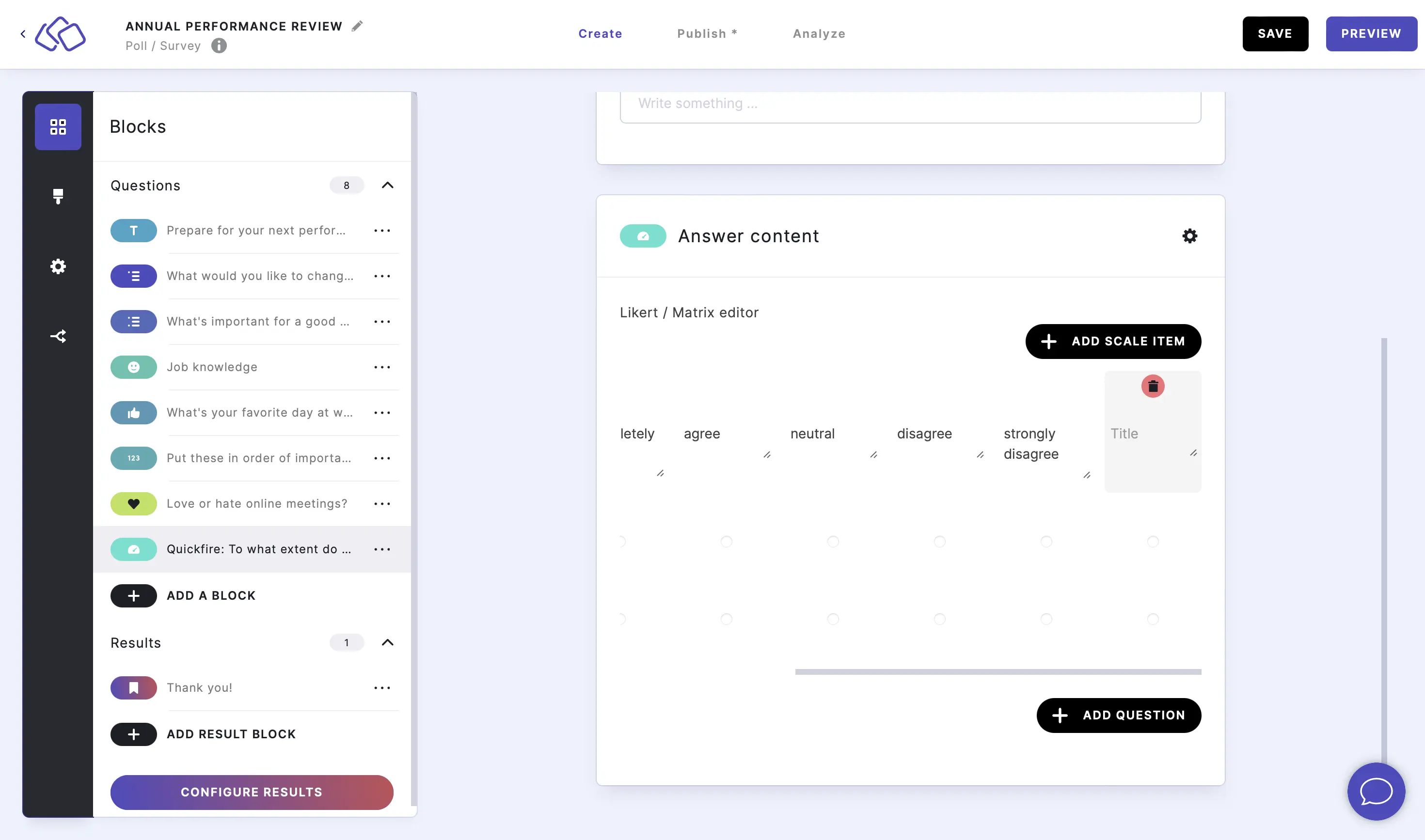
- To delete a scale item, hover over the text, and click on the trash can icon.
Options
Click on the options icon on the right to configure the following settings.
Media
| Option | Description | Default |
|---|---|---|
| Show media | Toggle to show or hide the block's main image. | ON |
| Media ratio | Choose the aspect ratio: From settings, Wide 16:9, Square 1:1, Tall 3:4, or Original ratio. | From settings |
Required
| Option | Description | Default |
|---|---|---|
| Required | When enabled, your audience must answer this block before proceeding. When disabled, a "Skip" button appears. | ON |
Answers
| Option | Description | Default |
|---|---|---|
| Only one choice per question | When enabled, your audience can only select one scale option per question. Disable this to allow multiple selections per question row. | ON |
| Custom scale values | When enabled, you can assign custom numeric values to each scale item instead of the default ascending values (1 to 5). | OFF |
| Shuffle questions | Randomize the order of questions each time the block loads. This prevents order bias in survey responses. | OFF |
| N/A option | When enabled, a "N/A" (Not Applicable) option is added to the right of the scale items, allowing respondents to skip individual questions. | OFF |
| Stack scale on small screens | When enabled, the scale items are displayed as a stacked vertical list on smaller screens instead of a horizontal row. This improves readability on mobile devices. | ON |
Allow more than one choice per question
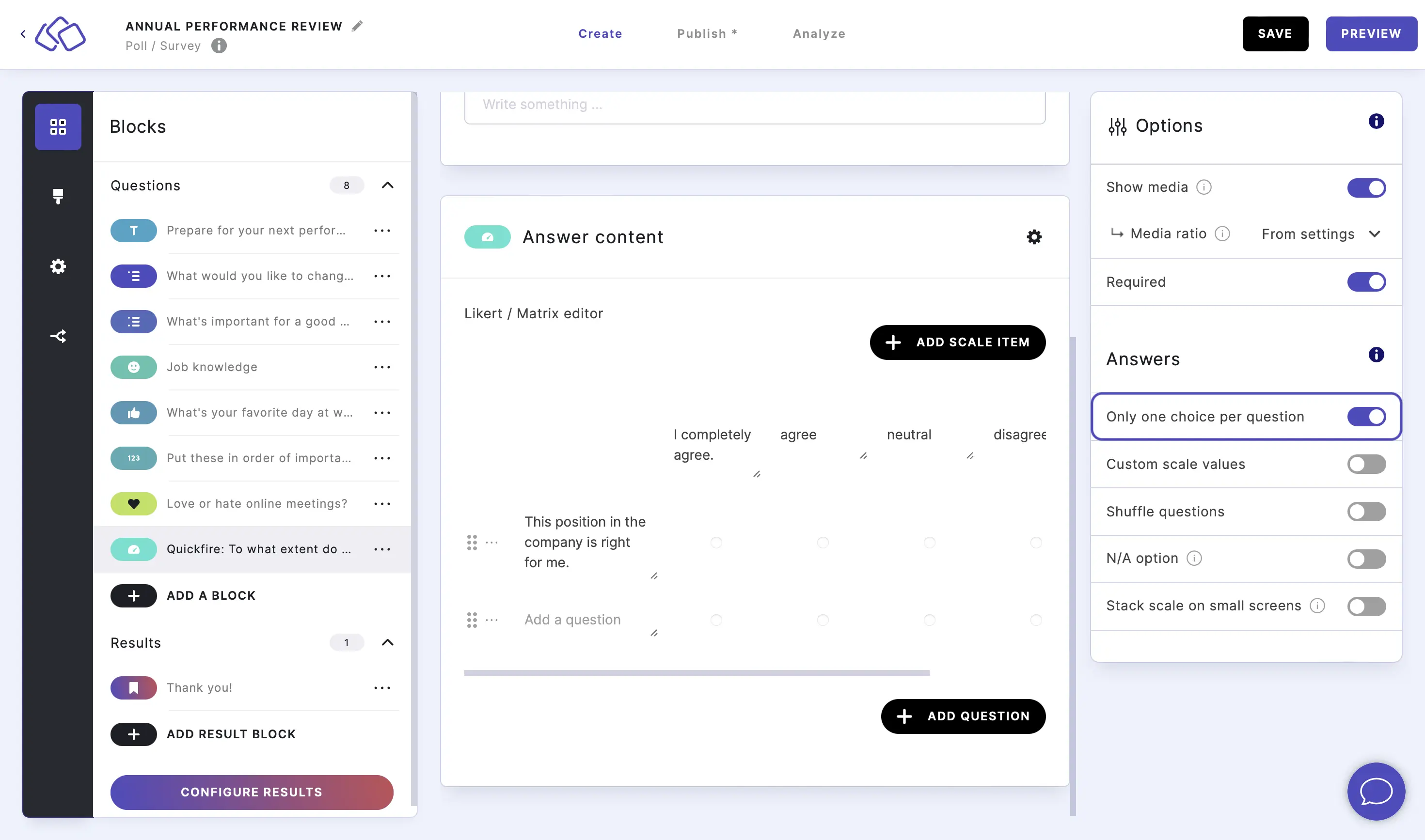
Go to the options icon on the right of Answer Content.
Disable Only one choice per question to allow your audience to check more than one box. This is enabled by default.
Set up custom scale values
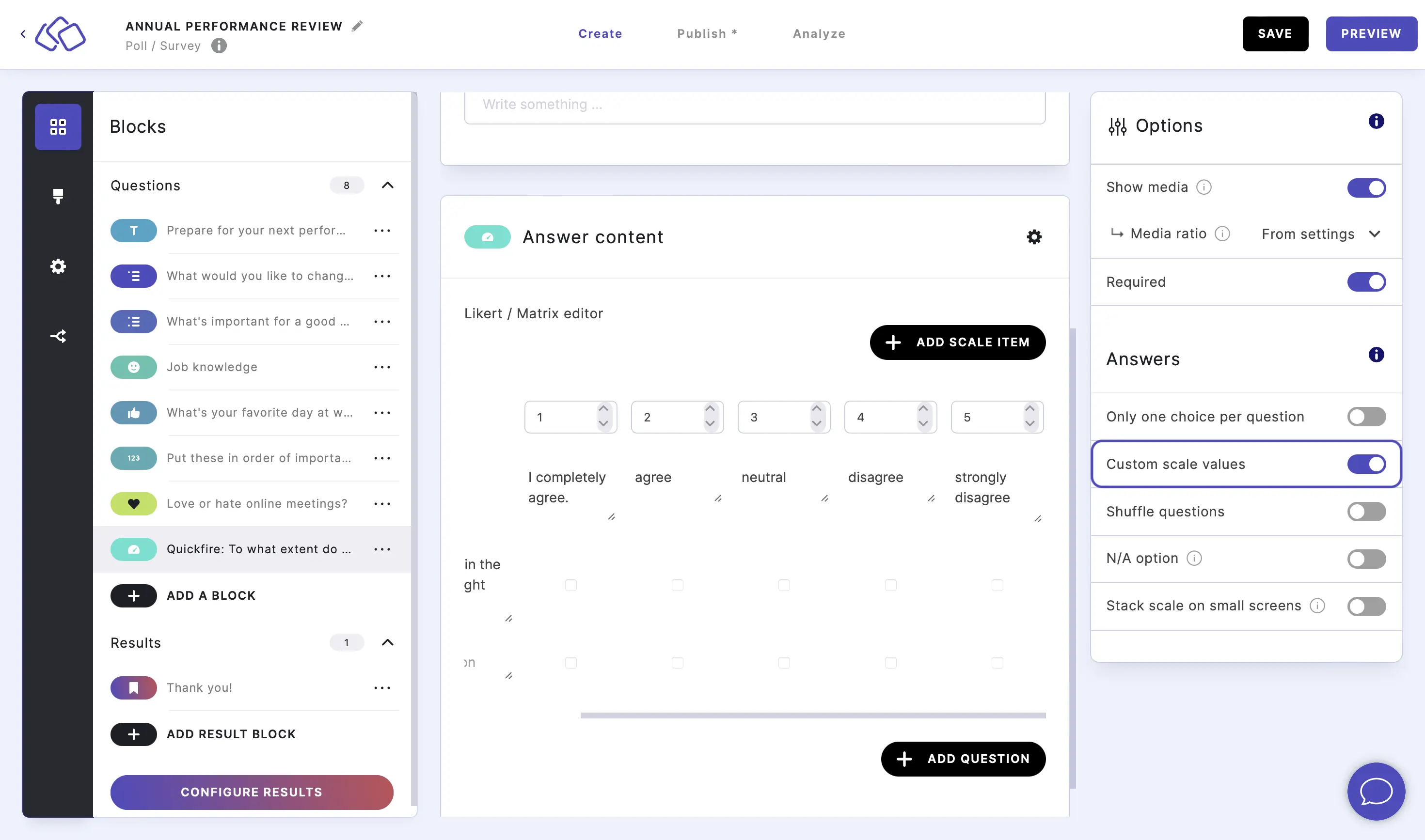
Go to the options icon on the right of Answer Content.
By default the scale ascends from one to five across the label items.
Enable Custom scale values to personalize this.
Type a number or use the up and down arrows to change the scale.
Show N/A on scale
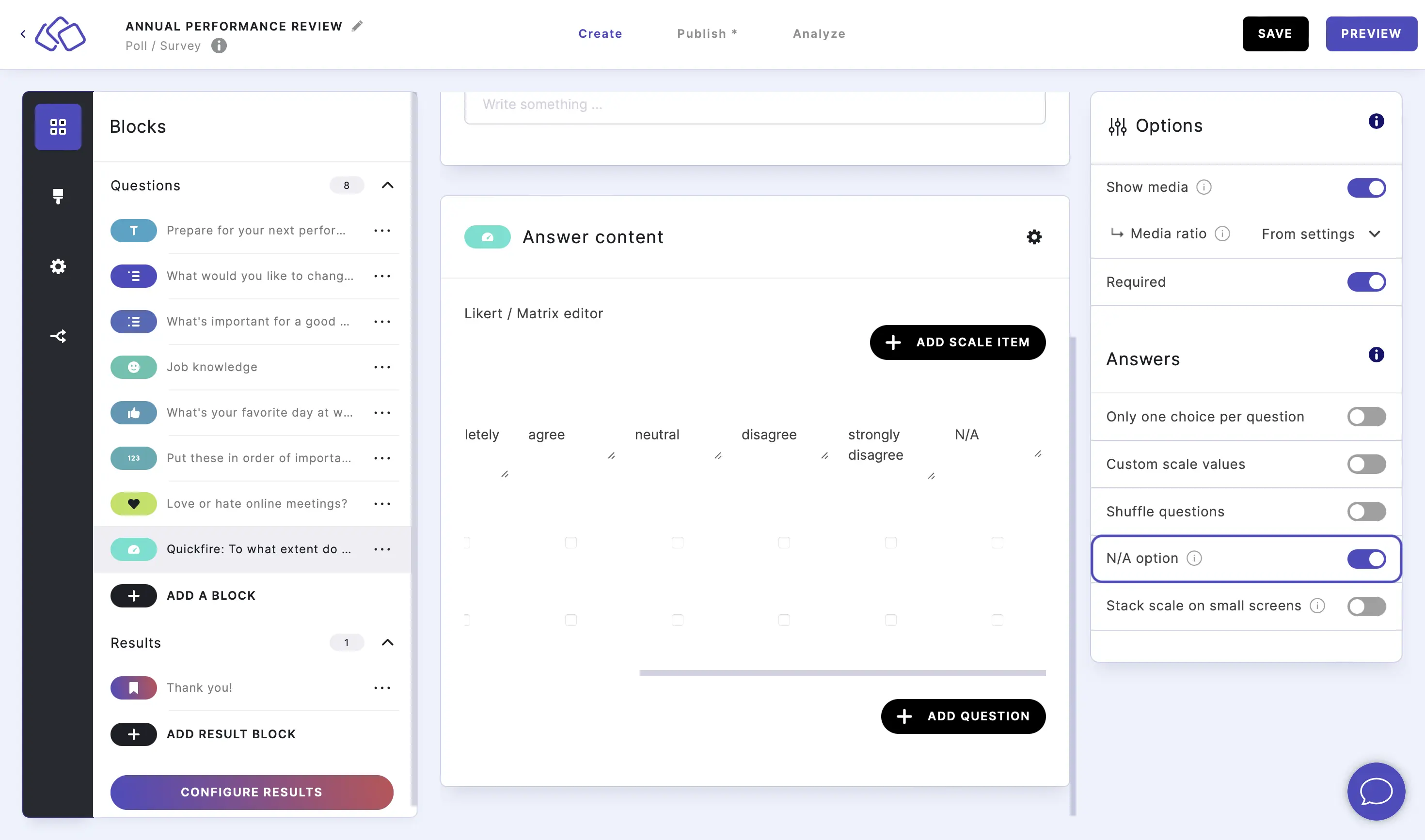
Go to the options icon on the right of Answer Content.
Enable N/A option.
An N/A item will appear on the right of any other scale items in your questionnaire.
Stack scales on small screens
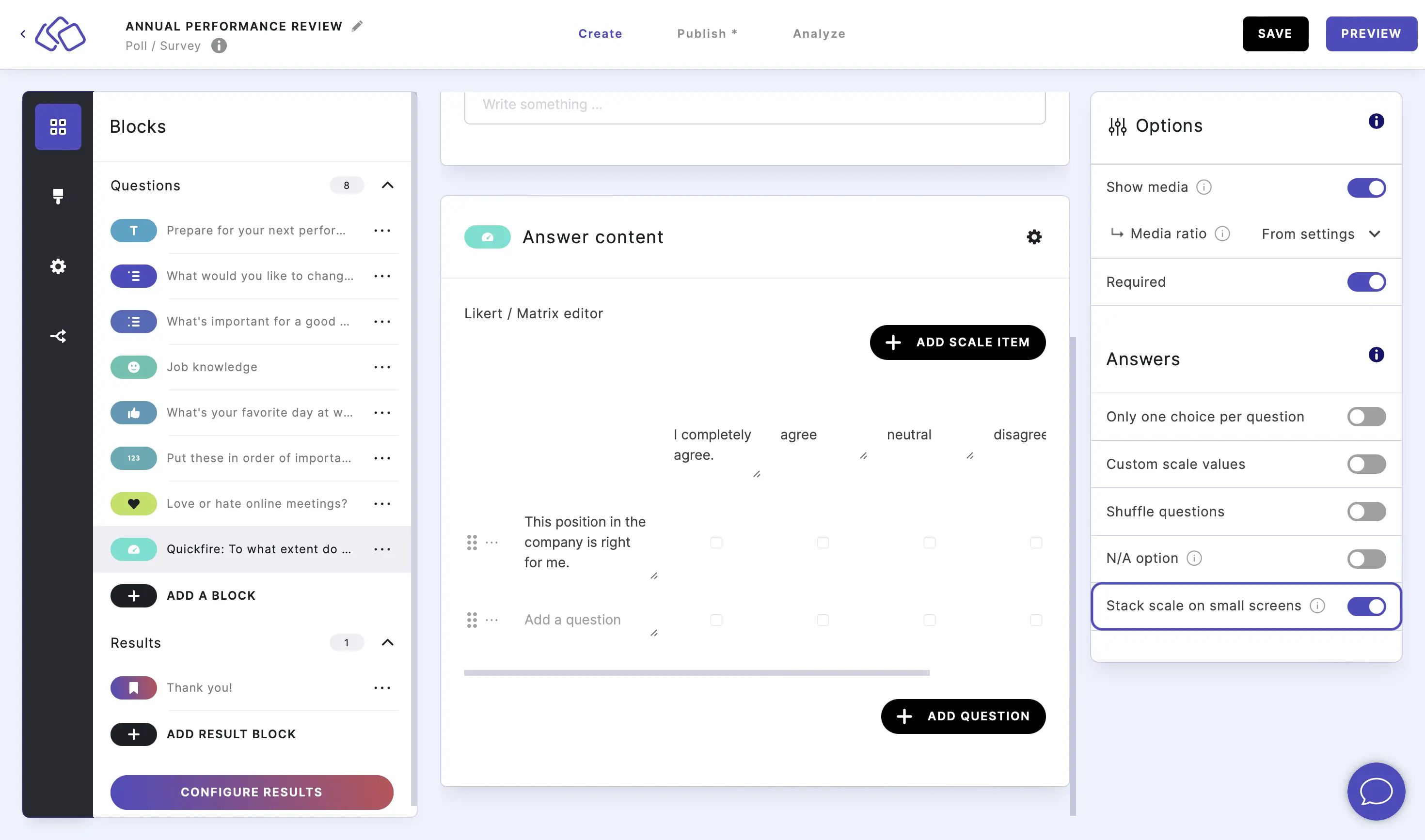
You can switch to "mobile" view so that the scale appears stacked as a list rather than in a horizontal line if you prefer.
Go to the options icon on the right of Answer Content.
Enable Stack scale on small screens.
Related articles: