Sudoku
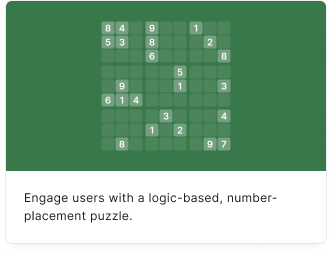
Engage your audience with the classic logic-based, number-placement puzzle. Sudoku is great for daily challenges, educational content, and keeping your audience engaged for longer periods.
Setup
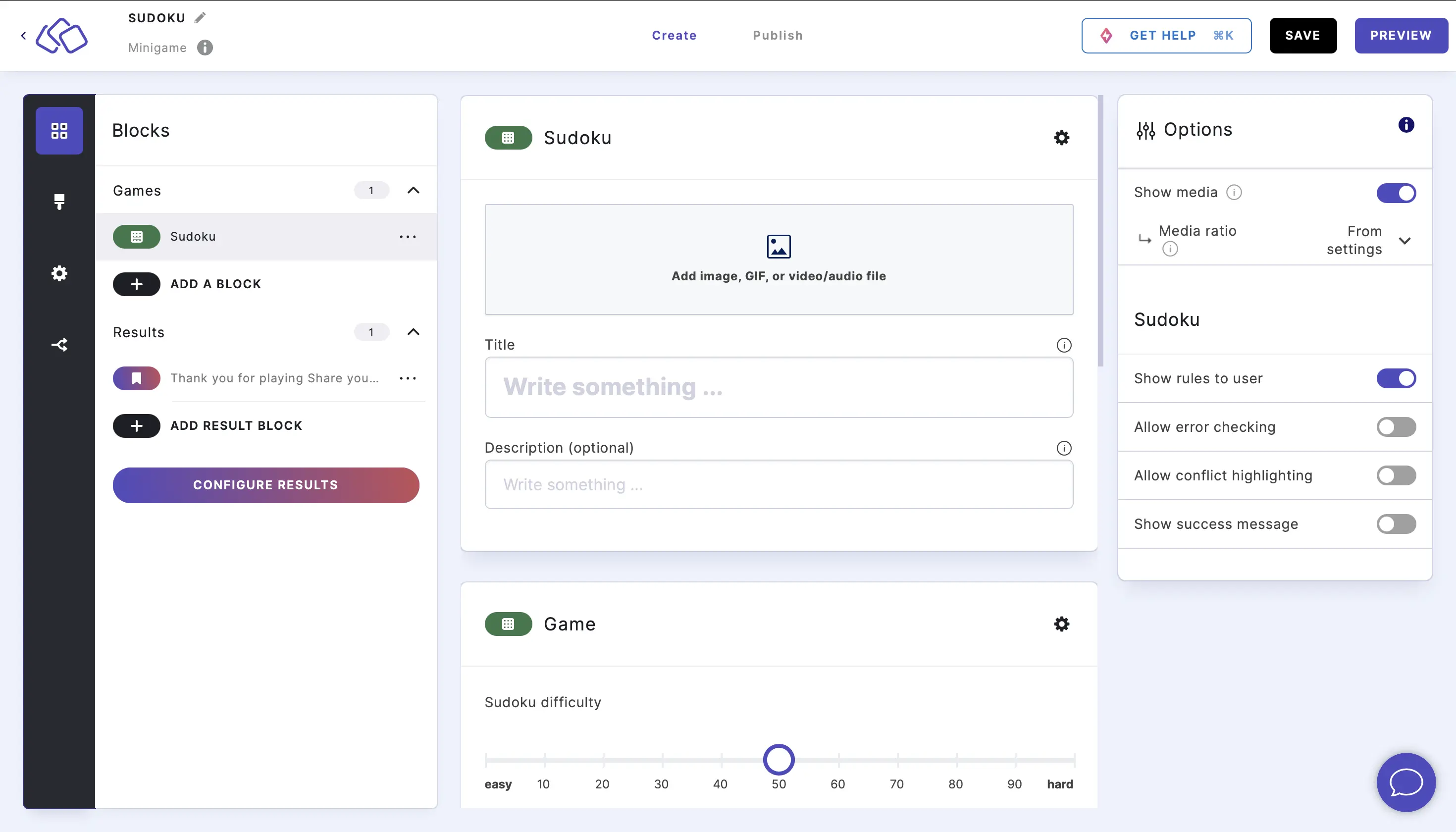
- Click on ADD A BLOCK and select Sudoku.
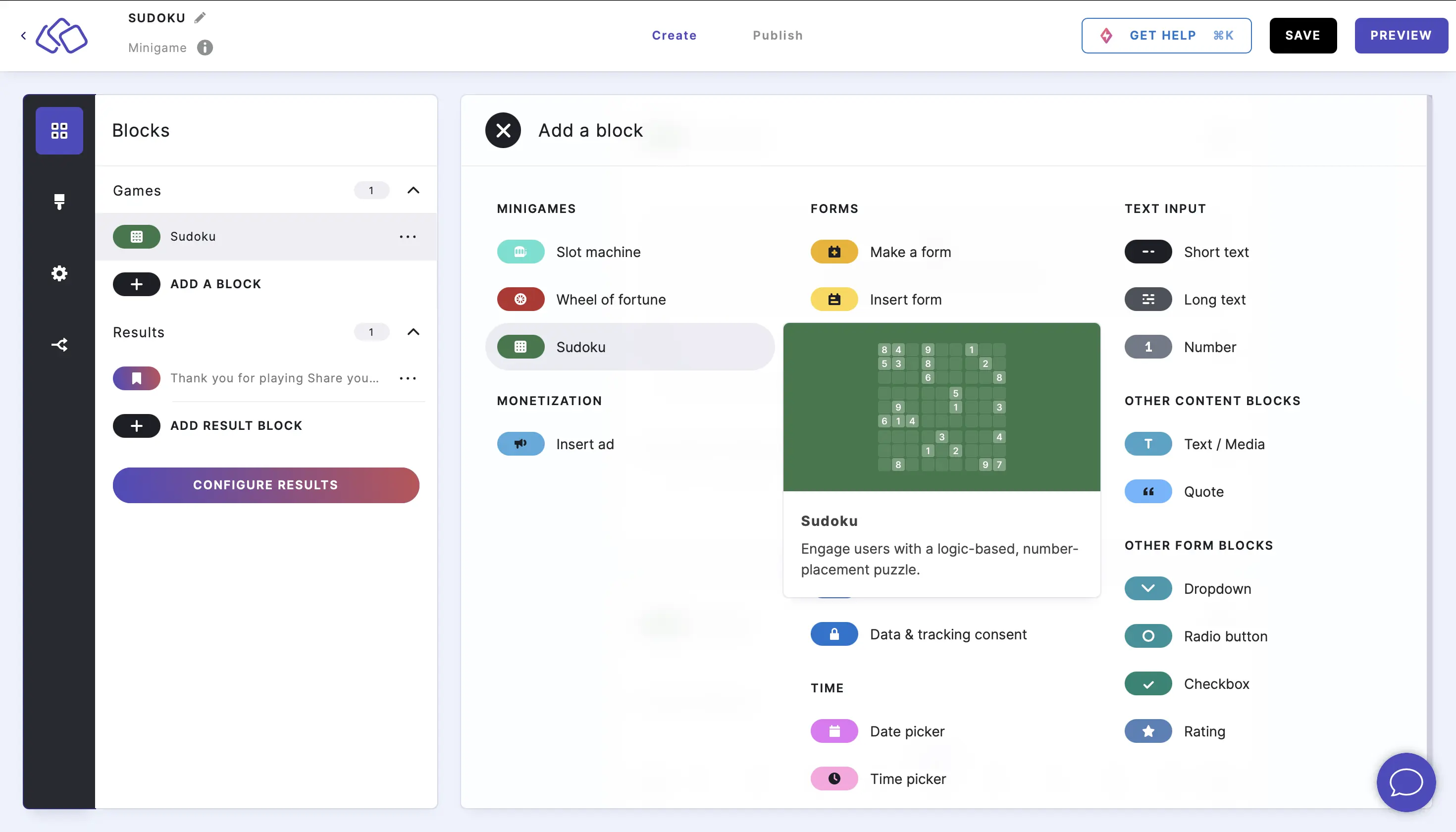
- Enter a title and description, and add an image by clicking on Add image, GIF, or video/audio file (all optional).
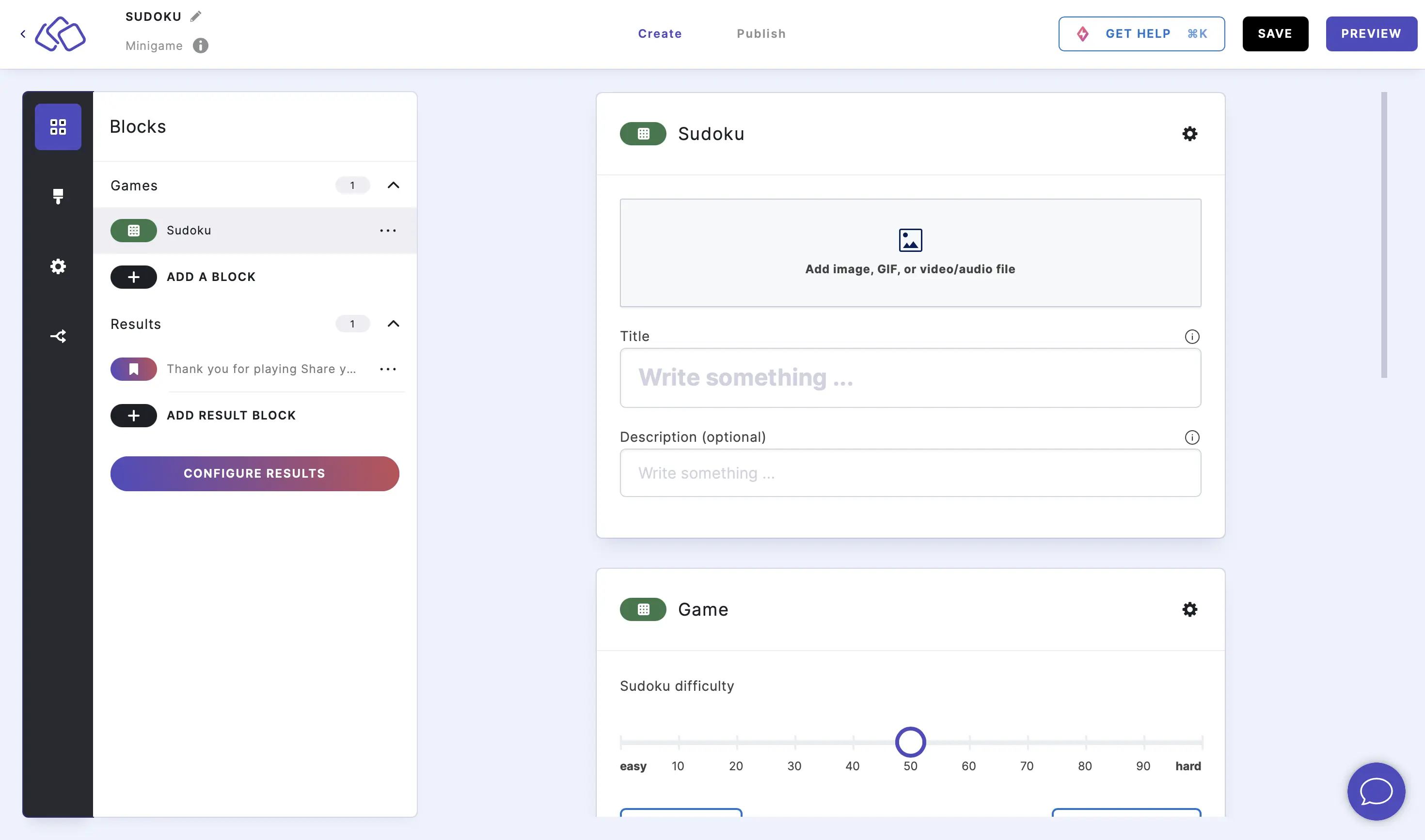
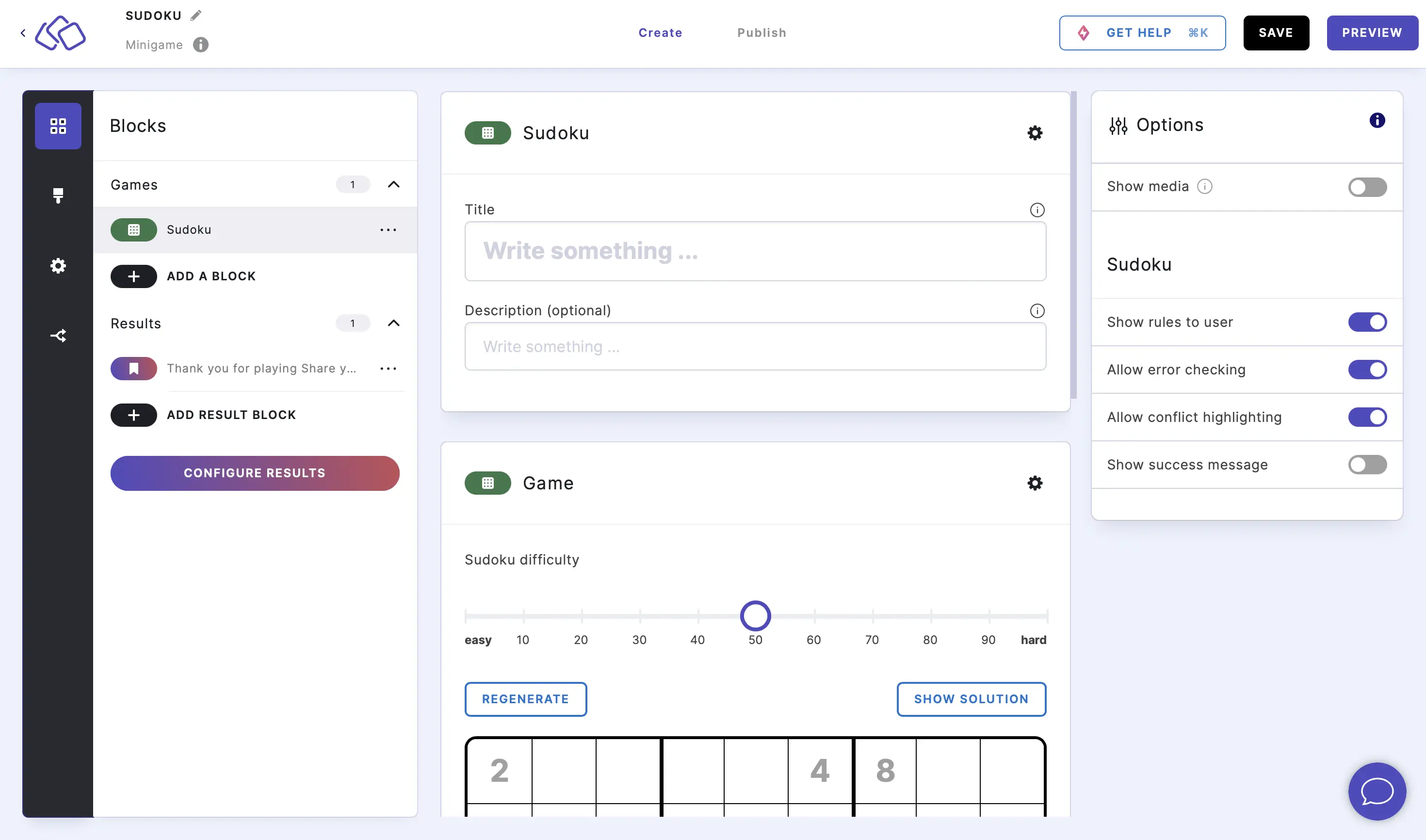
- Under Minigame, use the slider to define a level of difficulty between 0 (easy) and 100 (hard).
Click on REGENERATE to create a new sudoku puzzle.
Click on SHOW SOLUTION to see the completed sudoku with the missing numbers in black and the original starting numbers in grey.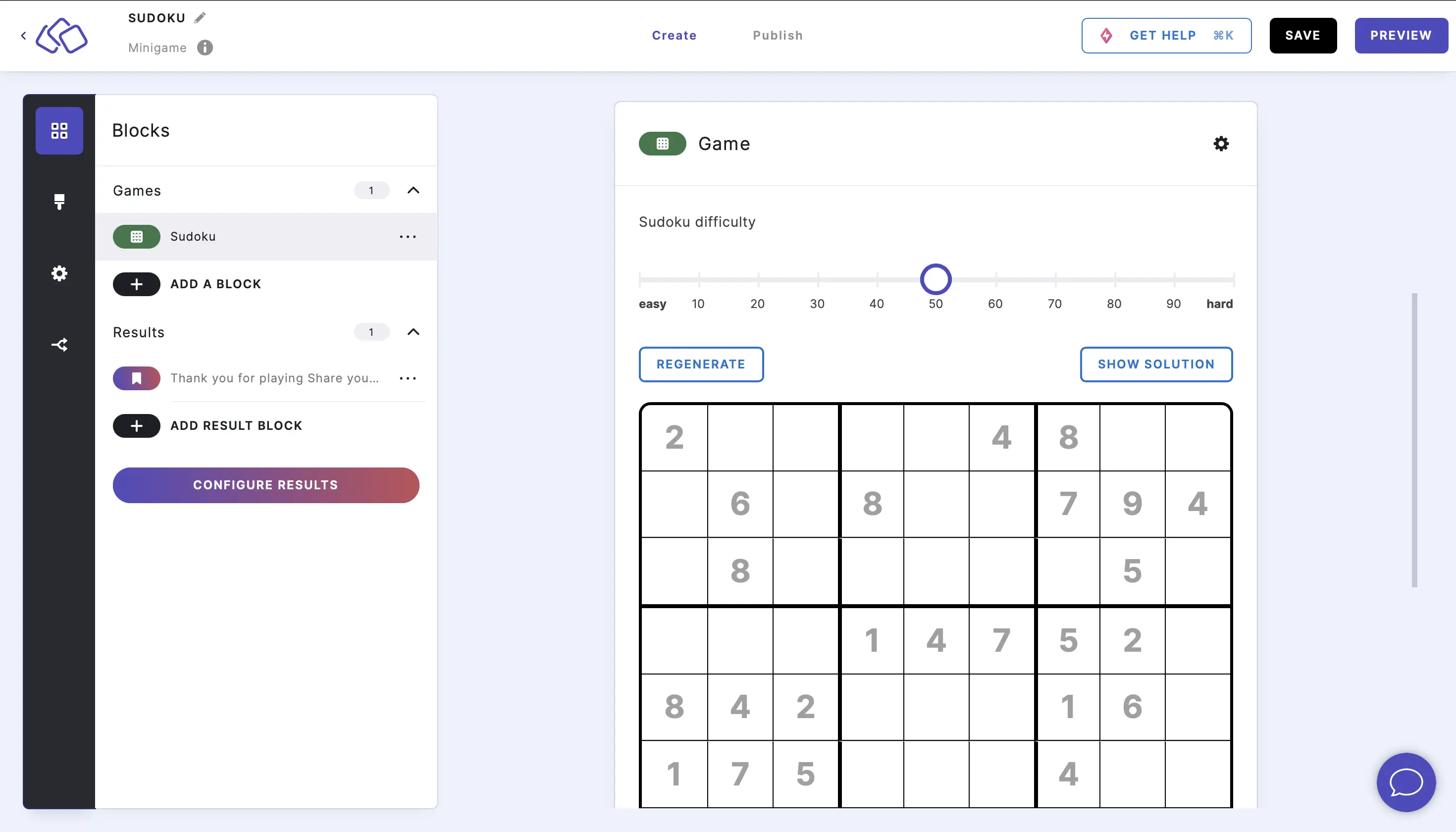
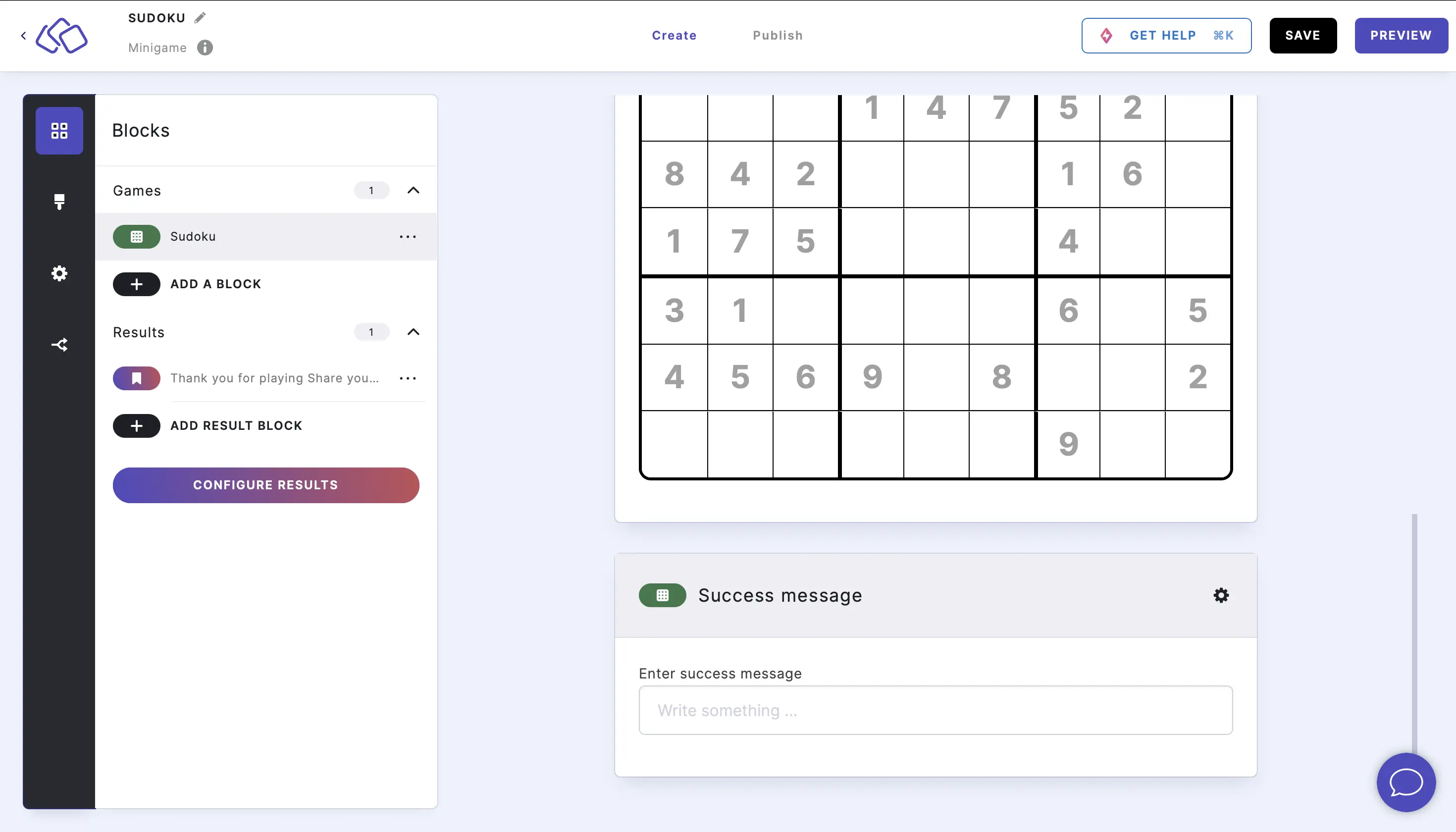
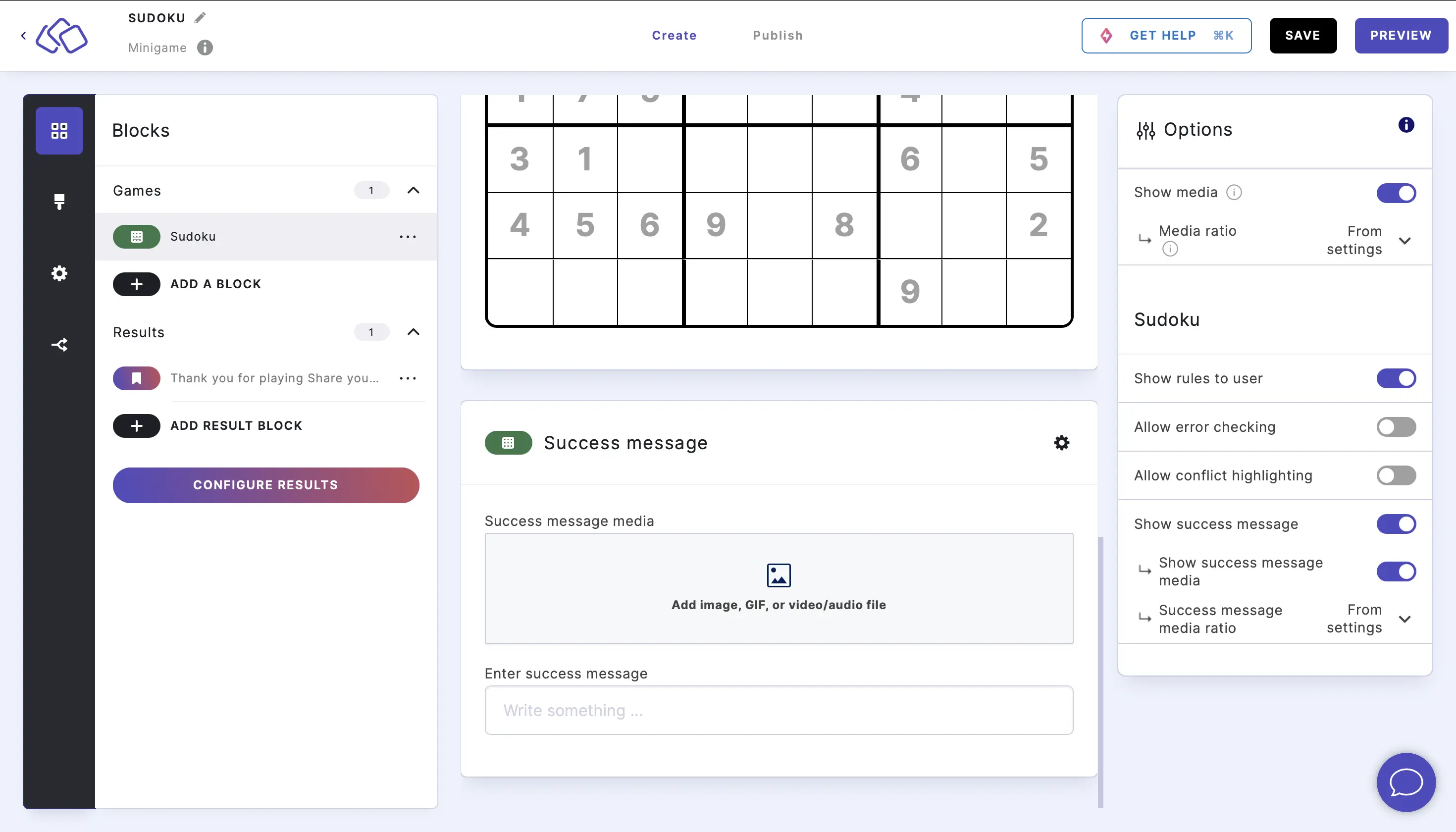
- Under Success message, enter a text for your audience once they complete the sudoku correctly.
Options
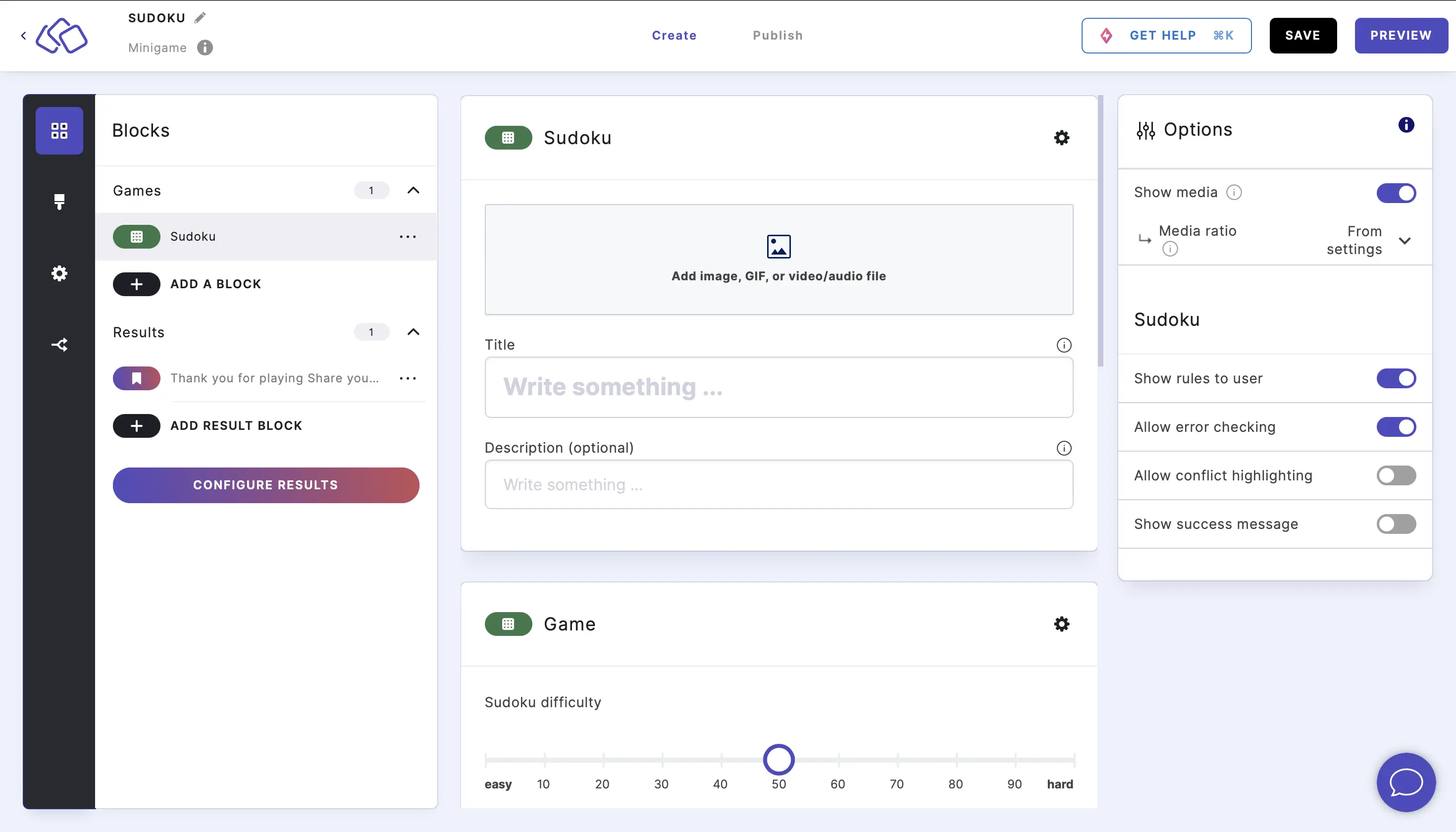
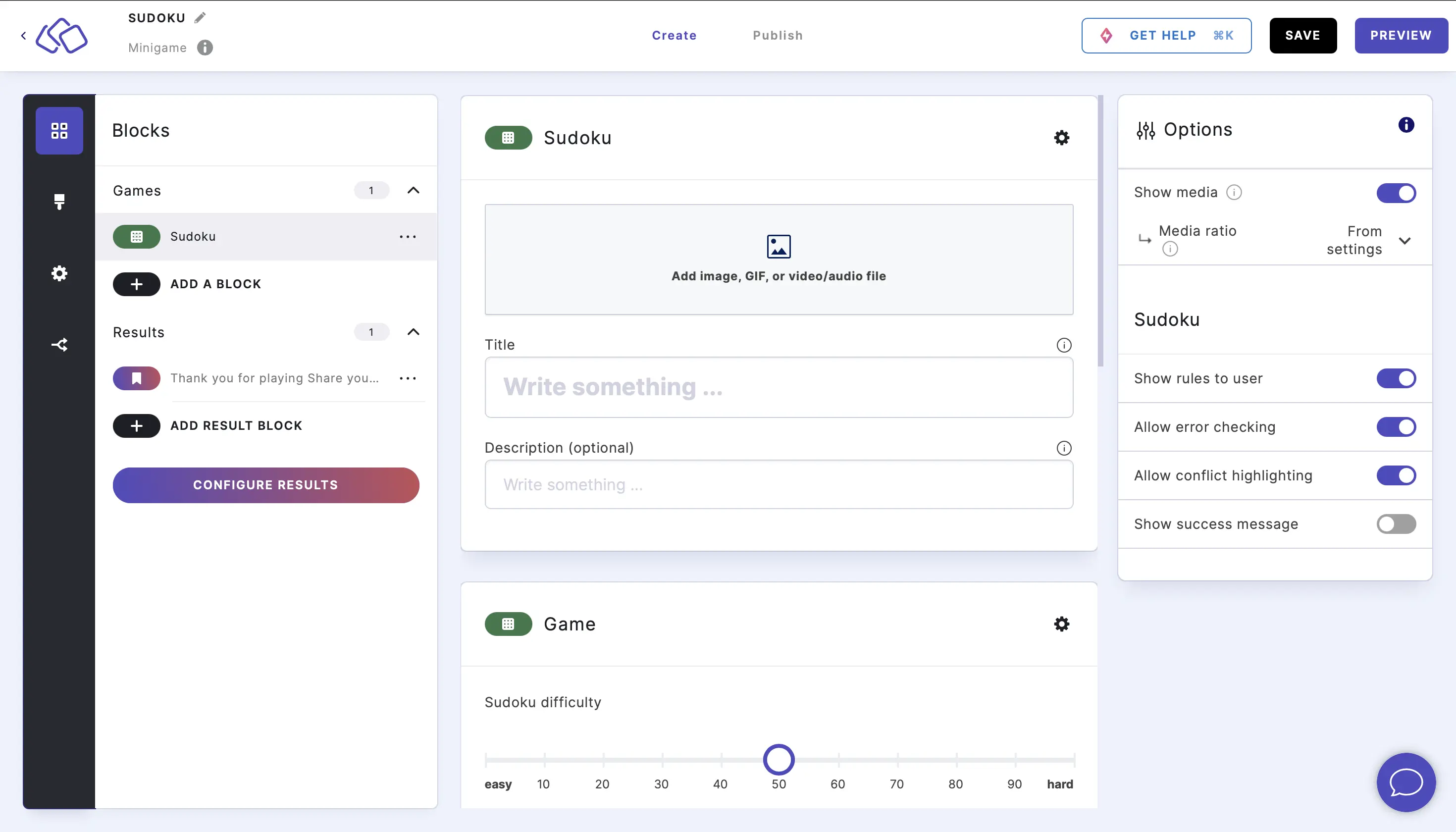
Click on the options icon on the right to configure the following settings.
Media
| Option | Description | Default |
|---|---|---|
| Show media | Toggle to show or hide the block's main image. | ON |
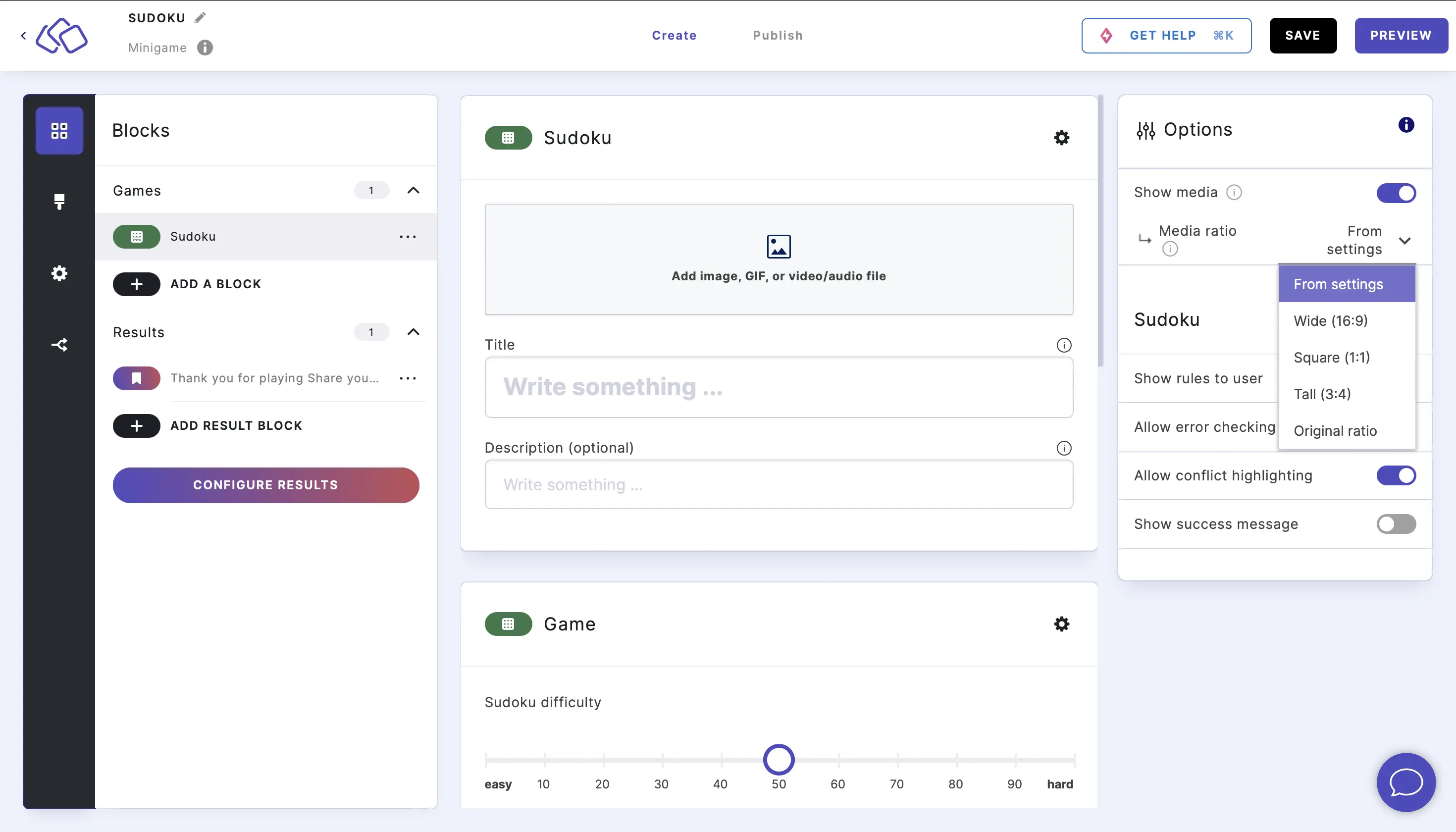
| Media ratio | Choose the aspect ratio: From settings, Wide 16:9, Square 1:1, Tall 3:4, or Original ratio. | From settings |
To remove media from the block, click on the options icon and disable Show media.
Select a media ratio from the dropdown menu.
Answers
| Option | Description | Default |
|---|---|---|
| Score | The number of points awarded for completing the sudoku. | 1 |
Game settings
| Option | Description | Default |
|---|---|---|
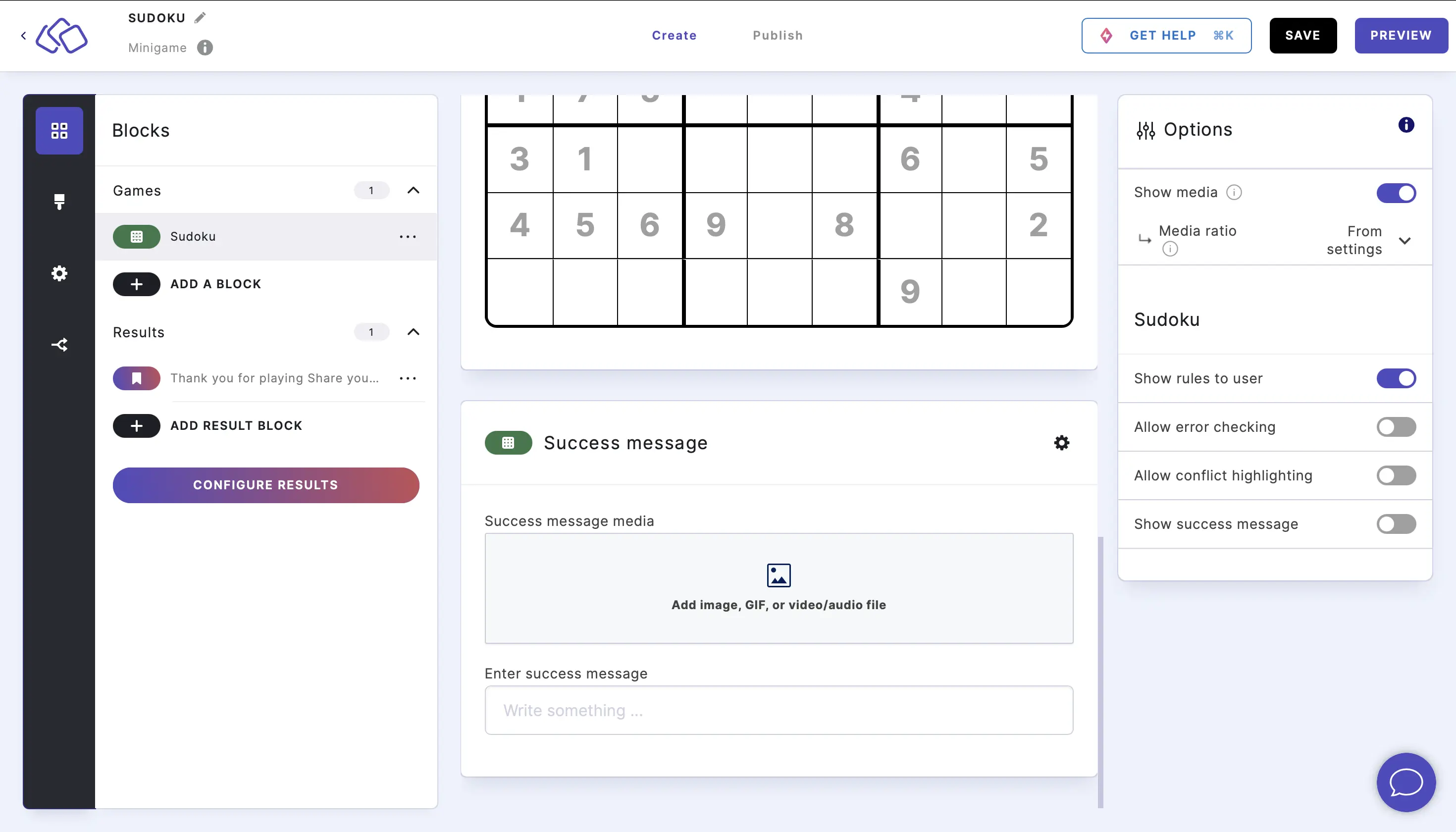
| Show success message | Display a congratulations message when the sudoku is completed correctly. | ON |
| Show success message media | Add an image or video to the success message. | OFF |
To add media to the success message, click on the options icon and enable Show success message media.
To disable the success message entirely, click on the options icon and disable Show success message.
Sudoku settings
| Option | Description | Default |
|---|---|---|
| Show rules to user | Display a "How to play" overview explaining the rules of sudoku. | ON |
| Allow error checking | Let your audience check their progress for mistakes. | OFF |
| Allow conflict highlighting | Highlight conflicting numbers so your audience can see errors in real time. | OFF |
| Refresh interval | Automatically generate a new sudoku puzzle at a set interval. Options: None, Hourly, Daily, Weekly, Monthly. | None |