

Order it
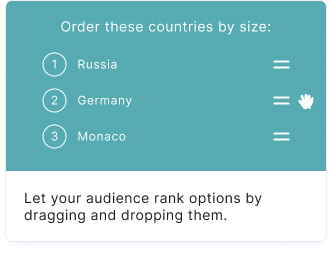
Your audience has to put the answers in the correct order. Great for ranking questions like "Rank these players from lowest to highest scoring."
Setup
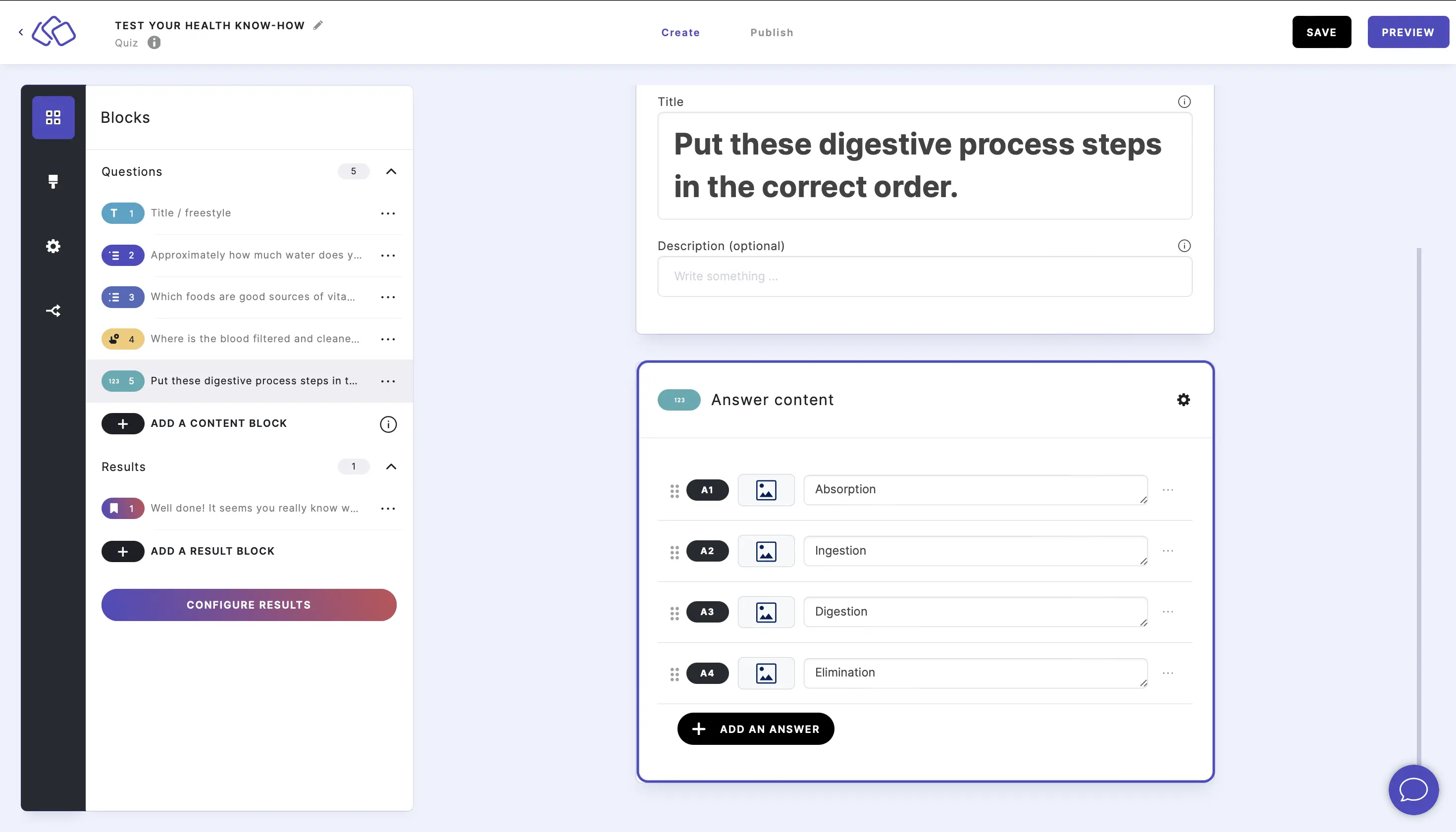
- Click on ADD A BLOCK and select Order-it block.
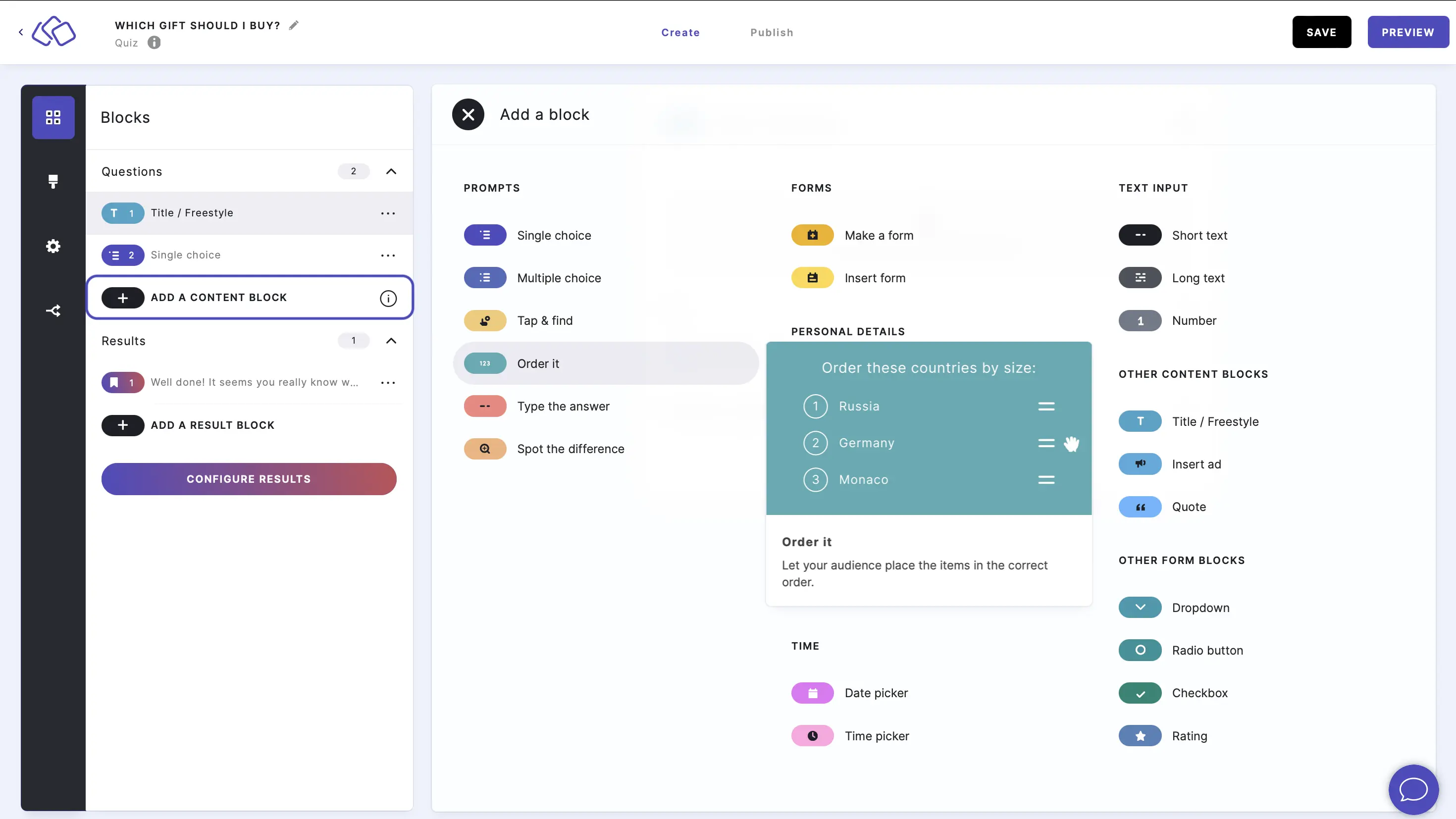
- Insert a question into the Title field.
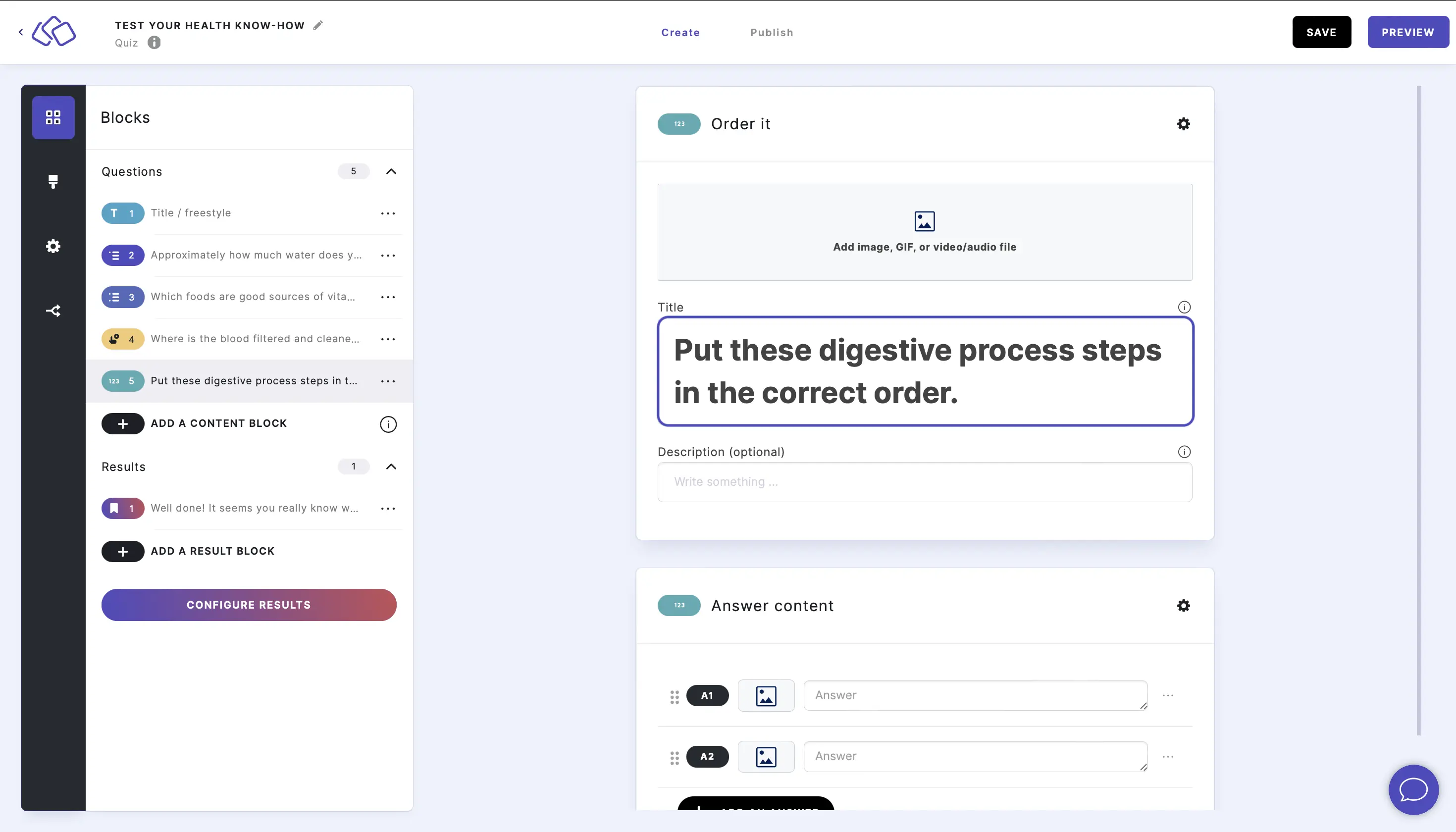
- Add an image by clicking on Add image, GIF, or video/audio file.
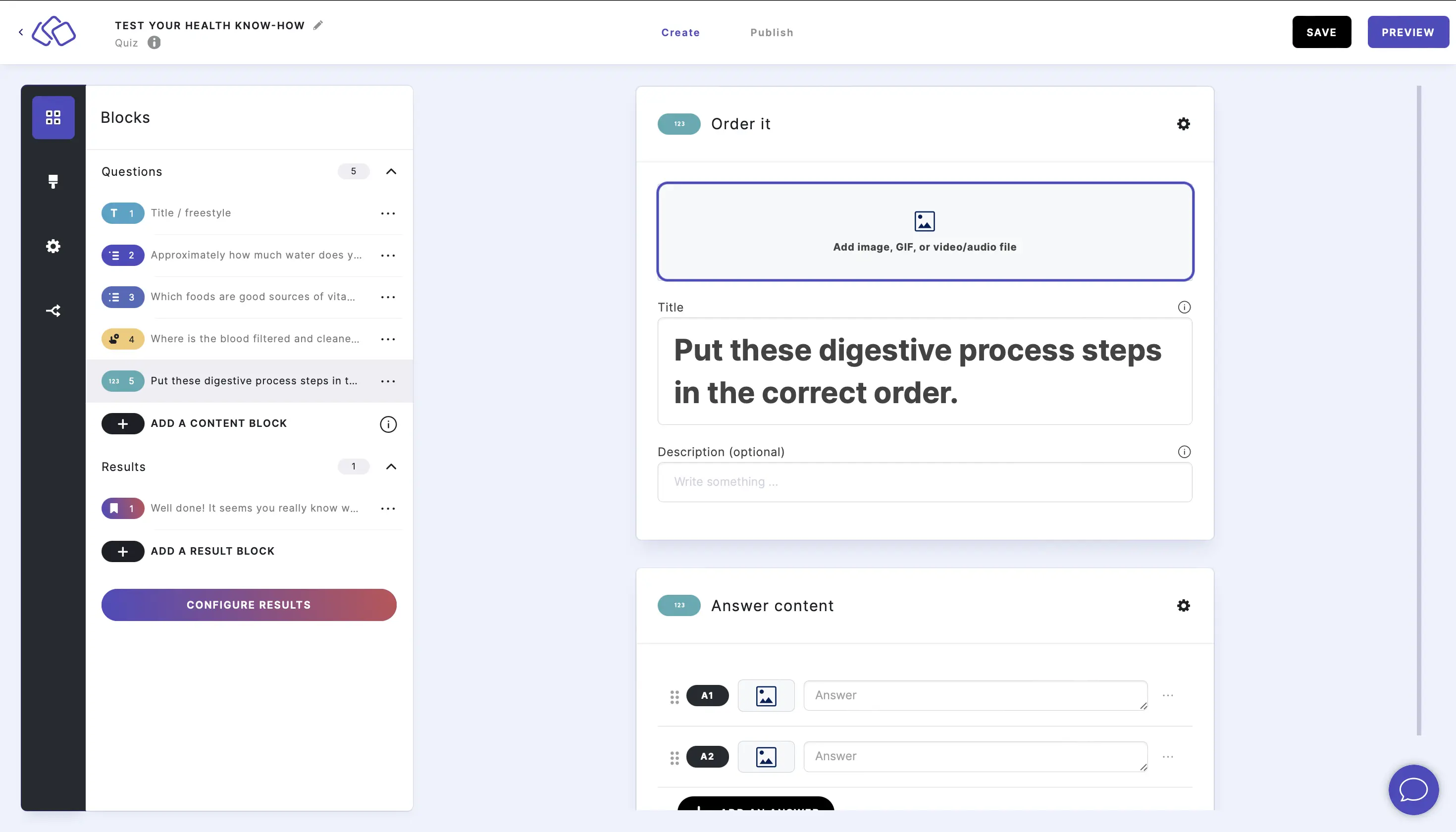
- Insert the answers. Add as many answers as you want by clicking on Add an answer.
Hints
You can add hints in the HINT (OPTIONAL) field. Your audience can choose to reveal the hint at any time. Hints give your audience a nudge in the right direction without giving away the correct order.
Options
Click on the options icon on the right to configure the following settings.
Media
| Option | Description | Default |
|---|---|---|
| Show media | Toggle to show or hide the block's main image. | ON |
| Media ratio | Choose the aspect ratio: From settings, Wide 16:9, Square 1:1, Tall 3:4, or Original ratio. | From settings |
Required
| Option | Description | Default |
|---|---|---|
| Required | When enabled, your audience must answer this block before proceeding. When disabled, a "Skip" button appears. | ON |
Answers
| Option | Description | Default |
|---|---|---|
| Unlimited guesses | Allow your audience to guess as many times as they want. When disabled, the number of guesses is limited. | OFF |
| Guesses icon | Choose the icon displayed next to the guess counter. | Heart |
| # of guesses | The number of guesses your audience gets before the block ends. Only visible when Unlimited guesses is disabled. | 3 |
| Display # guesses | Toggle to show or hide the remaining guess count to your audience. | ON |
| Guesses text | The label displayed next to the guess counter. | Tries |
| Show answer media | Toggle to show or hide images on each answer choice. | ON |
| Media ratio | Choose the aspect ratio for answer images: From settings, Wide 16:9, Square 1:1, Tall 3:4, or Original ratio. | From settings |
| Description | Show a description field below each answer. | OFF |
| Scoring type | Choose how points are awarded: Question (one score for the whole question). | Question |
| Score | The number of points awarded for placing all answers in the correct order. | 1 |
| Shuffle answers | Randomize the order of answers each time the block loads. Unlike Single-select, this is enabled by default for Order it blocks so your audience always starts with a shuffled set. | ON |
| Reshuffle choices after each submission | When enabled, the answer choices are reshuffled after each incorrect submission, so your audience sees a fresh arrangement for their next attempt. | OFF |
| 'Show correct answer' button | When enabled, a button appears that lets your audience reveal the correct order after their guesses are used up. | OFF |
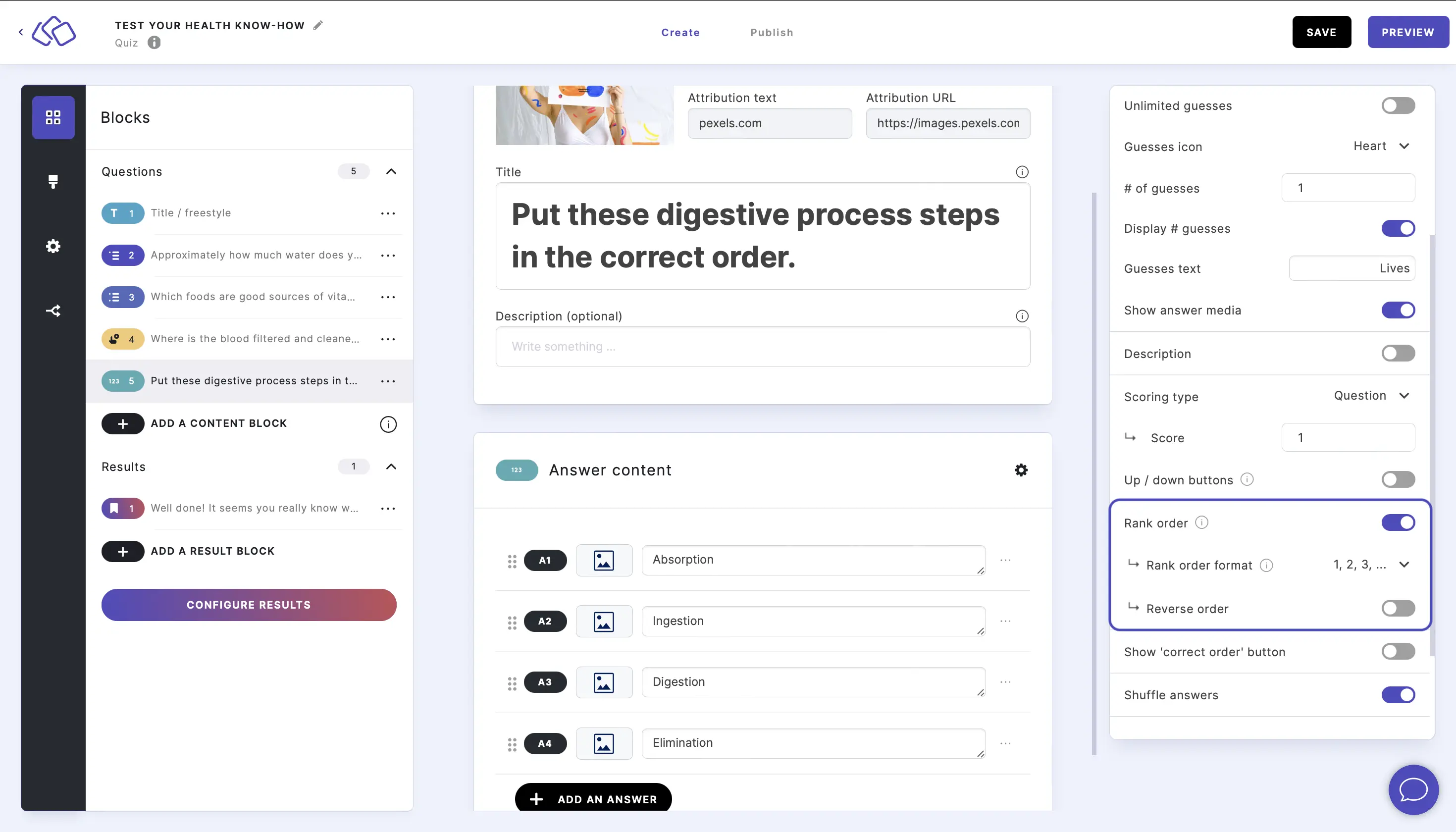
Enable rank order
Go to the options icon on the right of Answer Content and enable Rank order. Select a format and order.
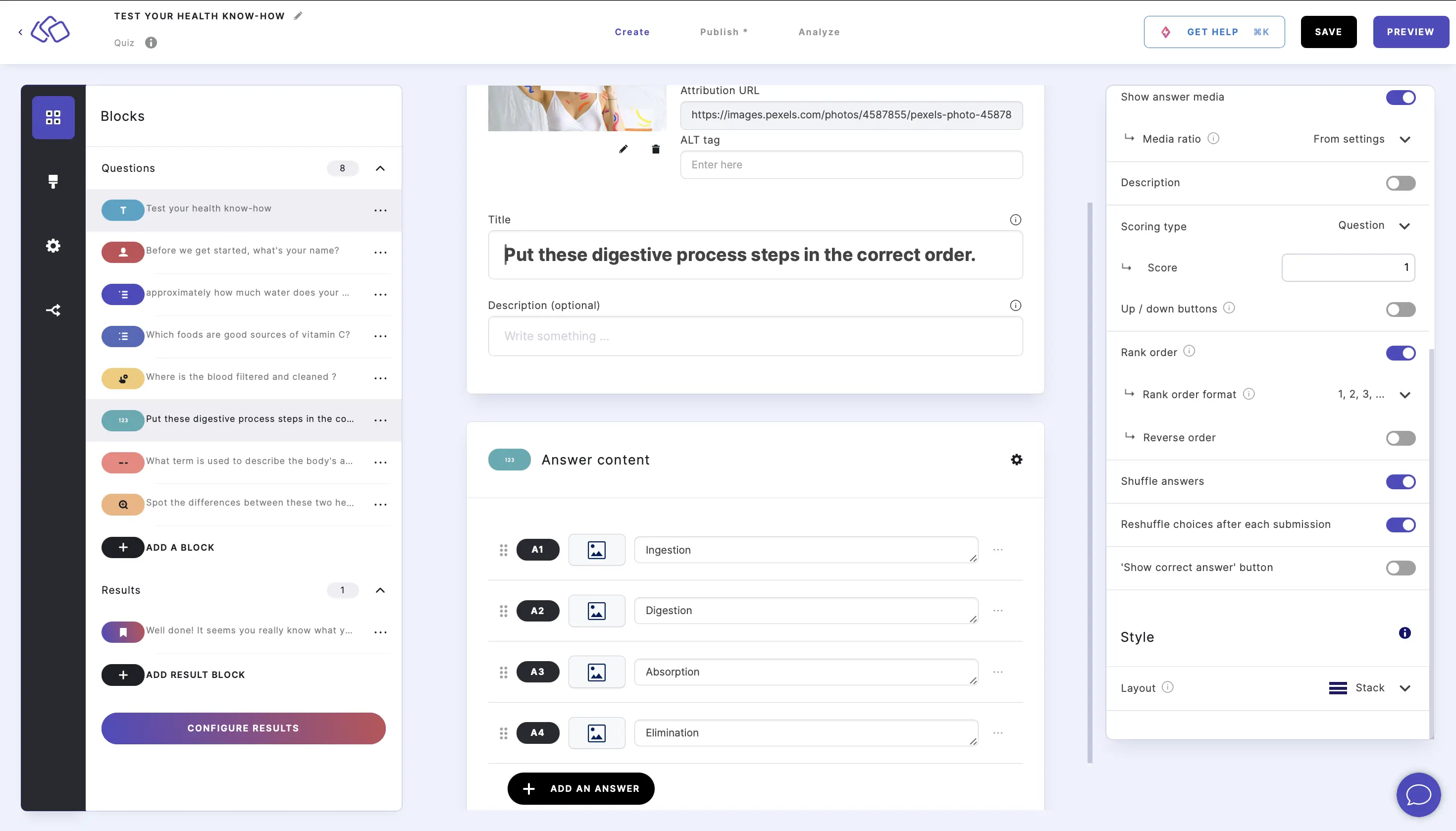
Reshuffle choices after each submission
Enable Reshuffle choices after each submission to shuffle the answer choices after each incorrect attempt. This prevents your audience from simply remembering their previous arrangement.
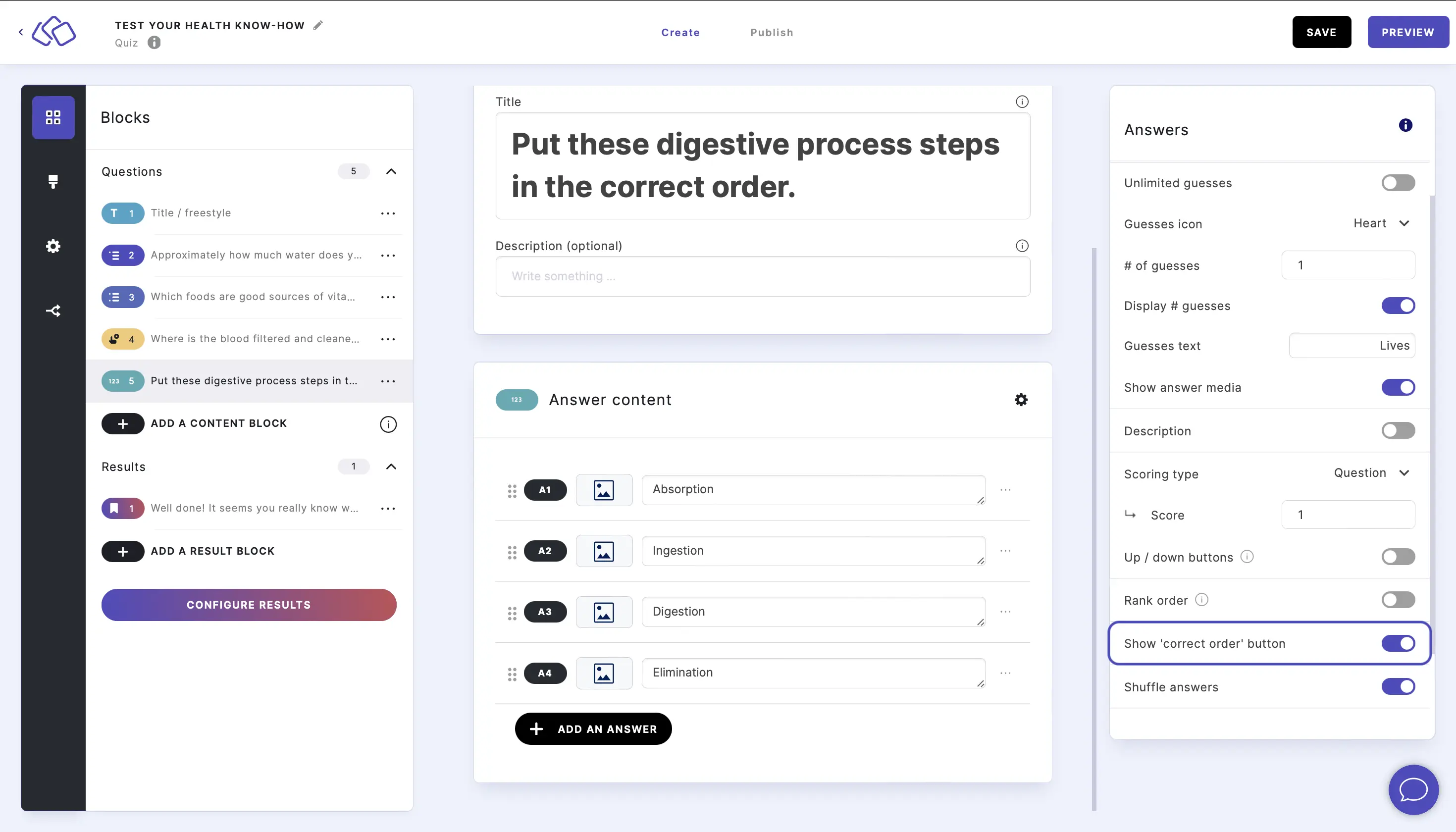
Show correct order
Enable Show 'correct order' button to let your audience see the correct order after their guesses are used up.
Answer explanations
| Option | Description | Default |
|---|---|---|
| Show explanations | Toggle to show or hide answer explanations after your audience answers. | ON |
| # of explanations | Choose how many explanations to display: One for all answers, Right and wrong, or Per answer. | One for all answers |
| Answer explanation display | Choose where the explanation appears: Overlay pop-up or Below question. | Overlay pop-up |
| Show media | Toggle to show or hide images in the answer explanation. | ON |
| Media ratio | Choose the aspect ratio for explanation images: From settings, Wide 16:9, Square 1:1, Tall 3:4, or Original ratio. | From settings |
Style
| Option | Description | Default |
|---|---|---|
| Layout | Choose how answers are displayed: Stack (vertical list) or other layout options. | Stack |